
Pocknix on the Retroid Pocket Flip 2 mini review
What a time to be alive, at least for those of us who are nostalgic. Unlike 10 years ago, almost everything is now readily available to us when it comes to emulated games and old systems. The development of the scene is 20 times faster today, while compatibility and the choice of handheld consoles for emulation, thanks in no small part to Android, among other things allow us to enjoy these things on the go.
OK, there is the historically massive jump in the price of RAM and flash memory in general, but it is what it is. We have options.
On July 22, 2026, I happened to see an announcement that Pocknix had been released to the public. I thought, hmm, maybe a better distro than ROCKNIX?
The developer was also publicly asking for someone to test it on the Retroid Pocket Flip 2. What a coincidence! That’s exactly what I’m using at the moment.
I quickly pulled out an old 64GB Kingston card, fired up Balena Etcher and entered the bootloader on my Flip 2. When that didn’t work (slow card, impossible to do anything), I unpacked a brand new Samsung Pro Plus 256GB and booted up. Turns out, the dev wasn’t joking when he said that it takes a while for the initial setup to complete.
Pocknix?
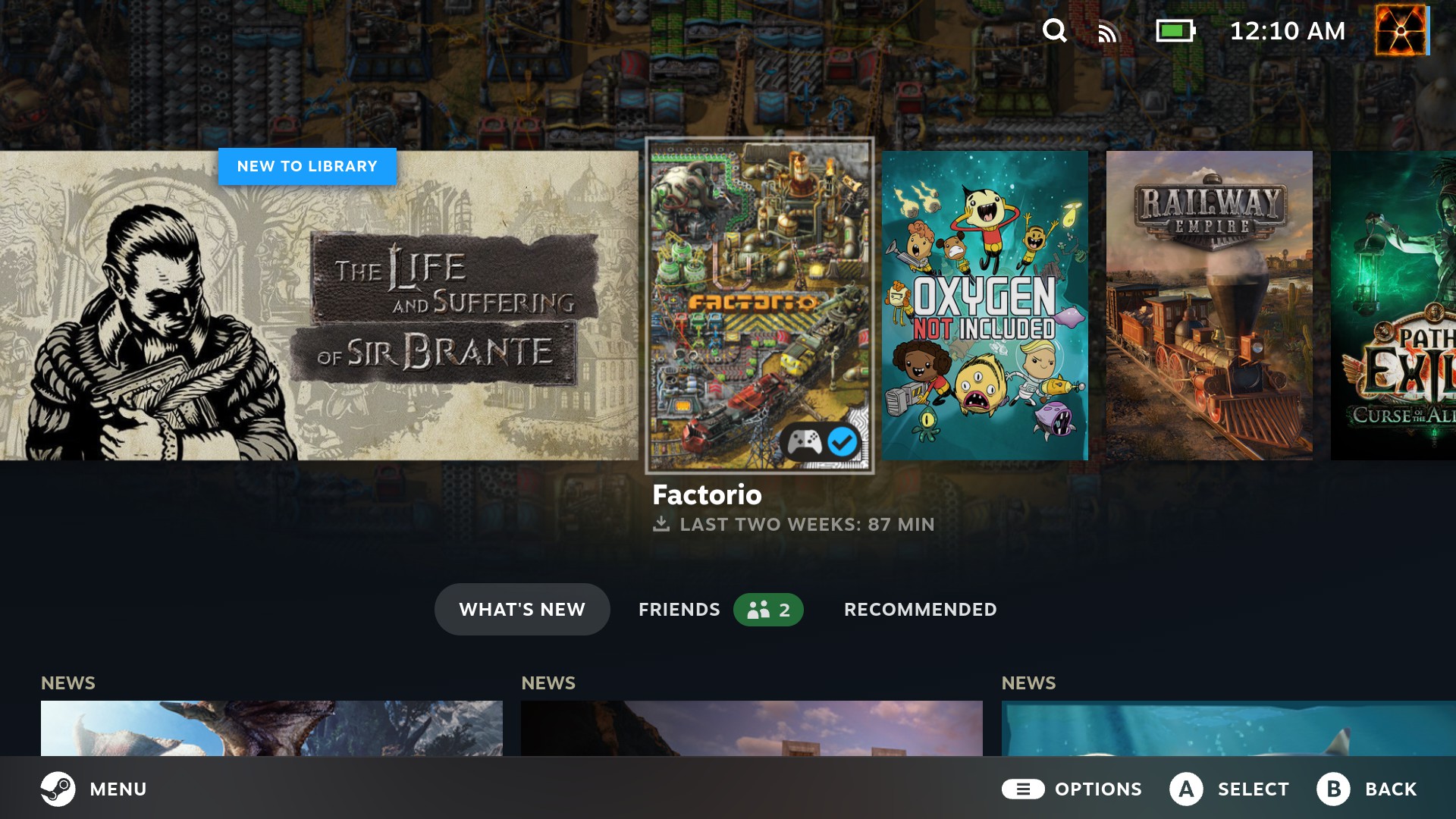
Pocknix is not yet another Android launcher or an application that simply adds ways of running Windows games on Android. It is a complete Arch Linux ARM operating system designed for Snapdragon-based handhelds. It uses a Linux kernel based on ROCKNIX and provides a Steam gaming environment as well as a Plasma Mobile desktop environment.
And this is where the main difference between Pocknix and things like GameNative and GameHub comes in. GameNative and GameHub (or Winlator in general) are Android applications. Android is still the operating system underneath them, while the applications create and manage the environments needed to run Windows games. Pocknix takes a completely different approach.
Android is no longer the operating system running the game. You boot directly into Linux, Steam runs natively as an ARM64 application and Windows games are handled through Proton, FEX and the rest of the Linux gaming stack.
So instead of something like:
Android → GameNative/GameHub → compatibility layer → Windows gameyou have something closer to:
Linux → Steam → Proton/FEX → Windows gameWithout getting too deep into Execution Pipelines, Android overhead and the differences between a Linux userspace and the Android Runtime, the short version is this:
GameNative and GameHub are Android solutions. They create an environment for each game and use the necessary compatibility layers inside that environment, while Pocknix flips the whole thing around. You have an actual Linux OS with Steam, Proton, Mesa and Turnip. And that whole thing is well organized. Instead of having 1 container per game, the entire SD card is essentially your Linux system where you install your stuff (and that saves tons of space).
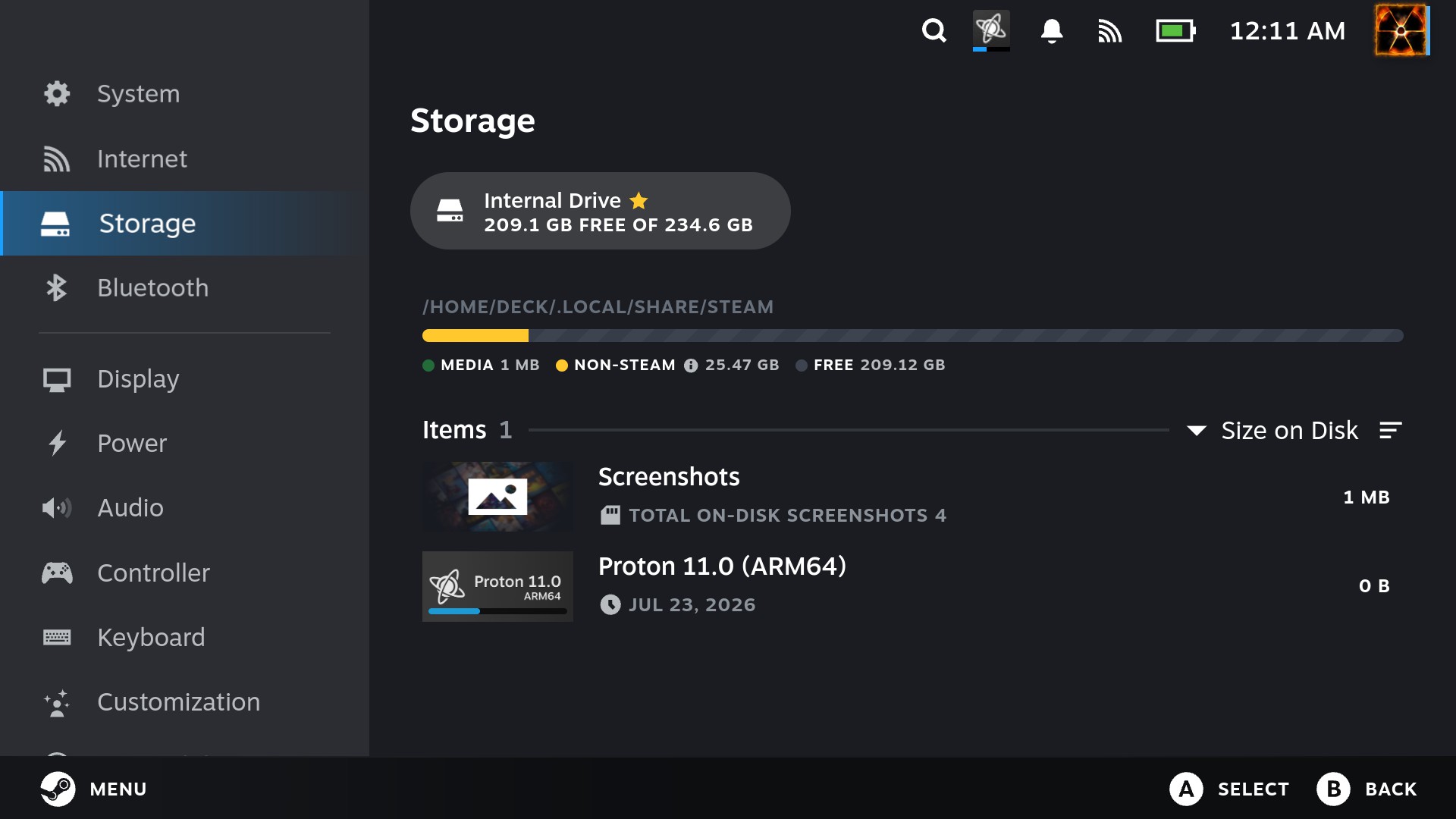
The bad thing is, Pocknix (well linux really) uses Mesa and Turnip for Qualcomm Adreno GPUs, and you are relying on Linux support for your particular SoC. On newer Snapdragon chips this might be less of an issue, but on the Snapdragon 865 things are…. complicated.
Thanks to ARM64 Proton and FEX, Windows x86/x64 games can be executed directly on an ARM64 system. And that’s fine, but even though a large number of games can start, performance is what you actually see on the screen. Snapdragon 865, combined with only 8GB of RAM, needs custom tweaks and optimized drivers to get the best possible performance. The aging Adreno 650 is already pushing the limits in some cases, while 8GB of RAM can become a bottleneck in heavier Windows games, where running out of available memory can have a significant impact on performance.
But, updating or replacing Mesa/Turnip components (for more optimized versions) isn’t simply a matter of downloading a .so file and selecting it from an emulator menu. You are dealing with system packages. Doable, but complicated for mere mortals (or non linux users).
Needless to say, using Turnip drivers, especially different per-game versions is impossible. Why, because the entire system looks something like this:
[ANDROID]

App → AdrenoTools dynamic hook → Custom Turnip .so → Android graphics stack
→ Kernel


[POCKNIX]

Game / Proton → Mesa / Vulkan → Turnip / vulkan-freedreno → DRM / KMS → Linux Kernel
This is an oversimplified view rather than an exact execution pipeline, but it shows the important difference.
With Linux, the graphics stack is system-wide.
How to install Pocknix
The installation is fairly simple.
- Download the latest image for your device.
- Extract it. The image is in
.zstformat and you will need 7-Zip if your tool doesn’t support it directly. - Have an empty microSD card ready.
- Use Balena Etcher to write the image to the SD card.
If you are using a Retroid Pocket 5 or Flip 2, you need to enter the boot menu. With the device powered off, hold the Power and Volume Down buttons together. From there, change the boot mode from Android to the option for booting from the SD card. This leaves Android on the internal storage, while Pocknix boots from the microSD card.
Once you have Steam running, you also need to select the appropriate ARM64 Proton build for individual games.
Open the game’s Properties → Compatibility, tick “Force the use of a specific Steam Play compatibility tool” and select Proton-GE 11 (ARM64) or Proton-CachyOS 11 (ARM64).
Testing some games
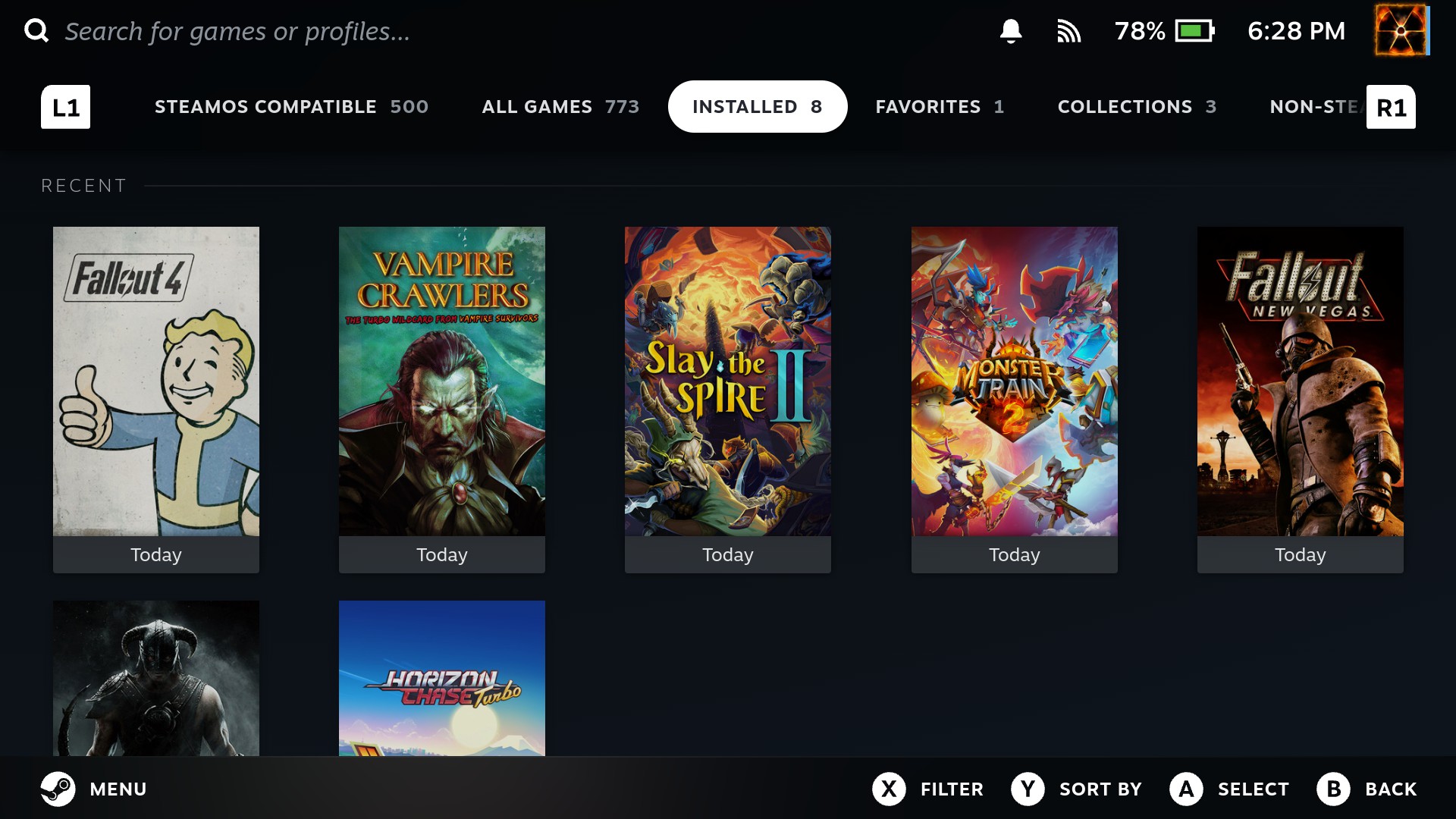
I tested several games: Factorio, Fallout: New Vegas, Fallout 4, Core Keeper, Skyrim and Vampire Crawlers.
The results were… different.
Let’s start from the beginning.
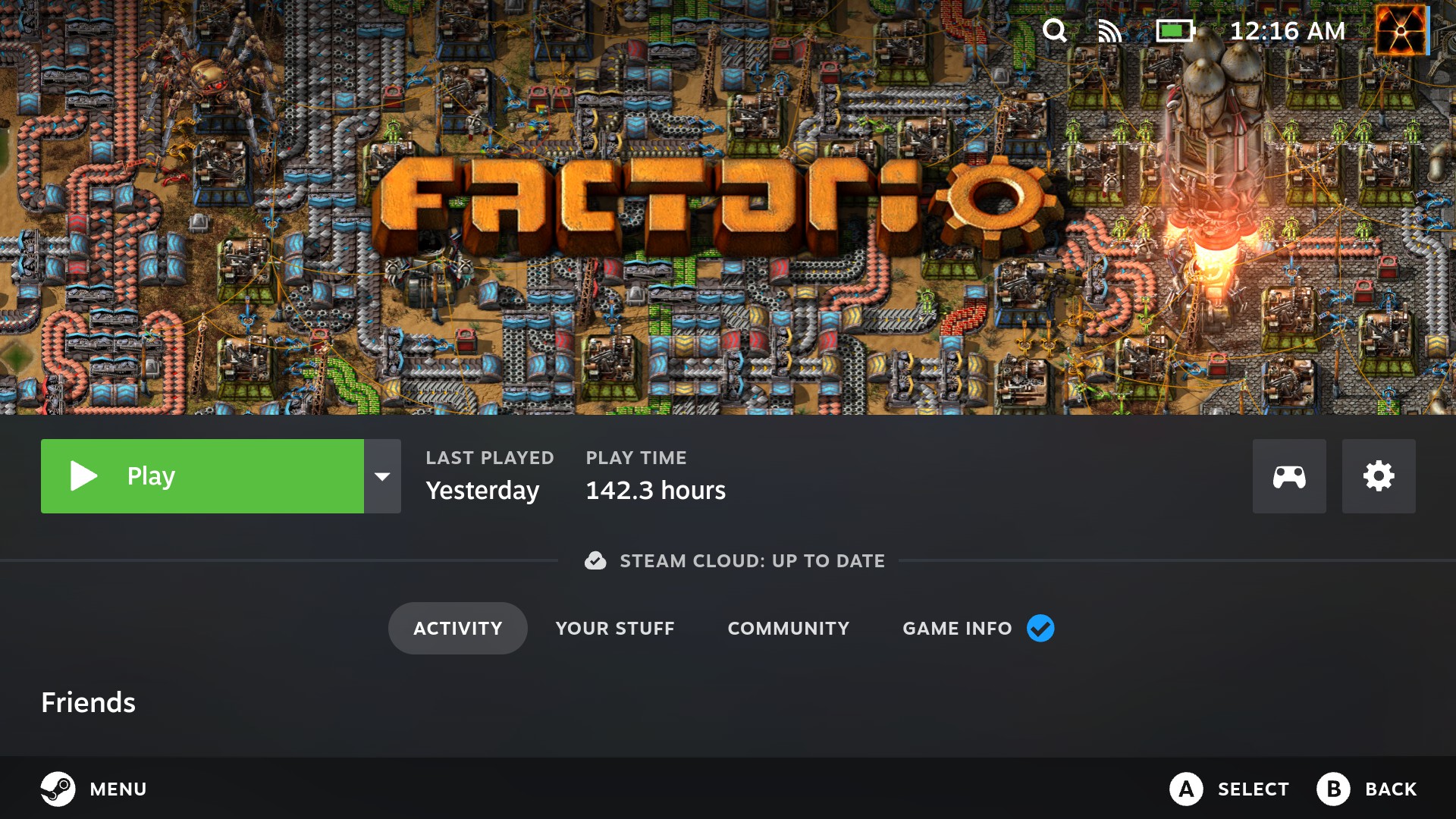
Factorio worked exceptionally well. Almost 60 FPS all the time, except when I brought out the Spidertron and started destroying nests. Performance dropped a little at that point, but it was still above what I expected. One particular problem is that Factorio doesn’t have native controller support, so the gameplay was a combination of the touchscreen and the physical buttons.
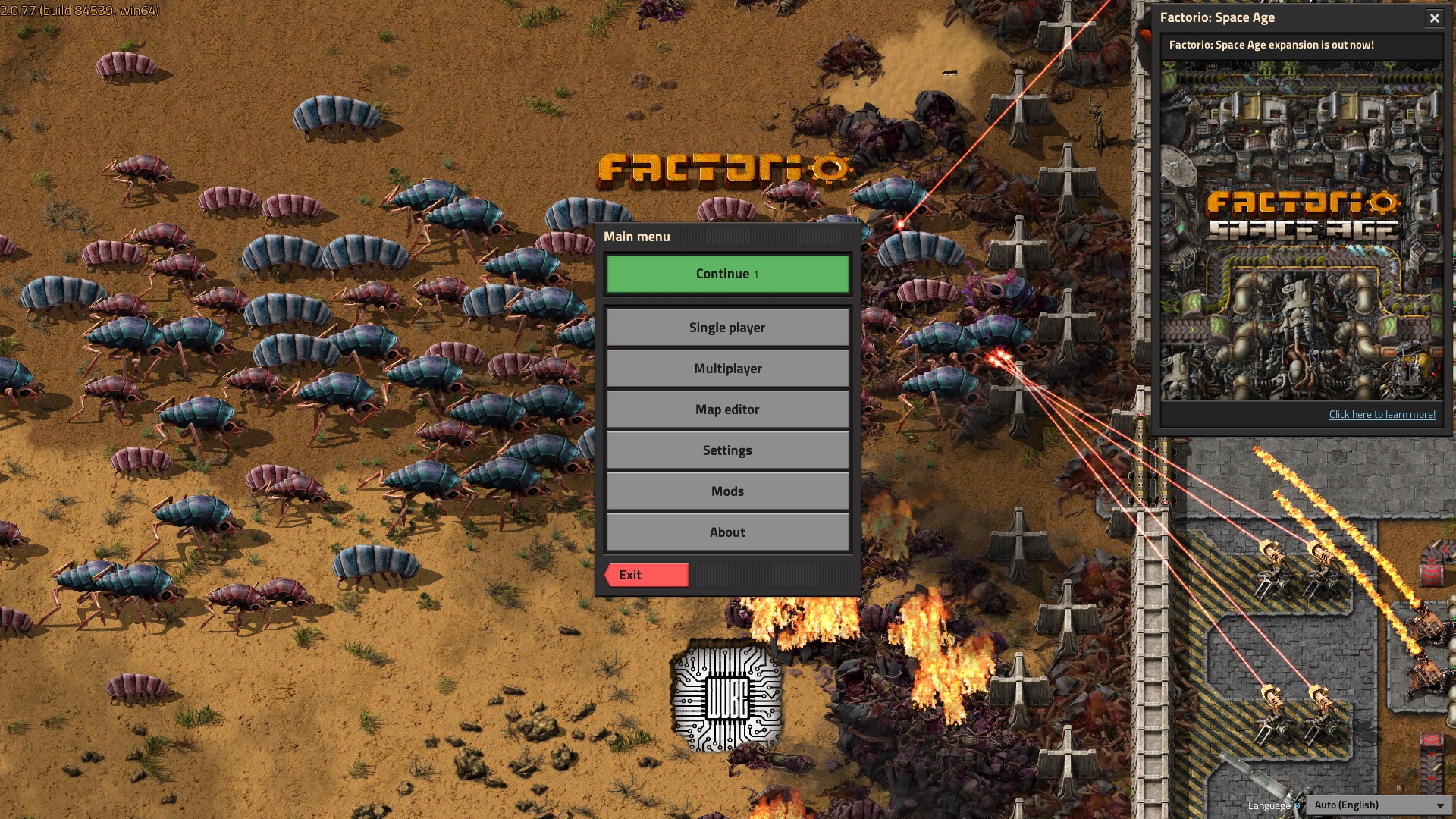
Not ideal, but the result was satisfactory.
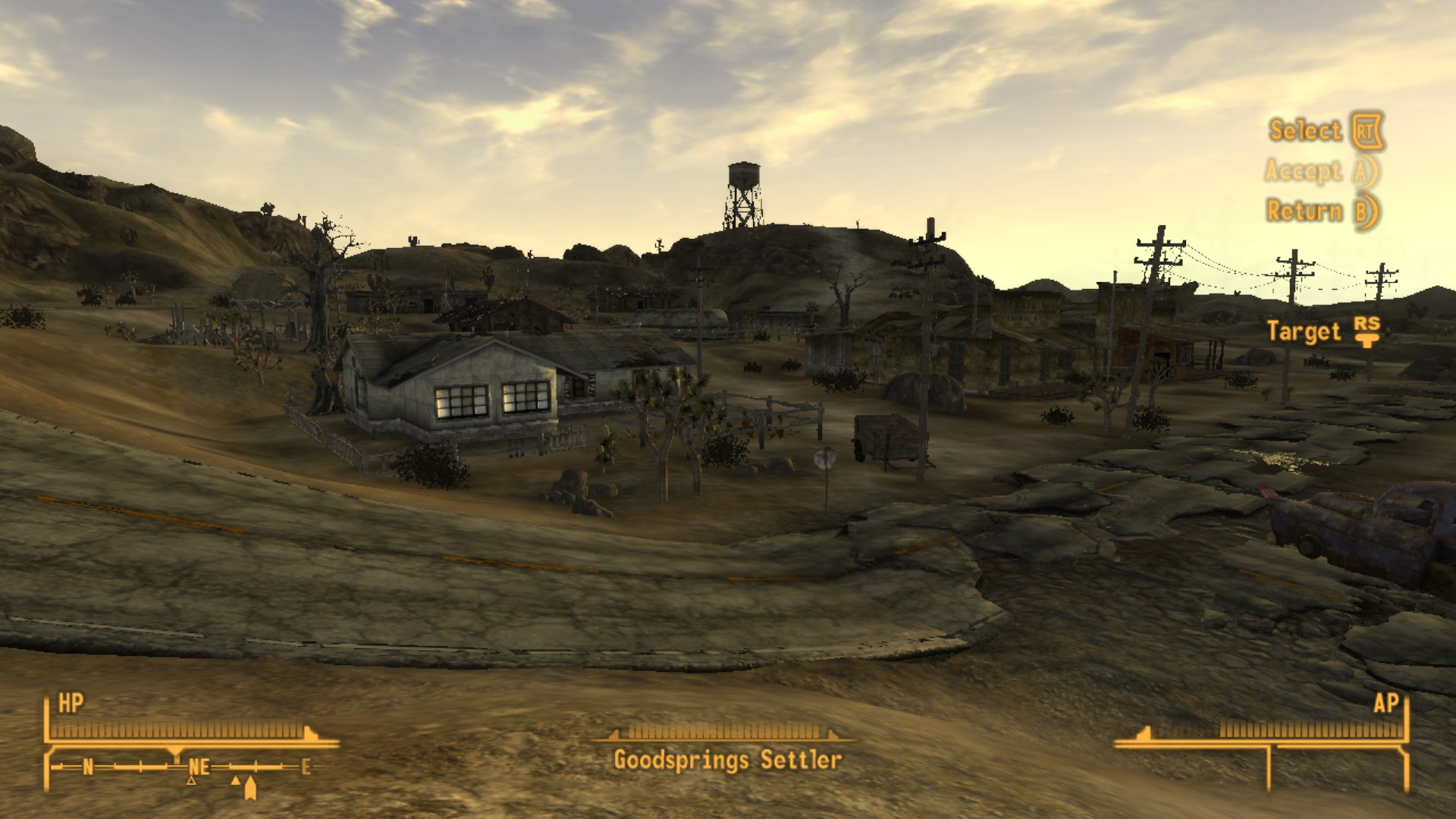
Next I decided to try Fallout: New Vegas. Although I have successfully played it through GameNative, I ran into a problem here. Some particle effect simply didn’t agree with the graphics stack on the Retroid Pocket Flip 2. Performance was terrible. At one moment I was getting 60 FPS and at another 5. I tried everything I could think of, including different settings and resolutions, but nothing helped. In its current state, the game is simply unplayable.
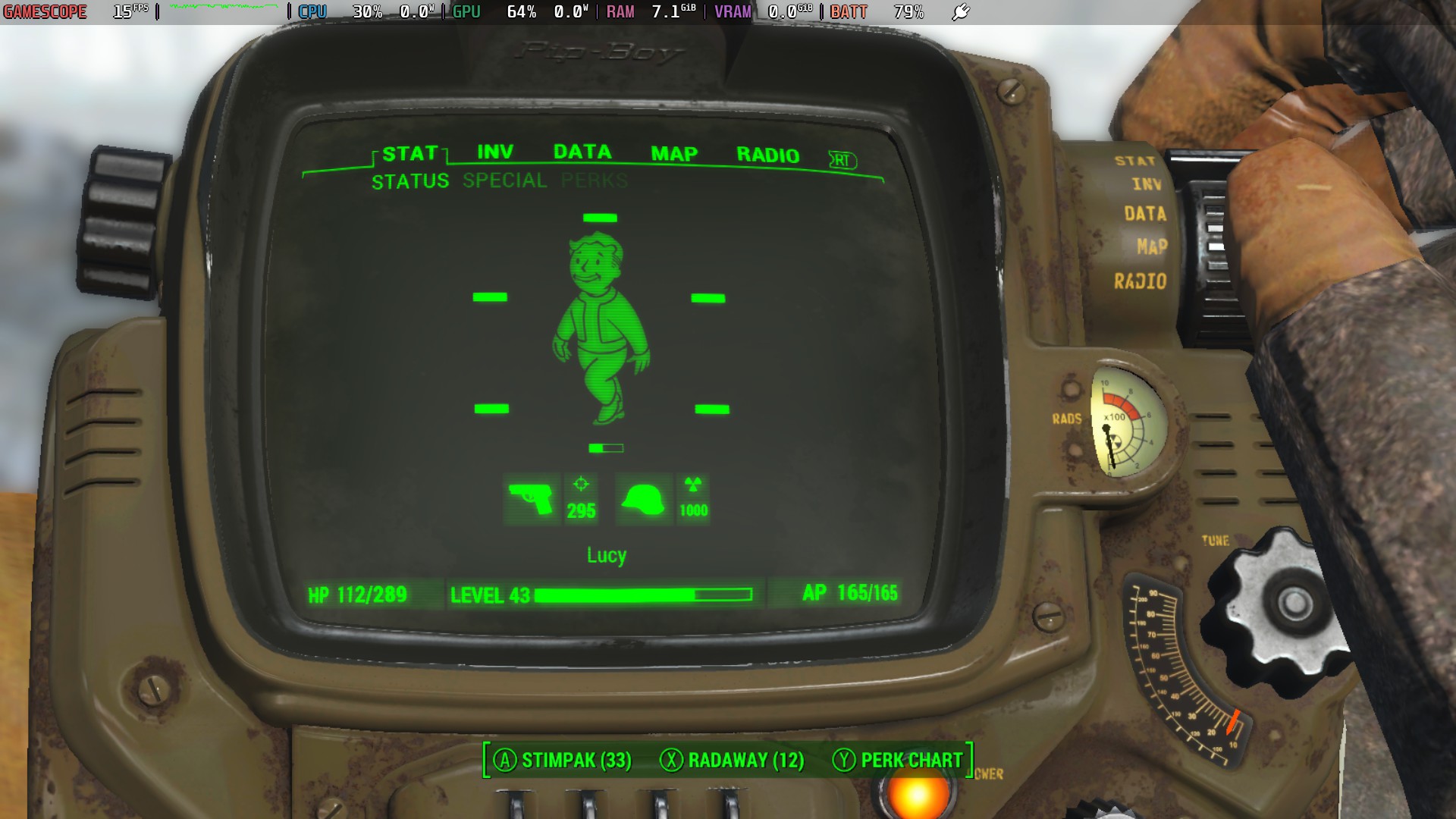
Disappointed by Fallout: New Vegas, I decided to try my luck with Fallout 4. But no dice there either. The game simply refused to start without giving me any specific indication of what the problem was.
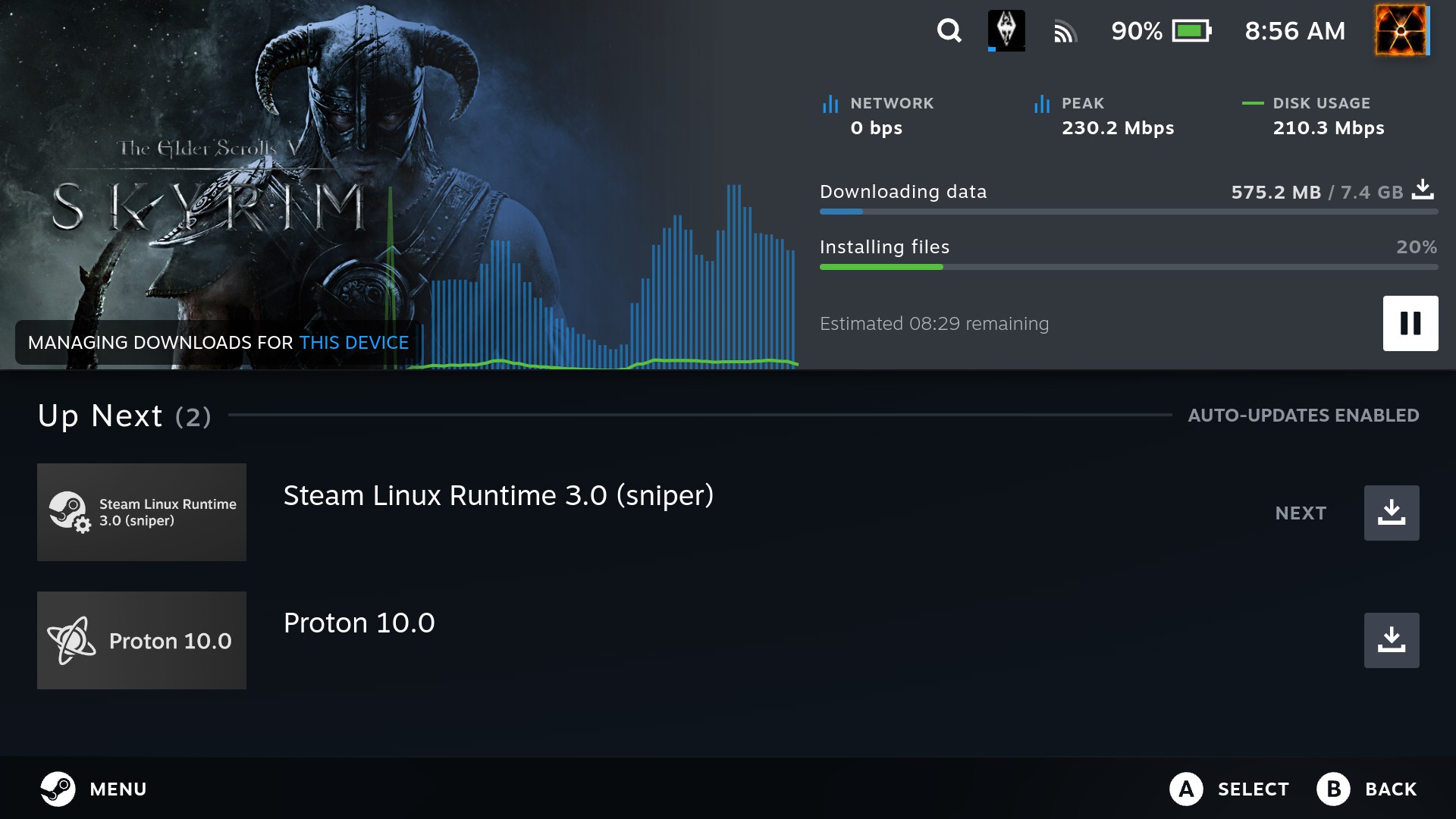
Skyrim was next. I know I’ve always had problems with sound when trying to play it through Winlator and GameNative, specifically with dialogue and character voices. Surprisingly, that problem didn’t exist here.
I don’t want to speculate whether the difference is somewhere in ALSA, DirectSound translation or something else, but the fact is that the audio worked properly this time. Performance was somewhat worse, though. Luckily, at 720p I was able to maintain a stable 30 FPS. That’s perfectly fine for Skyrim on this hardware. And yes, sorry I forgot to take in-game screenshots. Boo.
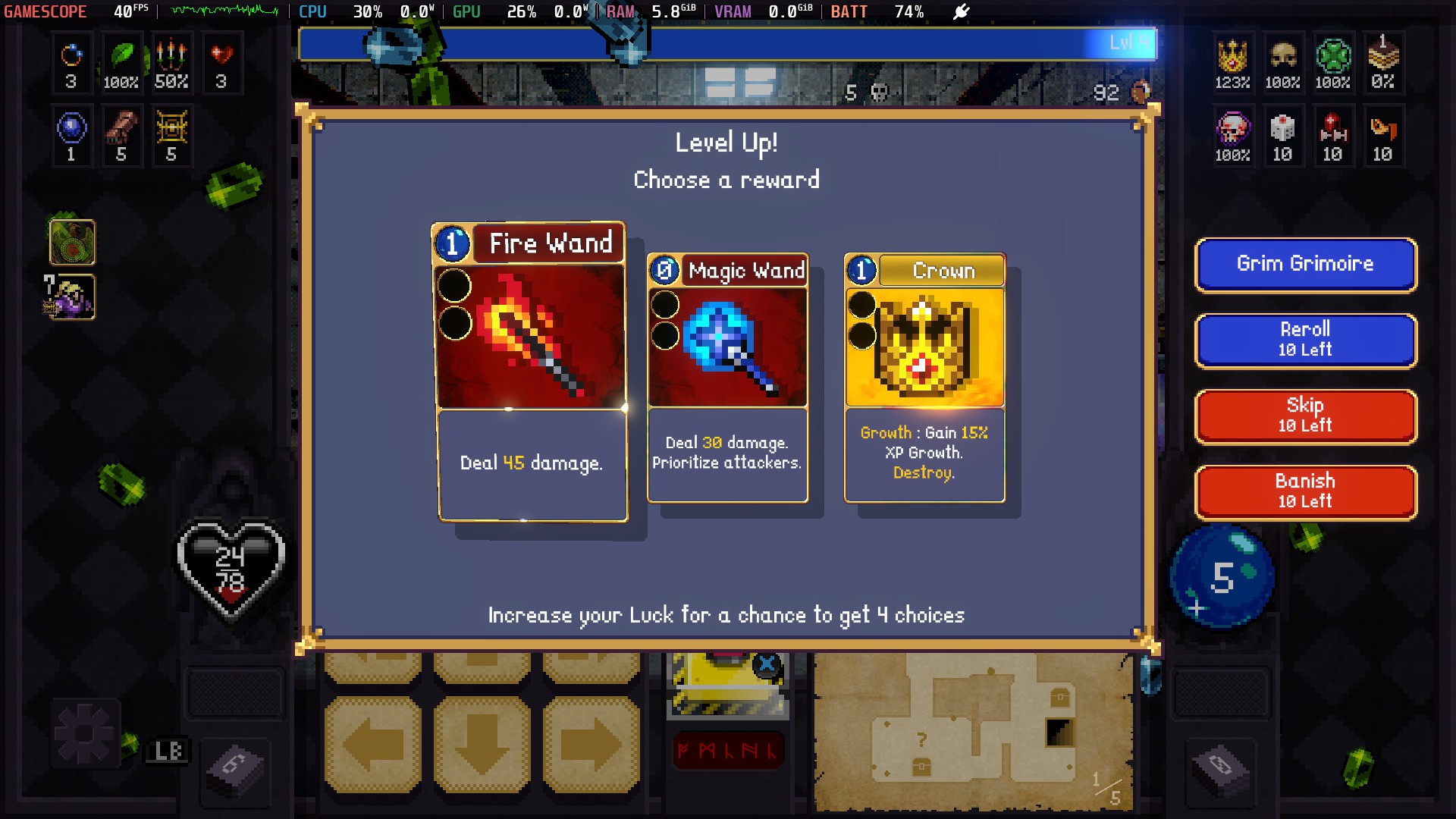
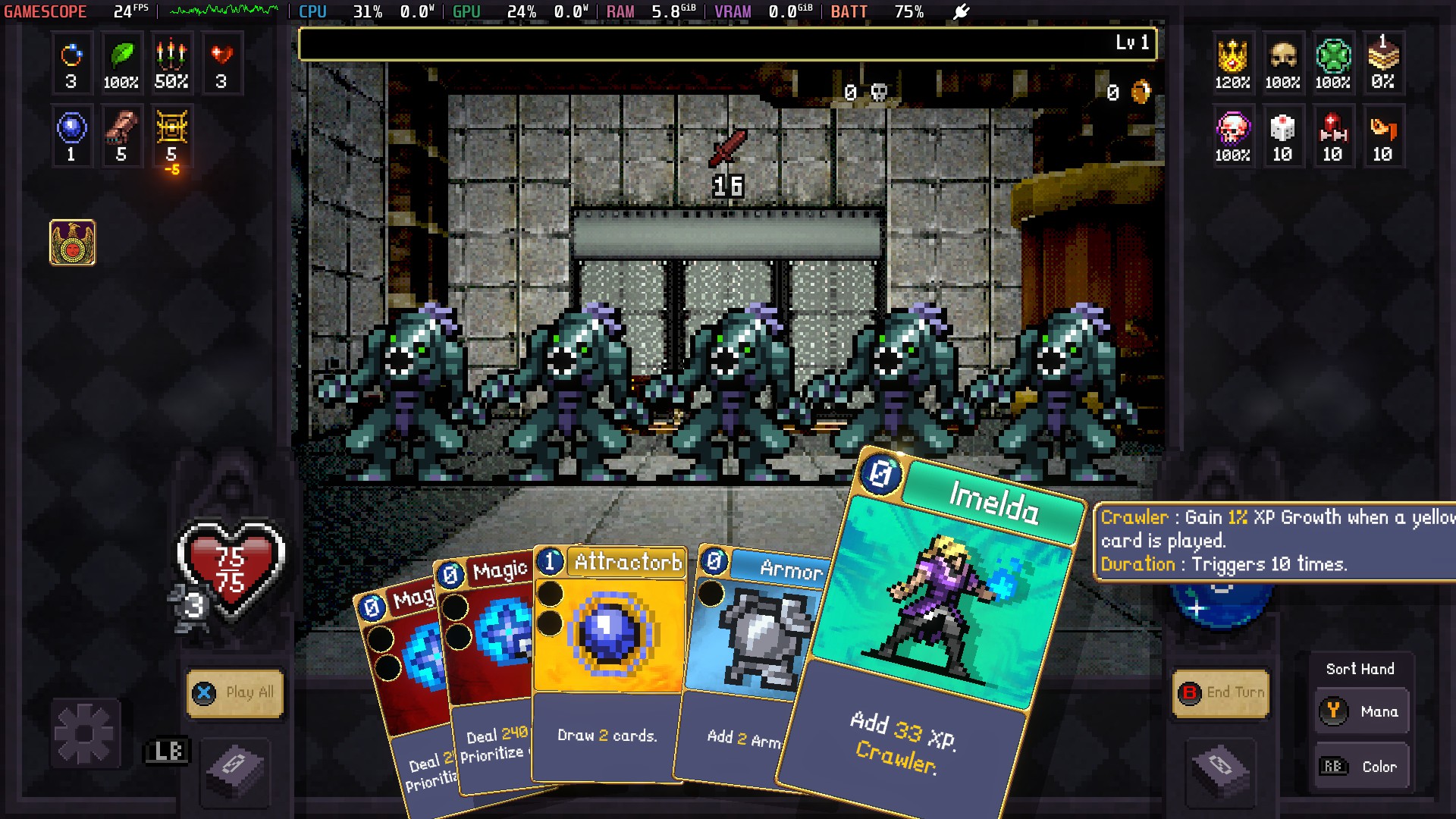
One of my favorite indie games lately has been Vampire Crawlers, a spin-off of the popular Vampire Survivors. There were no problems here either, it ran mostly between 30 and 40 fps with occasional dips in the mid 20’s. And that’s fine for this type of game.
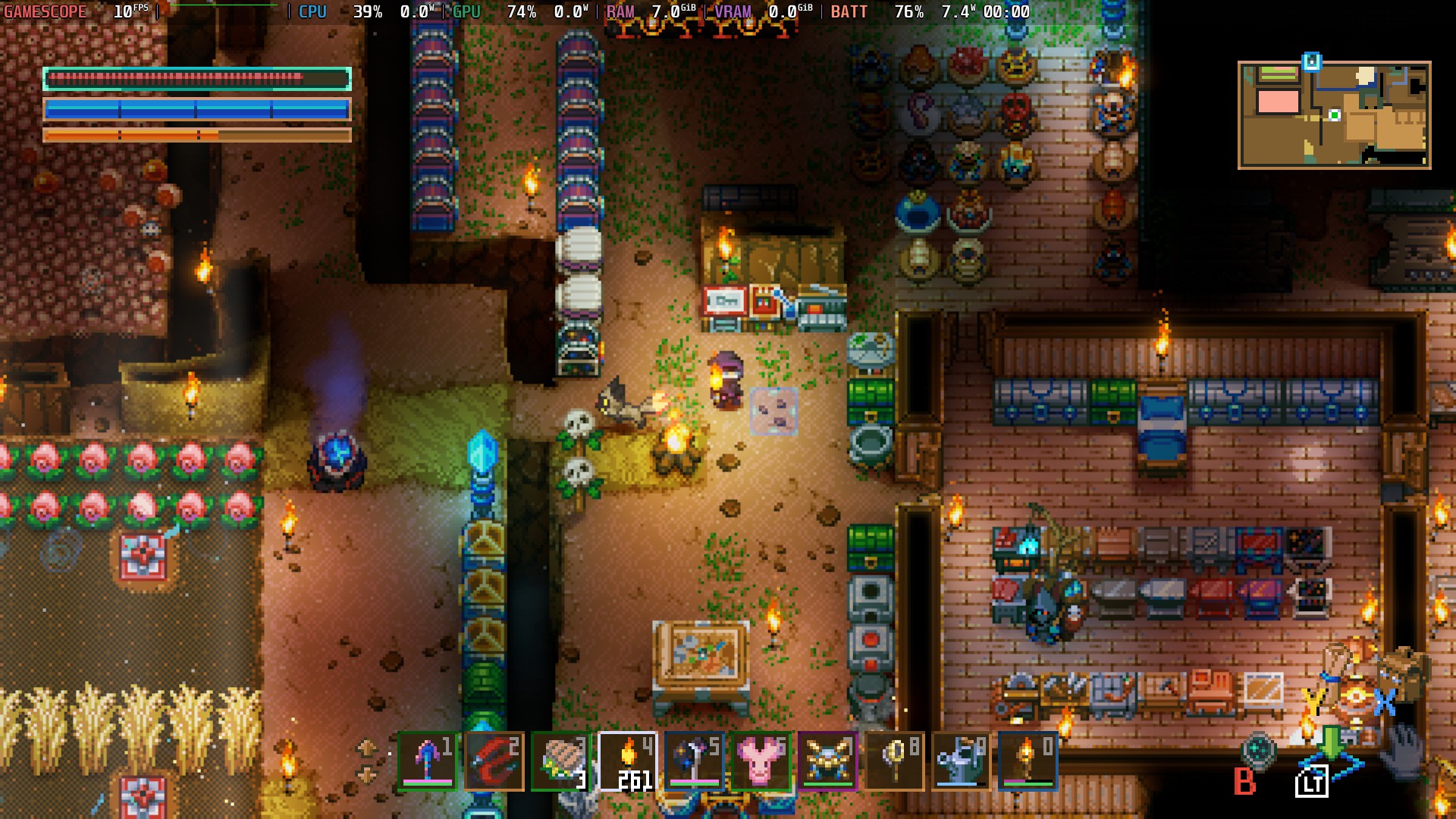
Finally, I tried the game that has been taking up most of my free time for the last two weeks, Core Keeper. It looked great and was stable, but unfortunately I was getting only 10 to 15 FPS regardless of the settings. I messed around with Proton, but no luck. Perhaps it will improve in the future?
A few words beyond Steam
What certainly makes Pocknix interesting is the fact that, besides the Steam client, there is a whole operating system running in the background. And yes, using the power button you can enter the Plasma Mobile desktop mode, where you’ll find a bunch of preinstalled emulators as well as the desktop edition of ES-DE.
All you have to do is copy your ROMs to ~/Emulation and start playing.
There is no point in wasting space listing all the emulators because the developer is constantly adding new ones and updating the existing. In short, this means that moving to this OS doesn’t mean you have to forget about retro games. The emulators are there and they work.
Even more interestingly, Pocknix allows games marked as Favorites in ES-DE to appear in the Steam library, meaning you can launch them directly from Steam Game Mode.
Is this a mini Steam Deck?
Yes, YES I KNOW that I didn’t mention Steam Deck so far, and for a good reason. The Steam Deck is still the undisputed king when it comes to handheld PC gaming and emulation. It has the hardware, the software support, the community and, most importantly, the maturity that comes with being around for a while.
But there is a “small” problem. It’s bigger (and mmmmmuch more expensive). However, seeing something like a 5″ OLED handheld running steam natively (well, the ARM version) is incredibly cute and definitely has its uses. Especially if you like tinkering with your equipment and testing out stuff.
But! Should you switch to Pocknix today? At this point, I wouldn’t. At least not permanently. And I’m not saying that as criticism.
Pocknix is still in its early stages and the project is moving very quickly. In fact, two new updates were released while I was working on this article.
Bottom line, if you want something that you install once and simply forget about, you should probably wait. But if you have a spare microSD card, Pocknix is definitely worth trying. That’s probably the best thing about it right now. You don’t have to commit to anything.
Grab an empty microSD card, flash the latest version and see what happens. If the games you play work, great. If they don’t, pull the card out, boot back into Android and continue as before.
Finally, a big congratulations to the developer, shuuri-labs, for starting this whole project in the first place. Even if Pocknix is still not quite “there” yet, the amount of work that has clearly gone into it, and the challenges that must have been overcome along the way, are honestly staggering. Personally, I can’t wait for release 1.0 and hope it happens soon. Fingers crossed.
LINK
https://github.com/shuuri-labs/pocknix-os
Dejan Balalovski