
Dark Souls Remastered on Android Hands-on
dsr-native enables you to play the Nintendo Switch version of Dark Souls Remastered on Android as a standalone app. My first attempt on the Samsung Galaxy S24 FE ended with a black screen. The Retroid Pocket Flip 2 had better luck.
I spent around 30–40 minutes playing past the first boss, reaching Firelink Shrine and exploring a little of New Londo Ruins and Undead Burg. There was one hard crash, but otherwise the game stood reasonably well. And after finding the settings menu I initially missed, there was considerably more to adjust than I first thought.
What exactly is dsr-native?
This community project by kvse runs the Switch game’s original ARM64 code through a native Android runtime. It supplies the supporting functionality needed to run that code, while you provide the game files. The developer also openly discloses substantial AI assistance.
You need the Nintendo Switch version of Dark Souls Remastered. The PC release will not do.
My setup used the base game, version 1.0.0, the one instructions suggested. You don’t need to apply the 1.0.3 update to follow this guide.
Prepare the files
This part requires a PC. I used Ryujinx/Ryubing on Windows to extract the game, then copiedeverything to Android.
You need:
- Your own dump of the Nintendo Switch game.
- Ryujinx/Ryubing configured with your console’s keys.
- The dsr-native APK.
- Enough free storage for the extracted game on both devices.
An NSP is not a regular ZIP archive, so you can’t extract it with 7-Zip.
Important thing to remember here is that KEYS are paired with the firmware. If you use 22.5.0 firmware, you need KEYS for the 22.5.0 firmware. They need to match.
1. Add the base game
Put the base game’s NSP in a folder on your PC.
In Ryujinx, open Options → Settings and add that folder under Game Directories. Save the changes and check that Dark Souls Remastered appears in the library as version 1.0.0.
If you previously enabled an update, right-click the game, open Manage Title Updates and select No Update.
2. Extract RomFS
Create a folder called DSR-Game.
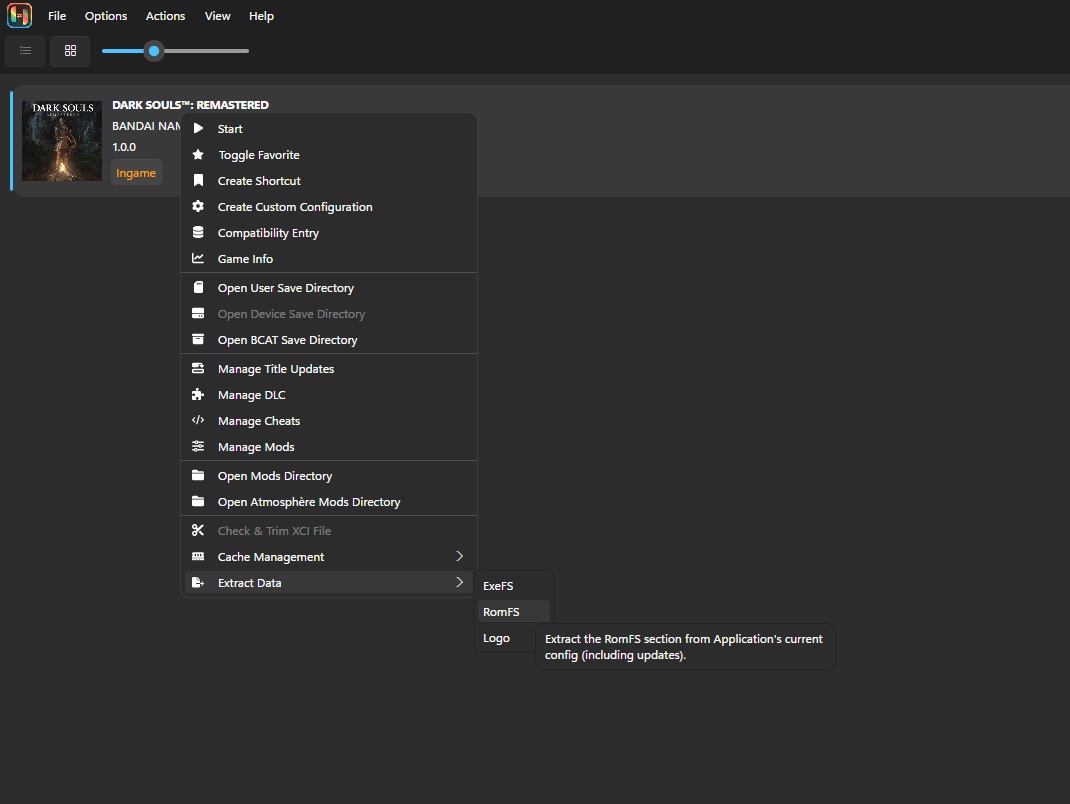
Right-click the game in Ryujinx and select Extract Data → RomFS. Choose your new folder and wait for extraction to finish.
There you should find files including dvdbnd0.bdt, dvdbnd0.bhd5, dvdbnd1.bdt and dvdbnd1.bhd5, together with the movjp and movww folders.
Keep everything extracted. If Ryujinx creates an additional romfs folder, move its contents directly into DSR-Game.
3. Extract ExeFS
Inside DSR-Game, create a folder named exefs.
Back in Ryujinx, right-click the game and select Extract Data → ExeFS. Extract those files into the new exefs folder.
Mine contained main, main.npdm, rtld, sdk and subsdk0. Check that the executable is at DSR-Game/exefs/main, without another folder nested between them.
4. Copy everything to Android
Copy the complete DSR-Game folder to your phone or handheld’s internal storage. Leave it extracted.
Install the APK, launch it and grant the requested file access. When prompted, select DSR-Game as the game directory, NOT the exefs subfolder.
Samsung gave me darkness. Retroid gave me Dark Souls.
On my S24 FE, the port stayed on a black screen. Pressing Start to skip the intro did not help.
The logs showed that the game executable loaded and the runtime continued submitting frames, so this was not simply a case of selecting the wrong folder. Moving the same APK and extracted files to the Flip 2 got the game running.
That points toward a compatibility problem with the S24 FE’s Exynos/Xclipse setup. It does not tell us that every Exynos device will fail, but I could not get this build working on mine.
If you encounter a similar problem, the app writes logs under Download/DSRNative/logs. Those are needed if you are willing to submit a bug report on GitHub.
How it played on the Flip 2
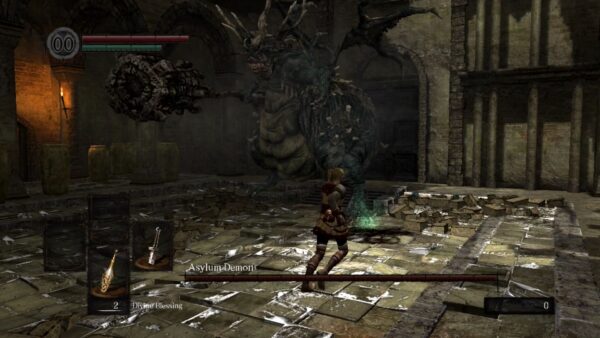
Once running, the game looked good and the audio worked properly. The Flip 2’s controller was recognised, and using the physical controls automatically hid the on-screen buttons.
I played beyond the first boss and visited Firelink Shrine, New Londo Ruins and Undead Burg. During those ~30 minutes, I had one hard crash that closed the entire app. The rest of the session was stable.
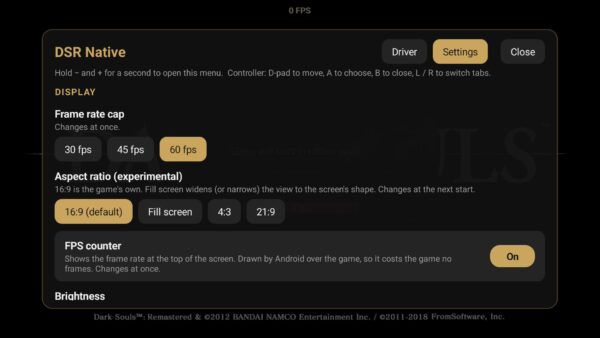
Performance initially felt smooth with occasional interruptions that looked like microstutter. Enabling the FPS counter gave me a clearer picture. The frame rate occasionally dropped into the high 40s, matching the moments when the game felt less fluid.
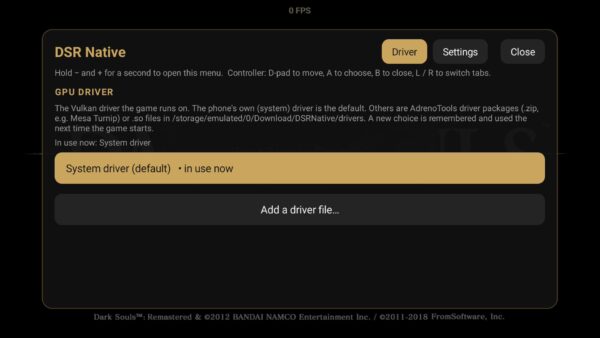
All of this was with the default Adreno driver. I have not tested whether Turnip improves the result.
For the Snapdragon 865 in my Flip 2, a 30 FPS cap may be the more reasonable choice if you prefer consistency.
There is a settings menu. I just missed it.
Hold Minus and Plus together for about a second, or Select and Start on the handheld, to open the floating menu.
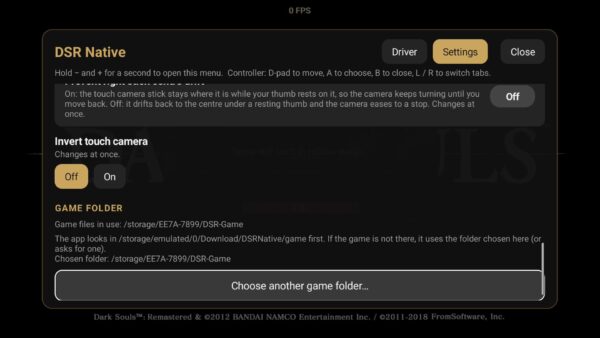
Once I found it, I confirmed that it offers quite a few settings for the frame-rate cap, FPS counter, camera, brightness and touch controls. There are also display options, including aspect ratio. Custom GPU drivers are supported too. The Driver tab lets you add a compatible driver package and select it for the next launch. Restart the app after changing drivers.
Touch-control settings don’t offer a full layout editor. Moving the buttons around is listed as a planned feature in the v0.1.0 release notes.
The menu makes the port more configurable than my first session suggested. I would still prefer a more obvious way to discover it. A floating gear icon for example.
Existing saves?
I had no success importing an existing save.
The project implements save handling, but I could not find a documented import/export procedure in its README, release notes or the issue discussions checked for this article. That does not prove manual transfers are impossible, just that I wasn’t able to find a way.
If you already have a character you care about, keep that save backed up and your existing setup intact.
Would I replace an emulator with it?
Honestly, not yet.
I like having Dark Souls Remastered available as its own Android app. The Flip 2 experience was playable, the controller worked properly and the settings menu turned out to be useful. But the Samsung compatibility problem, occasional frame-rate drops, one crash and uncertainty around save transfers make this something I would try alongside an emulator.
For a dedicated Switch emulator on Android, Eden would be my starting point. This was not a side-by-side benchmark, so I am not claiming it is faster or flawless on the same hardware. If you already have DSR running well there, I would not rush to replace that setup.
The developer may improve the port further, and I would like to see where it goes. For now, try it if the standalone approach appeals to you, but keep your expectations sensible.
Links
Dejan Balalovski