
How to Convert ISO and BIN/CUE to CHD on Android with CHDroid
Disc games have a bad habit of filling storage faster than expected. A few PS1 games here, some PS2 ISOs there and suddenly that huge SD card needs cleaning up. Converting compatible games to CHD can help, and you can do it directly on Android with CHDroid.
Why? Because I like the idea of carrying several generations of Sony and Sega games on my Android handheld. The storage requirements, slightly less. The golden age of silver discs is over, whether we like it or not, and the next logical step (after ripping them) is to reduce their size.
That is the part I like. If the files are already on your handheld, moving everything to a PC and back feels like a lot of work, so let’s start with your phone.
What is CHD?
CHD stands for Compressed Hunks of Data. Originally developed for MAME, it stores disc images using lossless compression. Your game data stays intact (music and video too), while emulators read the compressed file directly. In other words, no unpacking.
CHD helps by compressing disc images without throwing away game data, and several popular emulators can read it directly. For Sony games, that includes DuckStation for PlayStation, NetherSX2 for PS2 and PPSSPP for PSP. On Sega’s side, there is Flycast for Dreamcast and the Genesis Plus GX core for Sega CD.
Nintendo needs a separate mention. For GameCube and Wii games in Dolphin, I would use RVZ, Dolphin’s purpose-built compressed format. CHD is useful, but it is not a magic shrink button for every ROM folder.
CHD can also turn a CUE file and several BIN tracks belonging to one disc into a single CHD. Fewer files to manage is not only the point, but a necessity for emulation geeks like us.
How much smaller? That depends on the game. Onion’s documentation mentions savings of up to around 50% in some cases, but already compressed content leaves less room for improvement. Don’t expect every game to shrink by half.
Check that your particular emulator or RetroArch core supports CHD before converting. For PSP, PPSSPP supports it from version 1.17. Other systems and emulators have their own requirements. A converter accepting an ISO does not automatically mean your emulator will accept the result, but most of them do. Let me rephrase that, most UP TO DATE emulators do.
Convert games on Android with CHDroid – The tutorial starts here
CHDroid is free to install, contains ads that can be disabled and handles conversion on the Android device itself. It supports BIN/CUE, ISO and Dreamcast GDI sets, along with extraction and verification of existing CHDs. You can also download the APK from the developer’s official releases (see warning below).
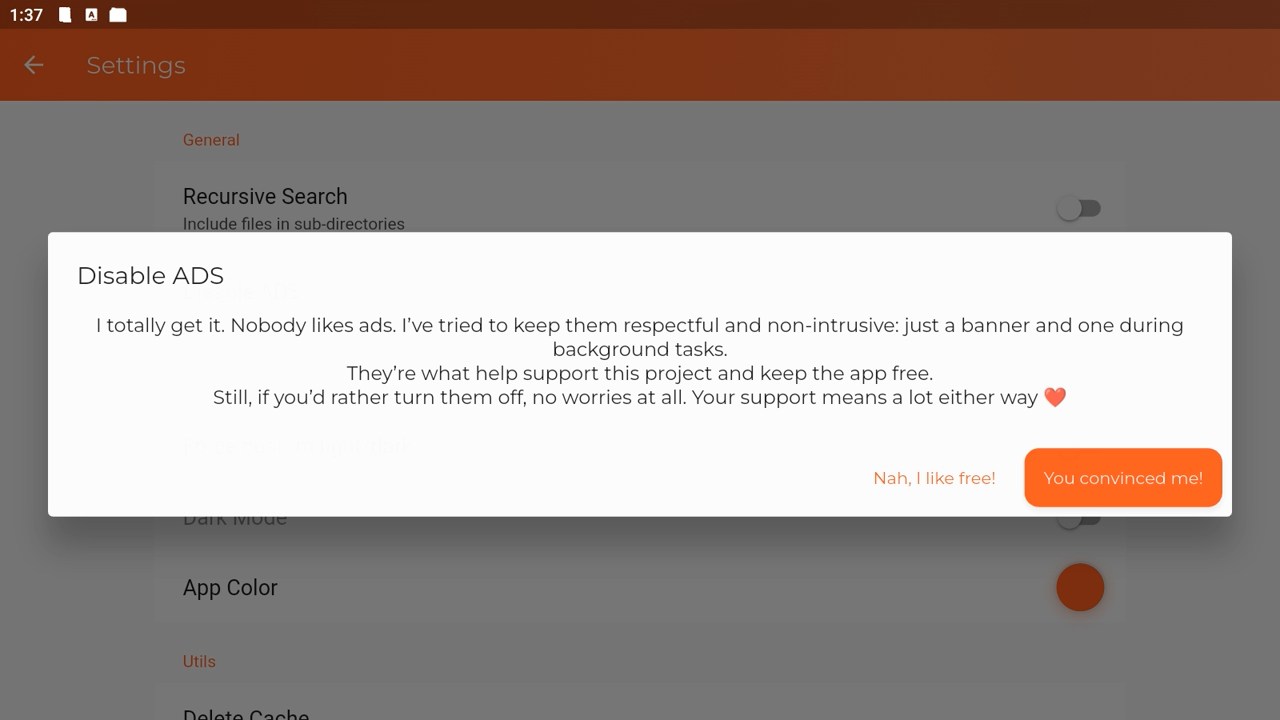
For this tutorial, start with one working game. There will be plenty of time to feed it the rest of your collection afterward.
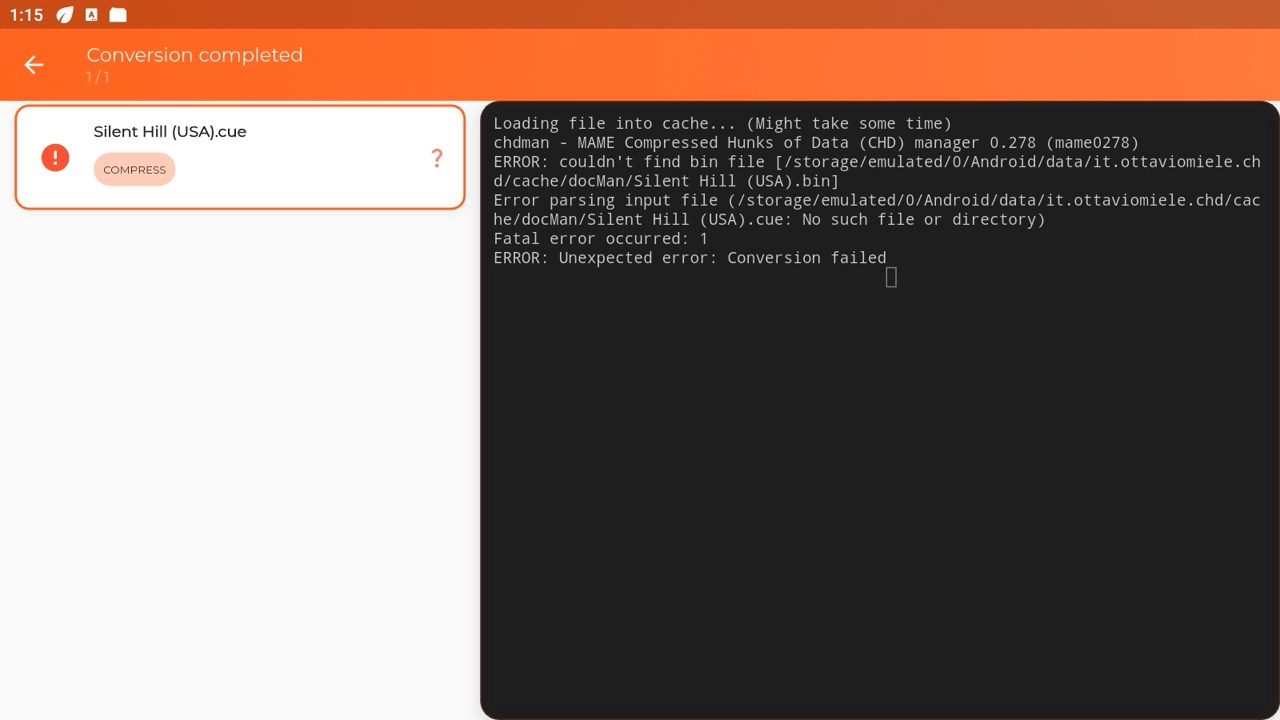
Important: Use CHDroid 1.1.0 for this tutorial. The Play Store current version (10.04.2026) is 1.1.2 and it will NOT work. During testing that version failed to convert valid BIN/CUE games across multiple phones, including my Samsung Galaxy S24, as well as BlueStacks and Nox Player. It reported that it couldn’t find the BIN file in its own cache folder. Switching to 1.1.0 worked. So, download CHDroid 1.1.0 from the download link at the bottom of this article, and disable automatic updates for CHDroid in Google Play while following this guide. Apparently, the first step in compressing old games is finding the right old version of the converter.
1. Prepare your files
Using your phone’s file manager, create a folder and name it CHD-work in internal storage and put the game there. Extract ZIP, RAR or 7z archives first. You want ISO’s, Bin/Cue etc.
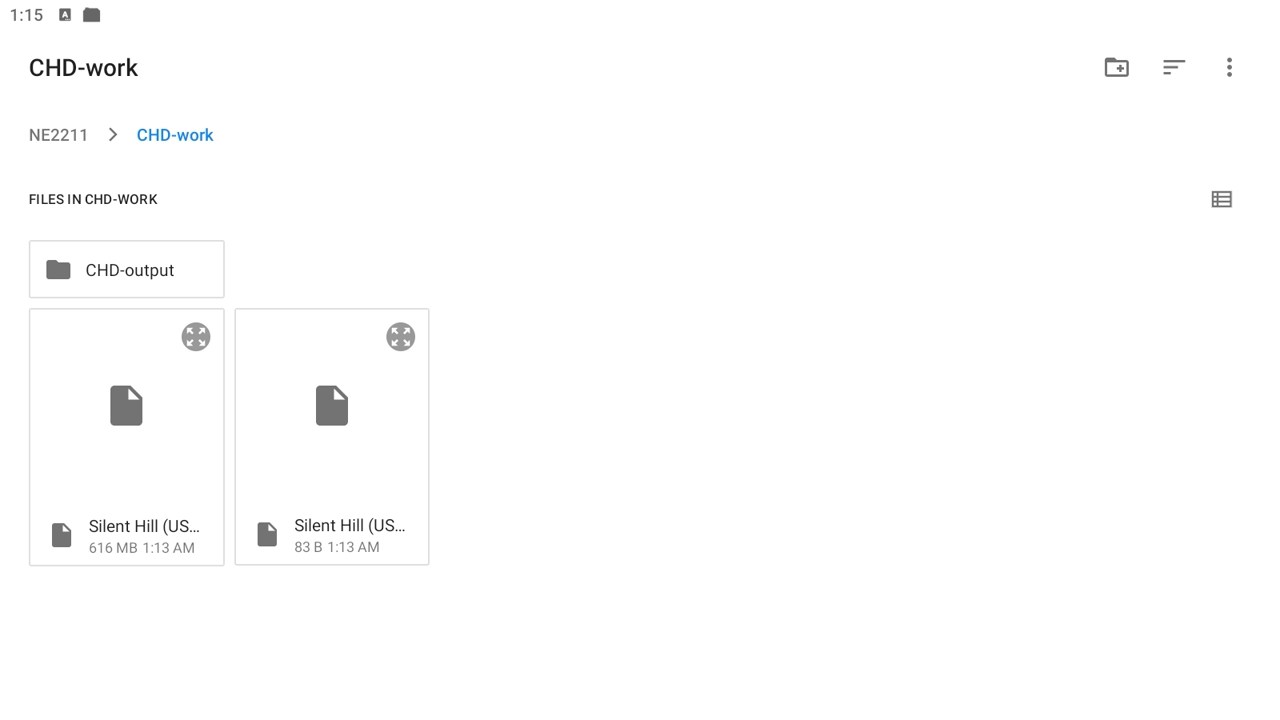
For a BIN/CUE game, keep the CUE and all its referenced BIN files together. The CUE is there to maintain the order of the tracks, so a lone BIN is not necessarily a complete disc. Don’t rename individual tracks and leave the CUE pointing at their old names.
The same rule applies to Dreamcast GDI sets: keep the descriptor and its track files together. Leave enough free space for both the originals and the converted output, plus temporary files. Compression cannot help much if there is nowhere to write the result.
2. Select the folder and conversion action
Open CHDroid, use Select Folder and grant access to your working folder. Choose the action that compresses the detected images to CHD. The developer’s getting started instructions describe this folder-based workflow.
Review the detected files before starting. With BIN/CUE images, the conversion should follow the CUE and its tracks, rather than treat each BIN as a separate game.
CHDroid supports processing several images in one job, but keep this first attempt small. If nothing appears, check folder permissions and whether the CUE’s filenames match the files you copied.
3. Choose where the CHDs go
In version 1.1.0, converted files are saved alongside the originals. Version 1.1.2 added a custom destination folder, which would be handy for keeping everything in a separate CHD-output folder. Unfortunately, that is also the version that broke BIN/CUE conversion in my tests. Stick with 1.1.0 for now, but keep this in your mind for future reference when 1.1.3 comes out.
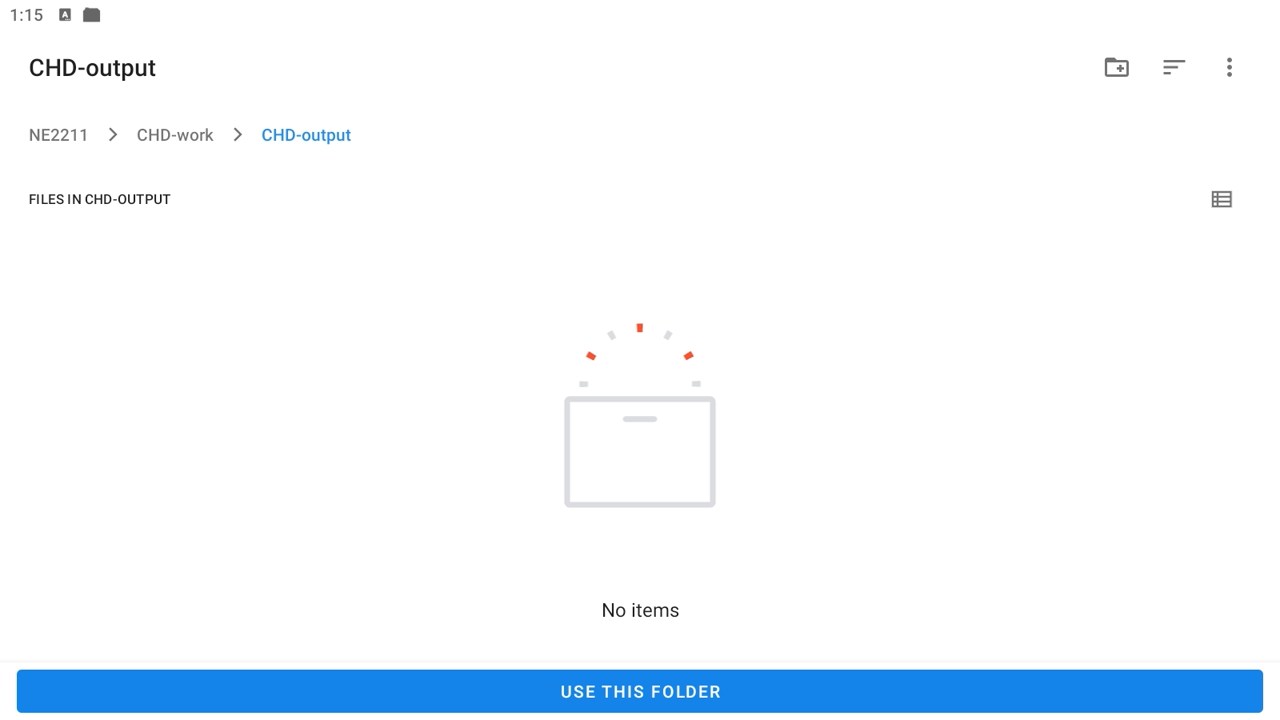
Start the job and let it finish. CHDroid supports background processing with progress notifications, although I would keep the first conversion open on screen. One less thing to troubleshoot if Android decides to get enthusiastic about saving battery.
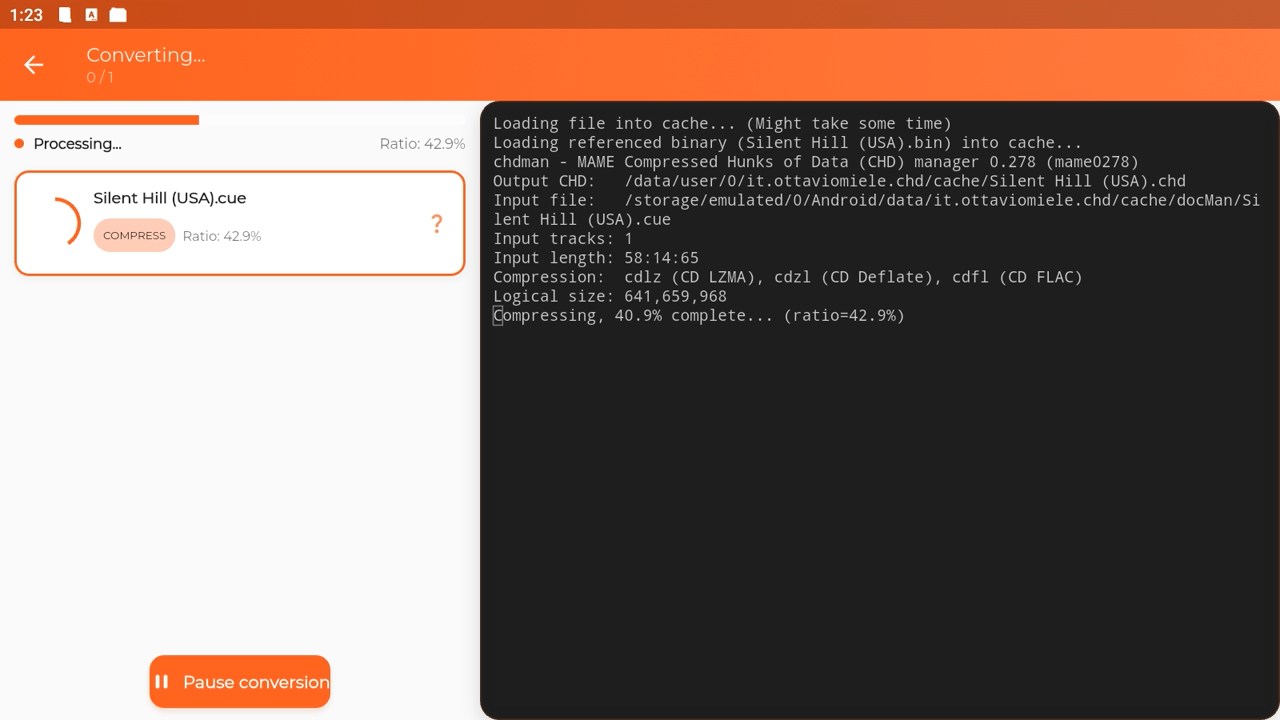
4. Verify it, then play it
Use CHDroid’s Verify action on the finished file. After that, open it in your emulator and check actual gameplay, music and video.
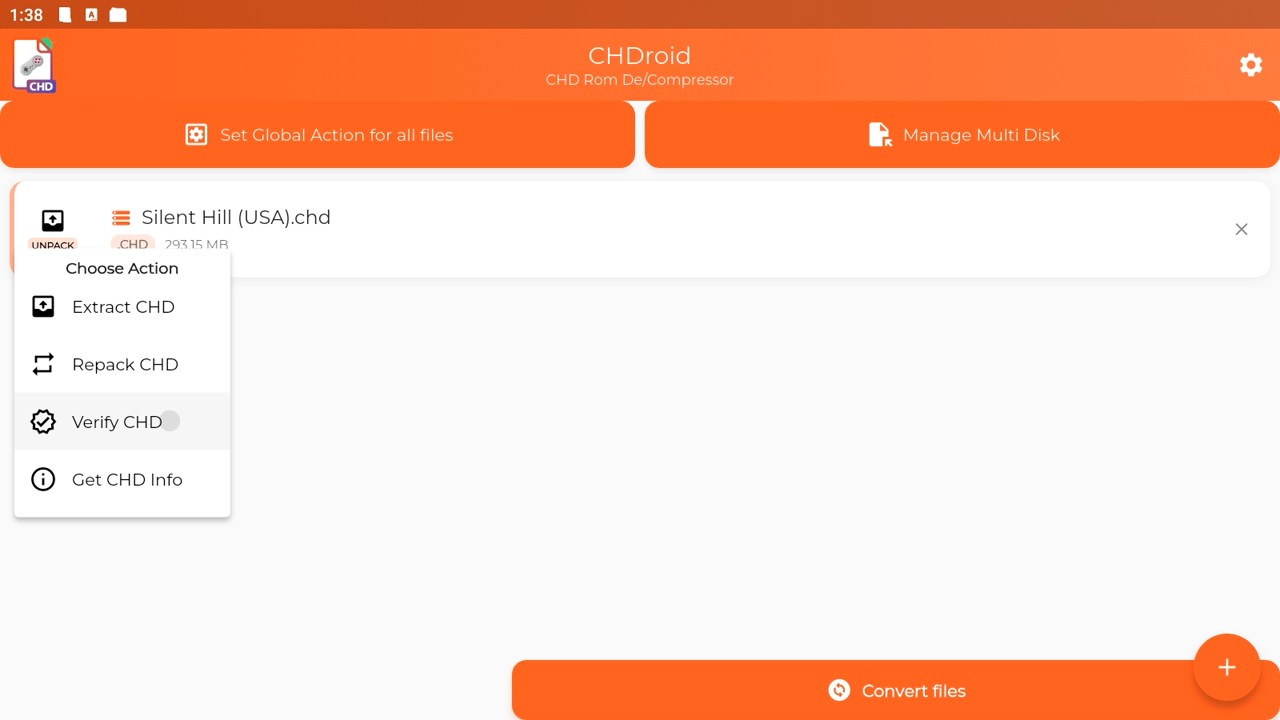
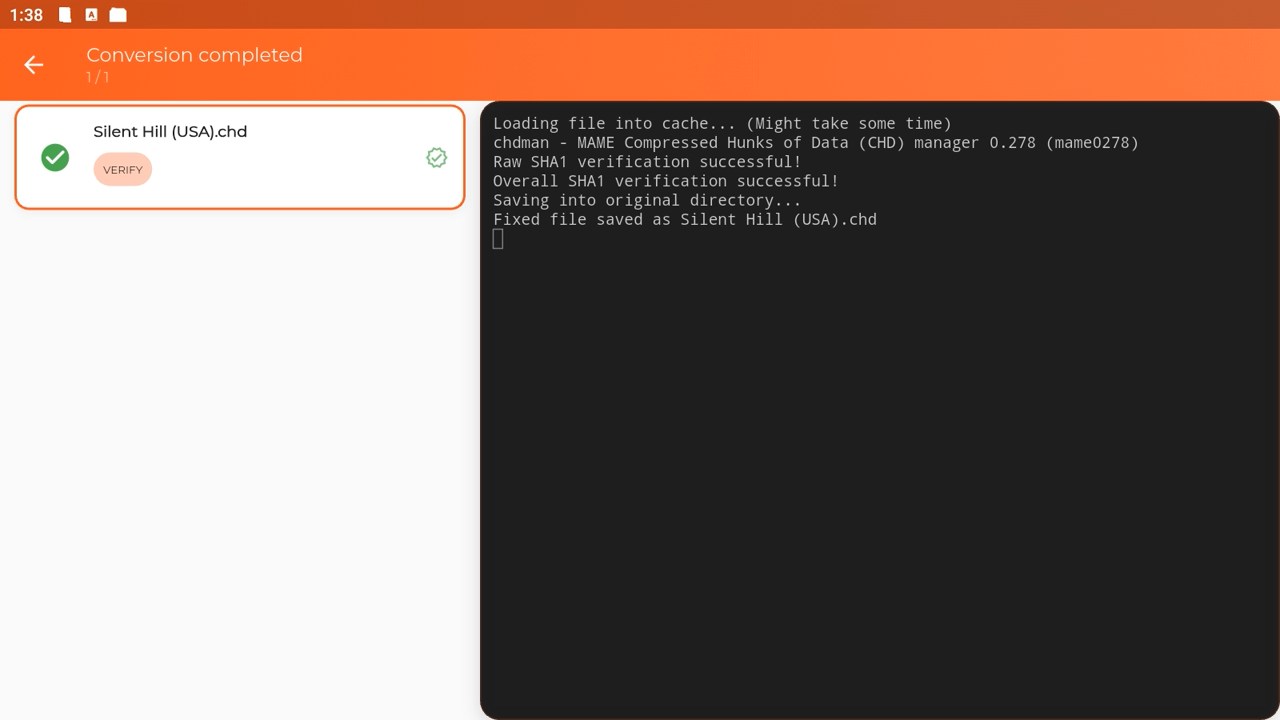
Verification checks the CHD’s integrity. It does not guarantee that your original image was complete or that the emulator supports the selected compression. Keep the originals until you have checked the result, preferably with a backup elsewhere.
For games with several discs, expect one CHD per disc. CHDroid also has M3U playlist generation, which can keep those discs under one entry in compatible emulators. The playlist points to the discs; it does not merge them.
If you use ES-DE, refresh the library afterward. My EmulationStation setup guide for Android covers the frontend side of things.
A quick note for PS2 games
The NetherSX2 release notes warn that CHDs produced with createdvd need zlib compression to work there. If CHDroid does not expose that setting or document a suitable preset, don’t assume automatic detection will work as is. Use the explicit PC command below for those DVD images.
Other Android options
Termux provides a terminal route for hardcore Linux fans (yeah, you know what am I talking about), using a Linux environment such as Debian through PRoot-Distro to run chdman. It offers control over conversion settings, but requires (waaaay) more setup. I would save that for a separate tutorial, if anyone is interested.
RetroShrink runs chdman inside a browser and processes files locally. It is another option to try, though I would start with a small image before trusting a mobile browser with a large DVD conversion. It will likely time out from time to time (your browser, not the web app, it is coded well).
Convert ISO and BIN/CUE files on PC
On Windows, the free namDHC interface lets you use chdman without typing commands. Keep namDHC.exe and chdman.exe in the same folder, then:
- Select the conversion job and appropriate media type.
- Add your images. For BIN/CUE games, select the CUE.
- Choose an output folder and CHD output.
- Check the conversion options and click Start Jobs.
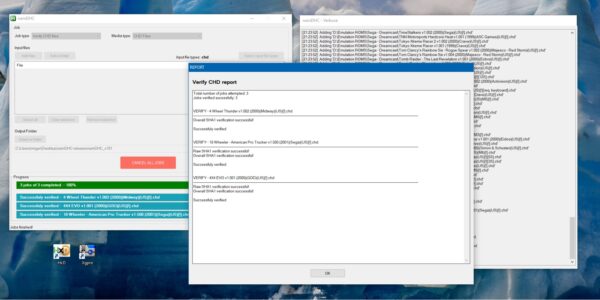
If you don’t like pretty GUI’s, read on…
For direct control, get a recent chdman from the official MAME downloads. Put it and your test image in one working folder, then open PowerShell there.
For a CD image with BIN/CUE:
.\chdman.exe createcd -i "Game.cue" -o "Game.chd"For a PS2 DVD ISO targeting NetherSX2, specify zlib (important!):
.\chdman.exe createdvd -i "Game.iso" -o "Game.chd" -c zlibFor a PSP ISO, use PPSSPP’s documented settings:
.\chdman.exe createdvd -hs 2048 -i "Game.iso" -o "Game.chd"Replace Game with your filename. ISO is a file extension, not a universal conversion preset, so choose the command for the actual media and emulator.
Finally, run the integrity check:
.\chdman.exe verify -i "Game.chd"Copy the CHD to your handheld and test it before removing the original. Once one game works, move on to a larger batch. Smaller files are useful, but games that still launch are fairly important too importanter.
Links
- CHDroid 1.1.0 APK (tested version) on our server
- Arm64 bit APK
- Arm32 bit APK
- X86_64 APK
Other links
Dejan Balalovski