
How to Install Stardew Valley Enhanced on PS Vita
Stardew Valley is one of those games that turns “I’ll play for twenty minutes” into an entire evening of watering plants. ConcernedApe’s farming game has been around since 2016, mixing crops, fishing, mining and village life into a beautiful addictive loop.
The Vita already had an official release, but Stardew Valley Enhanced introduces version 1.6.15 to Sony’s handheld through a new unofficial port by rikujoukoro.
However, to get it working you have to download a builder and supply your own PC copy of the game. The builder does the preparation on your computer, then gives you the files to install on the Vita. So, a few extra steps, yes, but no coding, you just need to follow the instructions.
How does it work
The builder decompiles a supported PC copy of Stardew Valley, applies the port’s changes and builds the Vita version locally. The repository supplies the tools and modifications, but it doesn’t distribute the complete game.
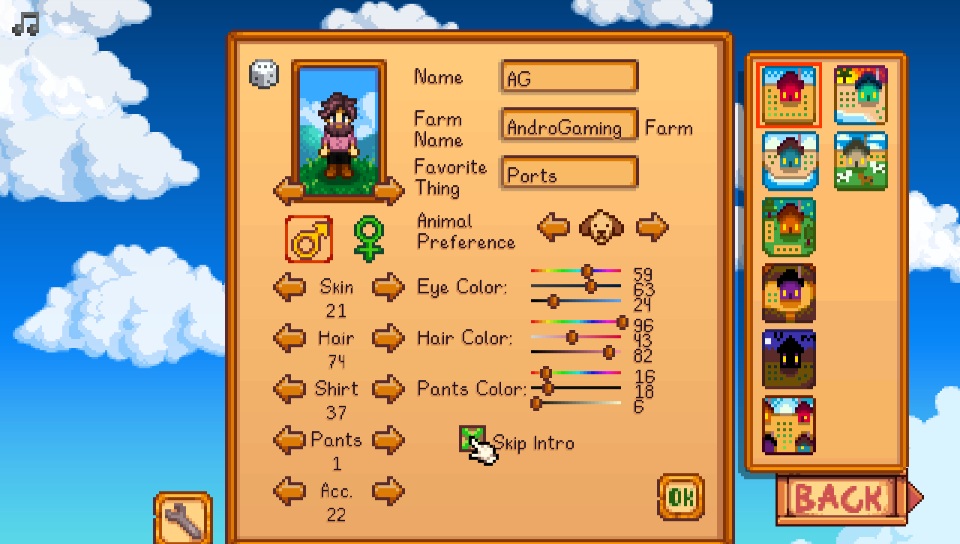
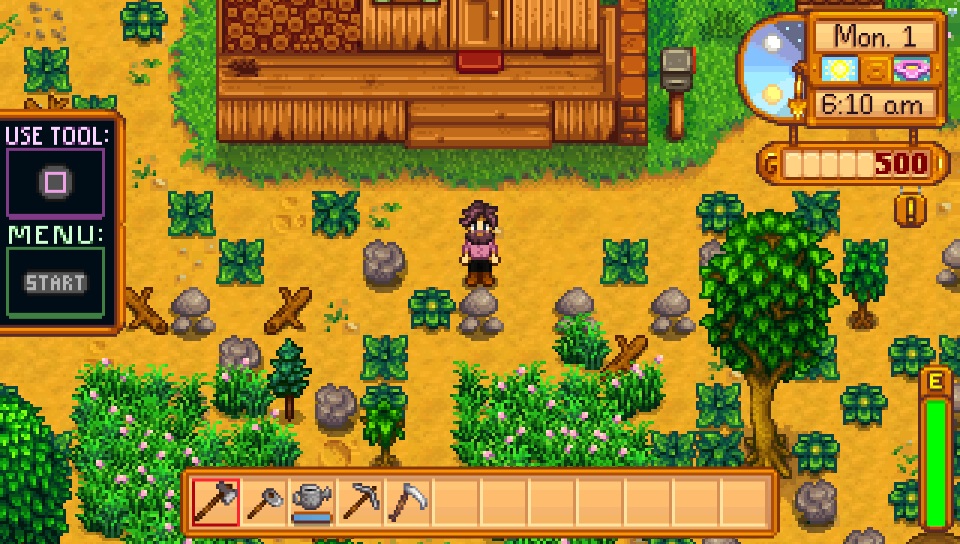
The project targets the Vita’s 960 × 544 display and includes controller mapping based on the official Vita release. It also provides 12 languages and a built-in mods menu with options such as a tractor, information overlays, chest assistance, extra ring slots and passable crops.
PC save transfers and LAN/IP co-op are supported too. More on those after installation.
Before you start
For this guide, you need:
- A PS Vita already set up with HENkaku/Ensō and VitaShell.
- Your own Steam or GOG copy of Stardew Valley.
- A Windows 10 or 11 PC with about 5 GB of free space.
- The .NET 8 SDK, with internet access for the first build.
- Space on the Vita for the generated game data, approximately 600 MB, plus the installer and saves.
The Vita also needs kubridge v0.3.1_hotfix and libshacccg.suprx. The builder includes the needed plugin files and setup instructions in its output, so we’ll deal with those below.
Back up any existing Stardew Valley saves before copying things around.
1. Install the .NET SDK
Download and install the Windows x64 SDK from Microsoft’s .NET 8 download page.
Choose the SDK, not just the Runtime. The builder needs the development tools to create the Vita package.
2. Get the correct PC game version
The builder needs Stardew Valley 1.6.15
Steam
In your Steam library:
- Right-click Stardew Valley and open Properties.
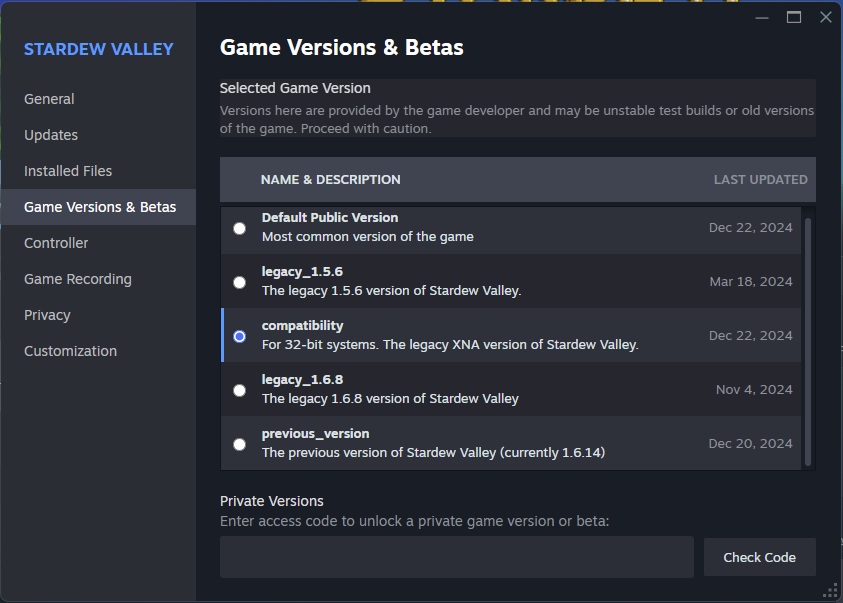
- Select Game Versions & Betas.
- Choose the compatibility branch.
- Wait for Steam to finish downloading the changes.
GOG
The project also supports GOG’s 1.6.15 compatibility build.
According to the GOG instructions, open the game’s settings in Galaxy, then Manage installation → Configure, and select the compatibility version if available. Menu names can vary, the developer also points to the game’s GOG library downloads as a possible source of the corresponding offline installer.
The developer reports that the supported GOG files produce the same Vita build as Steam’s, although the GOG output wasn’t separately tested on a Vita. Personally, I used my Steam version for this tutorial.
3. Download and run the builder
Open the project’s Releases page and download:
StardewVitaBuilder-windows.zip
Extract it somewhere with a simple path, such as:
C:\Games\StardewVitaBuilder
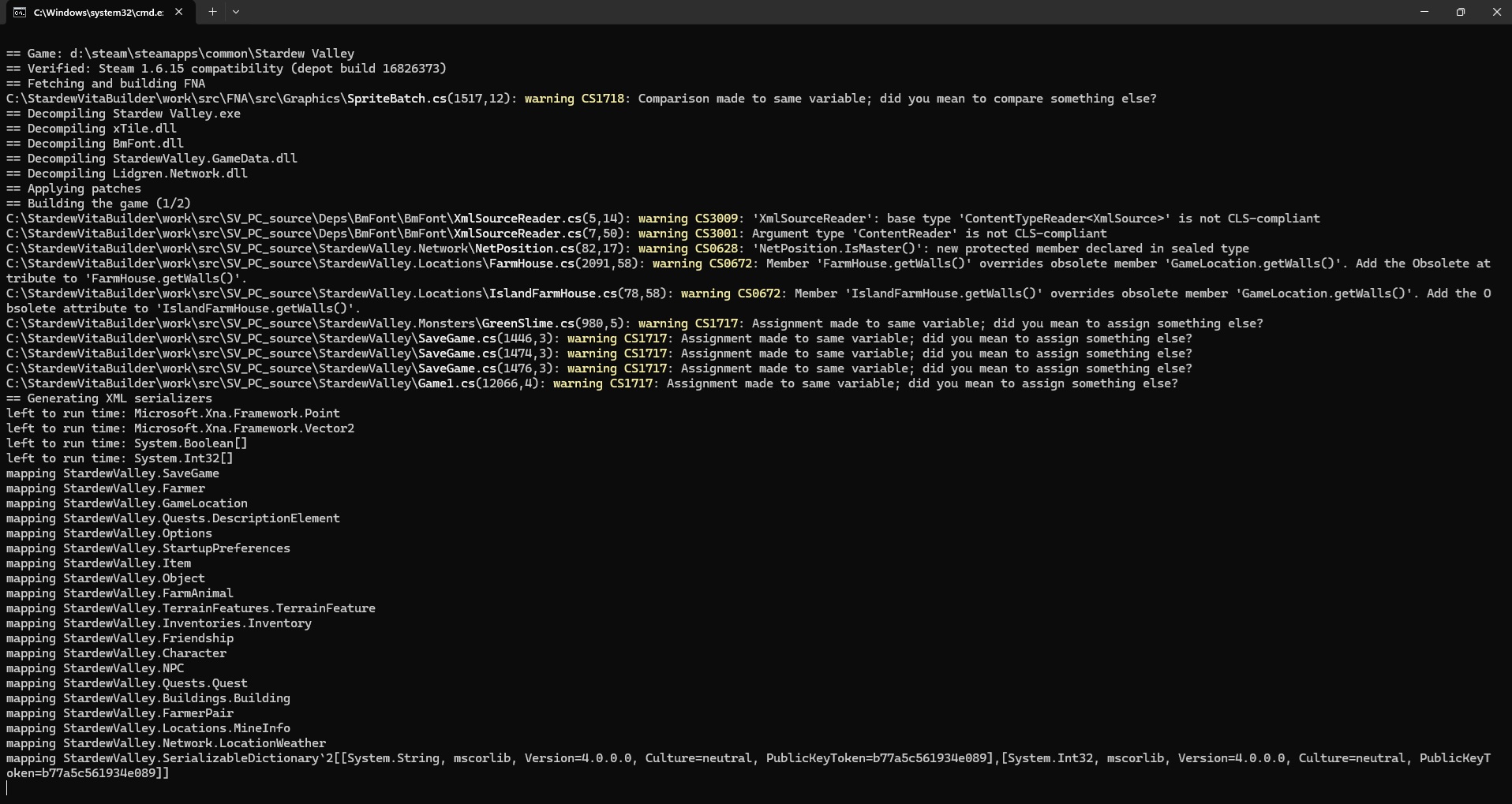
Open the extracted folder and double-click Build.bat. It should locate a Steam or GOG Galaxy installation automatically, verify the game files and start building.
The builder handles the toolchain downloads itself. The developer estimates around four minutes for the first build, but give your own PC whatever time it needs.
If it cannot find the game, copy the complete game folder containing Stardew Valley.exe and Content into the builder folder and name that folder Stardew Valley. Then run Build.bat again.
Alternatively, open a command prompt in the builder folder and point it at the installation, for example:
Build.bat --game "D:\GOG Games\Stardew Valley"If something fails, the window should remain open with an ERROR: message. Keep that message for troubleshooting.
4. Copy the generated files to your Vita
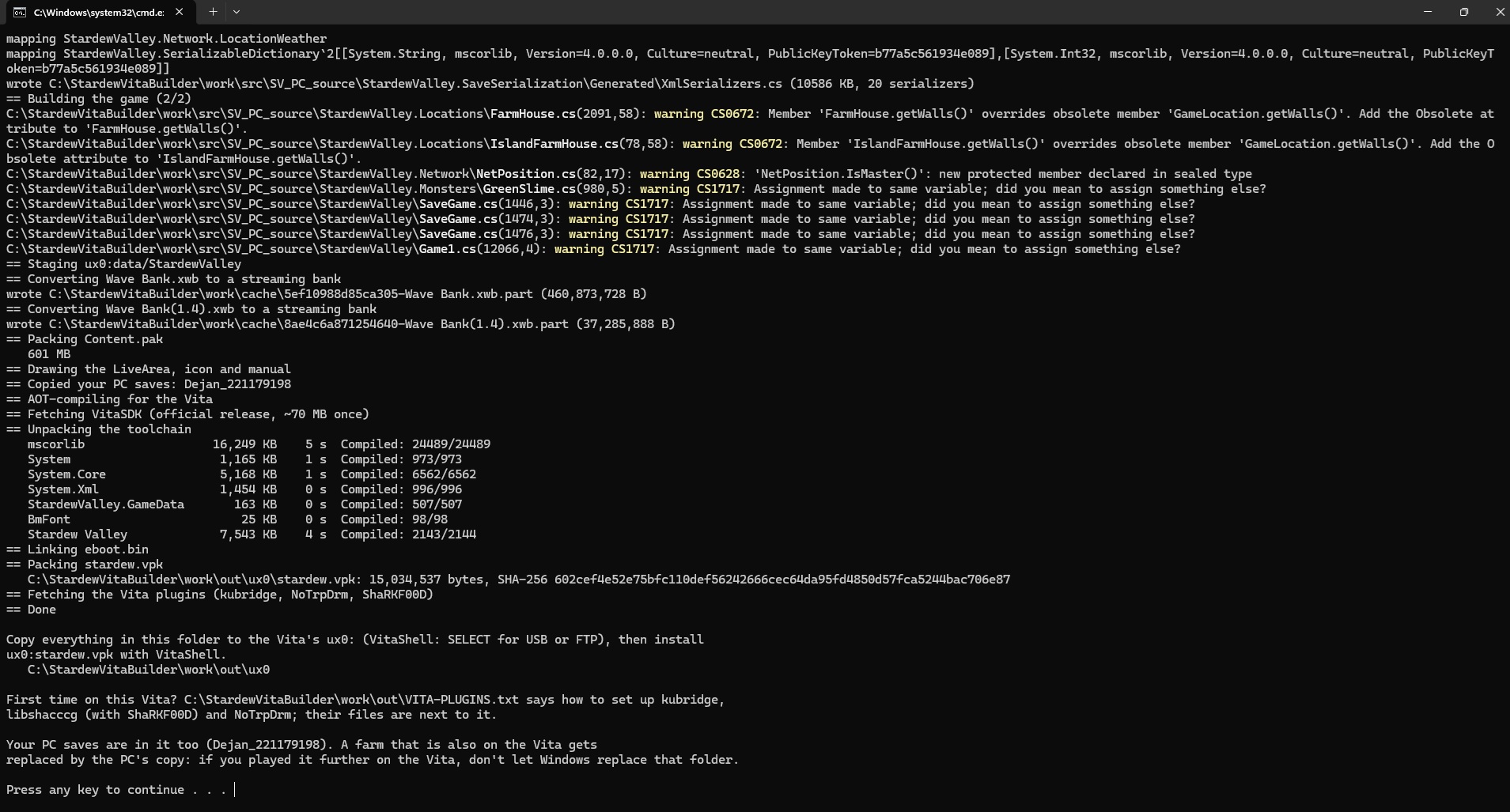
When the build finishes, it opens:
work\out
Inside is an ux0 folder arranged to match the Vita’s storage. It contains the game data, stardew.vpk and supporting files. There is also an ur0 folder and a VITA-PLUGINS.txt instruction file.
Connect the Vita through VitaShell using USB or FTP. Copy the contents of the generated ux0 folder into the Vita’s ux0:.
That means the final game-data path should be:
ux0:data/StardewValley
Don’t create an extra ux0 folder inside ux0:…
Let existing folders merge. However, pay attention if you’re asked to replace save files: the builder copies your PC saves into its output by default. Only overwrite a Vita farm if the PC copy contains the progress you want to keep.
To build without including PC saves, use:
Build.bat --no-savesIn VitaShell, open ux0:stardew.vpk and install it.
5. Check the required Vita plugins
Read the generated VITA-PLUGINS.txt, which accompanies your build.
kubridge: this project specifically requires v0.3.1_hotfix. Older versions can make the game close during startup.
Copy the supplied file to:
ur0:tai/kubridge.skprx
In your active taiHEN config.txt, add or retain this line under the existing *KERNEL section:
ur0:tai/kubridge.skprxKeep only one kubridge entry. Don’t replace the rest of your plugin configuration.
The project notes that if ux0:tai/config.txt exists, it takes precedence over ur0:tai/config.txt, so make sure you’re editing the correct one.
VitaShell USB access normally exposes ux0:. To reach ur0:, transfer the file to ux0: first and move it within VitaShell, or use FTP.
libshacccg.suprx: check whether it already exists at either:
ur0:data/libshacccg.suprxur0:data/external/libshacccg.suprx
If it does, you can skip generating it again. Otherwise, follow the project’s first-time setup instructions, which use PSM Runtime with its 2.01 update and the included ShaRKF00D installer to generate the file on your Vita.
NoTrpDrm is optional and enables trophy support. It isn’t required just to launch the game.
Restart the Vita after changing the plugin configuration, then launch Stardew Valley Enhanced from its bubble.
Optional save transfer
The project supports moving compatible PC saves to the Vita and back. Copy the whole farm folder, not just an individual file.
The main save locations are:
| Device | Save location |
|---|---|
| Windows | %APPDATA%\StardewValley\Saves |
| Vita | ux0:data/StardewValley/Saves |
Close the game before transferring saves and keep a backup of both copies.
There is also a documented method for importing saves from the official Vita release. Those saves are encrypted, so copying them directly isn’t enough. The process uses VitaShell’s Open decrypted option before copying the farm folder into the new port’s save directory. I didn’t test this since I never played the original Vita game, but the option is there if you need it.
Follow the save-transfer instructions for that route. The first load of an imported official Vita save can take a while.
Multiplayer?
The project includes LAN/IP co-op, described by the developer as new and still needing bug reports.
You can join a PC host by IP through the title screen’s co-op menu, or host on the Vita. The Vita’s address appears in chat, and /ip displays it again.
Steam and GOG Galaxy invitations aren’t supported. This uses only direct IP connections.
If it refuses to launch
First of all, make sure you restart your Vita before touching anything else.
If the game still won’t launch, I would check is kubridge. There are documented startup failures with older versions, including logs ending at a MONO_GC_PARAMS= line.
Confirm the hotfix version, check the active plugin configuration and restart the Vita.
For build failures, keep the ERROR: message from the PC window. For problems inside the game, the relevant log is:
ux0:data/StardewValley/vita-log.txt
Attach the useful details when reporting an issue.
And that’s it. Everything you need to get Stardew Valley 1.6.15 running on this legendary handheld. Too bad official support ended so long ago, but I’m glad the community is still giving the Vita something new to do.
Credit to rikujoukoro and everyone whose work helped make this possible. Now go check on your farm. Those crops aren’t going to water themselves.
Links
- Stardew Valley Enhanced project and instructions
- Builder downloads
- .NET 8 SDK
- kubridge releases
- Save-transfer instructions
- Report a problem
Dejan Balalovski