
RedOnion 4.5.0 for Miyoo Mini, new look and smarter saves
My Miyoo Mini Plus already had OnionOS installed, but RedOnion 4.5.0 lured me away with а couple of new features that just look so good on that tiny screen. A different interface, more ways to browse the consoles and video previews may not look much on paper, but man they do make a difference.
I installed RedOnion on a fresh SD card to see how much of a difference these changes make, and whether they’re worth switching from my perfectly good OnionOS setup.
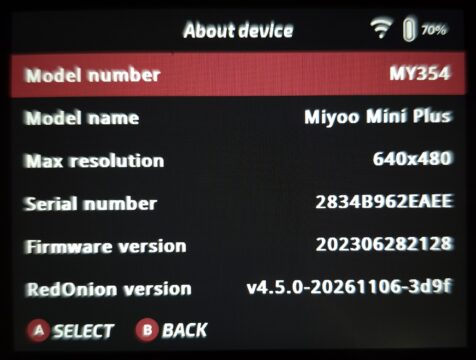
The build used here is RedOnion 4.5.0, dated November 6.
What actually is RedOnion?
RedOnion, previously called OnionPlus, is an independent build based on Onion. It keeps the familiar folder structure, emulators and theme compatibility, while adding its own fixes and changes.
It is not an official Onion release. Version 4.5.0 is based on Onion 4.4.0-beta, with Mini Flip support brought over from the development branch. Supported devices include the Miyoo Mini, Mini v4, Mini Plus and Mini Flip. My testing is specifically on the Mini Plus.
One of the main changes is Open MainUI, developed by robcodedev. It replaces the original closed-source launcher with an open implementation. RedOnion 4.5.0 includes Open MainUI 1.1.0, which brings much of what I wanted to try here.
Credit goes to the Onion team for the foundation, Amiga500 for RedOnion and robcodedev for Open MainUI.
Installing on a fresh SD card
I used a new SD card, just because I don’t want to touch my perfect Onion setup.
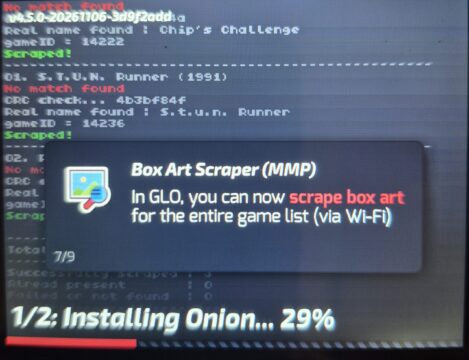
The process is as simple as it can be. Format the card in FAT32, extract the downloaded ZIP file on the root and either add roms now, or just simply insert it, let it boot and do its magic.
RedOnion retains Onion’s directory layout. So if you are using the latter, this should be familiar territory. The main folders to bring across from an existing setup are Roms, Saves, BIOS and, if wanted, Screenshots. As for game artwork, RedOnion can scrape images from ScreenScraper.fr, although you’ll need an account. A free one will do.
Since your first boot also installs stuff, It will take a while. Be patient and when you finally do get to the system selection, make sure you pay attention to which button does what. Hint, Start confirms the selection 🙂
Carousel, is it?
The console-selection page now offers three layouts, available for both Games and Expert. You can browse systems as a grid, carousel or list. And while the documentation mentioned somewhere that carousel is active by default, this was not the case on my test. Luckily we can easily change that.
These settings live under Tweaks → Home screen → Console page. The available adjustments include sizing, spacing, animation, movement speed and whether navigation wraps around. It’s a bit much, and most of it is self-explanatory, so I won’t go through every little detail. One thing I couldn’t find, though, was a “RESET TO DEFAULTS” button . So my advice is to experiment with these settings before copying over your entire ROM collection, just in case you decide to start fresh.
And now, there is no other way to say this, the carousel is the best thing I’ve seen in a while on those projects. I don’t know if it’s the tiny screen, or if that reminds me of Hyperspin from 10 years ago when game video previews were all the rage (more on that later), but it feels right at home.
The rest of the interface
RedOnion reorganizes the Tweaks menus alongside the new launcher features. Related switches are grouped together, default values are marked and settings that depend on a disabled feature are greyed out.
Open MainUI also supports scrolling long titles and the existing miyoogamelist.xml metadata for display names and artwork. Themes made for the original MainUI are supported, although I still need to judge how my chosen theme looks with these layouts.
Beyond appearance, the useful questions are fairly ordinary. Is text readable? Are the menus easy to find? Does returning from a game put me where I expect? Well… yes and yes.
Video previews, innit?
First of all, this is what made Hyperspin mentioned before such a desirable piece of software а long time ago. Well, in my opinion at least. And yes, video previews look great, even on this tiny screen, and yes, you can press Right on the D-Pad to bring the video in full screen where it looks even better.
I tested with SNES video previews, according to the documentation they always go in:
Roms/<console>/media/videos/Each video should use the same filename as its ROM, without the ROM extension. For example, if the game is stored as:
Roms/SFC/Super Mario World.sfcits preview would be:
Roms/SFC/media/videos/Super Mario World.mp4The developer recommends H.264 MP4, with video dimensions up to 1280×720. Game-list previews use the .mp4 file. Of course, you can always go lower to save on storage space, plus the default preview is in a tiny window anyway, so going full size won’t even matter that much.
The regular cover image is still handled separately through Imgs/<ROM name>.png, or the image path in miyoogamelist.xml.
And here they are, how they look and what happens when you press Right on your D-Pad.
A few extras
The new Game Info menu can display more than a description. It supports media, artwork, screenshots, videos, maps, text walkthroughs and PDF manuals. These use separate folders under each system’s media directory.
So, where we at?
RedOnion is installed on my Miyoo Mini Plus, and I’ve had some time to play around with its new features. The carousel looks fantastic (yes, I’m mentioning it again), and the video previews are just as impressive. But here’s where I have a rather unpopular opinion. I don’t think they’re worth the trouble unless you have a small, carefully selected collection of games.
Don’t get me wrong, they look gorgeous. But imagine having hundreds, or even thousands of ROMs across several systems. You’d have to find the videos, match the filenames and sort everything into the right folders. And finding the videos in the first place is a headache of its own. Sure, EmuMovies is a good starting point, but it doesn’t cover every game ever made. So you end up scrolling through your library with some games showing these lovely animated previews while others just sit there with a static image. Then another video plays, then nothing again. It kind of ruins the whole effect, doesn’t it?
And then there’s storage. If you have gigabytes to spare, by all means, go for it. Just remember that a single video preview can easily be larger than the game itself, especially with older systems like the C64. Multiply that by a few thousand games and suddenly those pretty little previews aren’t so little anymore.
But enough nitpicking. RedOnion gets two thumbs up from me. It takes an already excellent system, adds some genuinely useful features and manages to make the whole experience feel a little fresher. As long as the developers keep building on OnionOS without losing what made it great in the first place, I can see myself sticking with this one.
Links
RedOnion 4.5.0
RedOnion project
Open MainUI
Documentation
RedOnion issue tracker
Dejan Balalovski