
Daijishō scraping fix for CPS and NeoGeo
If you own some retro Android handhelds like the Retroid Pocket 5, AYN Odin 2 Portal or Anbernic RG DS, just to name a few, you probably want a front-end launcher to keep your game library nice and clean.
There are several options here. The most popular one is Emulation Station (ED-DE), but it has one major drawback. It does not integrate Android apps into its menu. I know, it sounds like a minor issue, but unless you are fine with using two launchers, one for emulation and another for the Android side of things, this is a feature that really feels missing. Because of this, a lot of people choose Daijishō instead, since alongside emulators it also includes a tab that shows the rest of your Android system. That means you do not need to “exit” the front-end just to launch Chrome or Spotify. Pretty convenient, isn’t it?
Great. You install Daijishō, add systems like SNES, GBA and Sega Genesis, then you reach the Arcade section, or more specifically Neo Geo and Capcom Play System (CPS 1, 2 or 3), and you realize that the game names and images in the menus are actually just the file names instead of proper game titles, and the box art is completely missing.
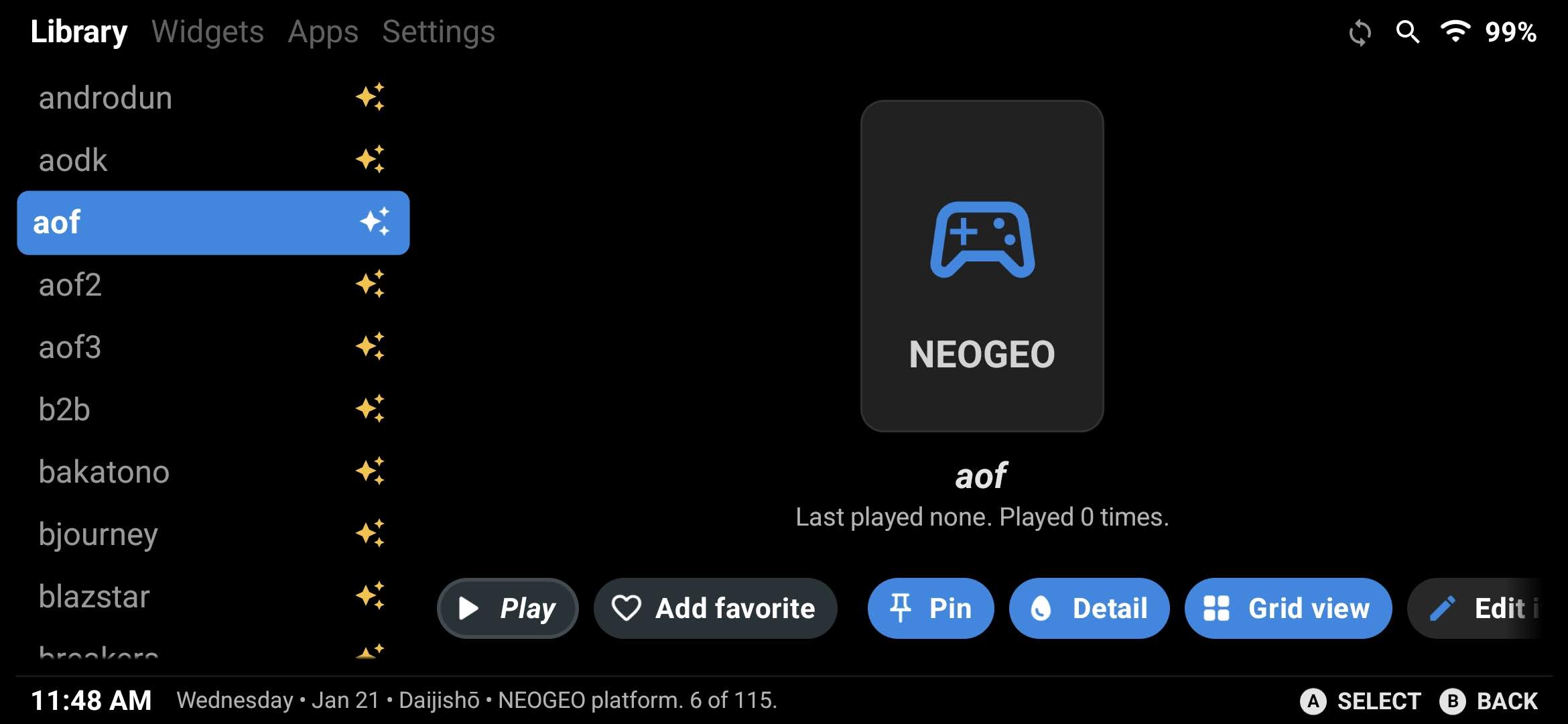
This is, in my opinion, the only real downside of Daijishō. If this issue did not exist, it would be the perfect launcher for any Android handheld. But it is what it is, and my job here is to explain how, using a PC (Windows, Linux or Mac), you can fix this issue quickly and easily with the help of SkraperUI.
Heads up, this tutorial is mainly meant for fixing CPS and Neo Geo menu entries. Do not bother trying this with Nintendo Switch games, it will not work. That whole scene, with multiple emulators, forks, file names, patches and DLCs, is far too complicated to be automated in this way. Your best and only option there is to manually edit all Switch entries, set custom box art, hide non-executable files and so on.
Let’s Fix Daijishō scraping manually
So, Daijishō is not scraping CPS or Neo Geo game names and images? No problem. Follow this tutorial closely and you will have everything up and running in no time. A couple of things first: I will assume you already have all your ROM directories properly organized and Daijishō installed before continuing. I will only cover how to fix the game names and their box art and images. The goal is not just to get images for all your games, but to fix the actual names by generating a gamelist.dat file that you will later import into Daijishō.
Step 1 (Optional)
Head over to Screenscraper.fr and create an account, may come in handy later.
Step 2
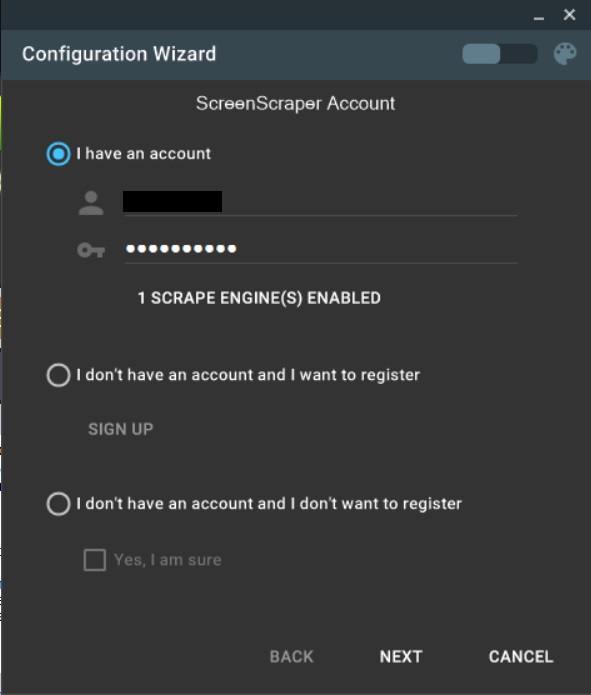
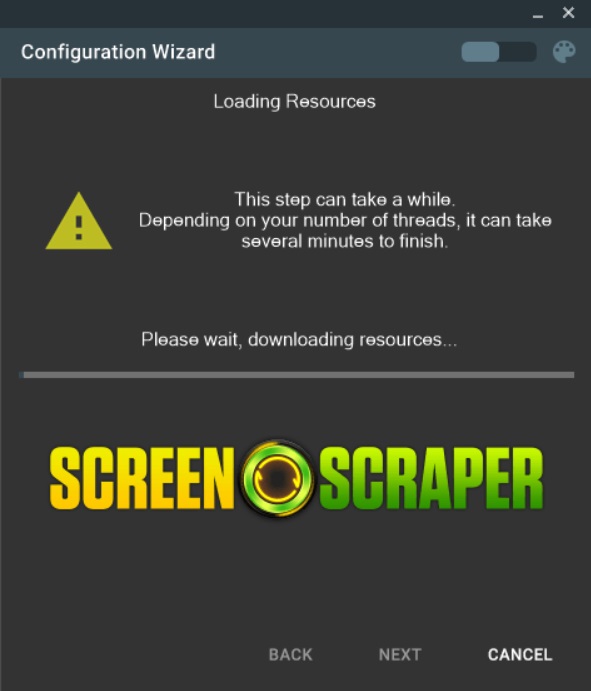
Go to Skraper.net and download the version for your PC and launch it. On the first run it will ask for couple of things. If you created an account in Step 1, provide your login details here and click Next. Now the app will download all the necessary files and that can take a while (just relax and leave it be).
Step 3
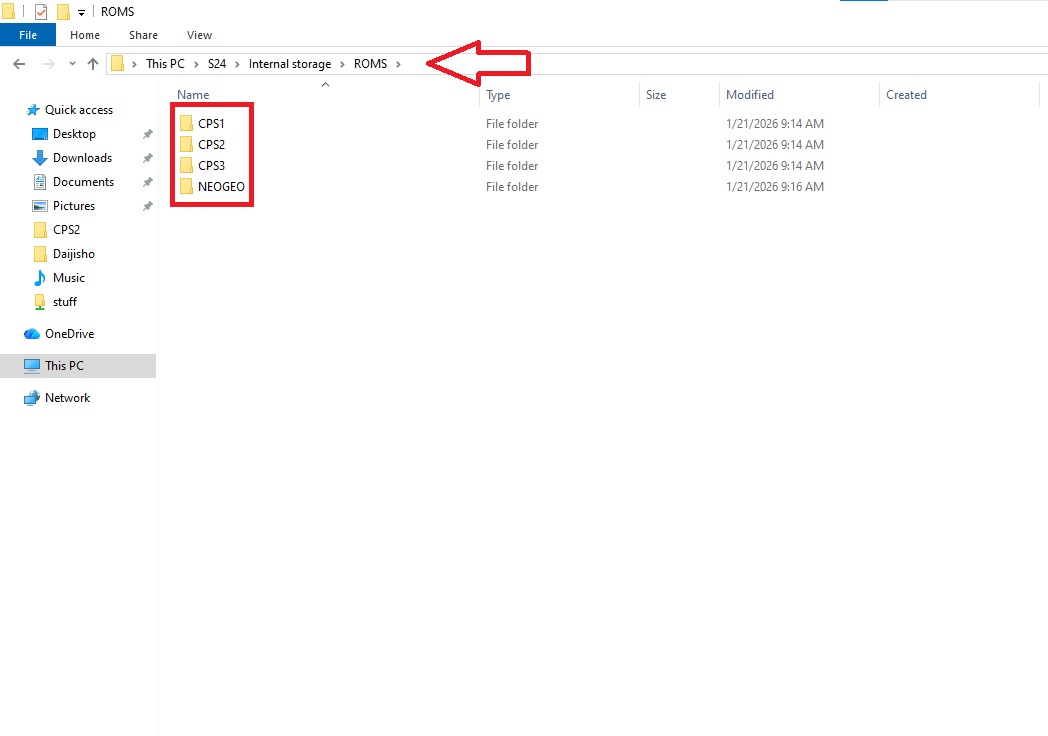
While SkraperUI gets its bearings together, minimize it and get your entire ROMS folder from your handheld and copy it to your PC. Just make sure your Roms are actually working and fully sorted out before you scrape them. Here is an example, I have a ROMS folder that has subfolders like CPS1, CPS2, CPS3, Neo-Geo etc, and we are going to scrap the content in each folder.
Step 4
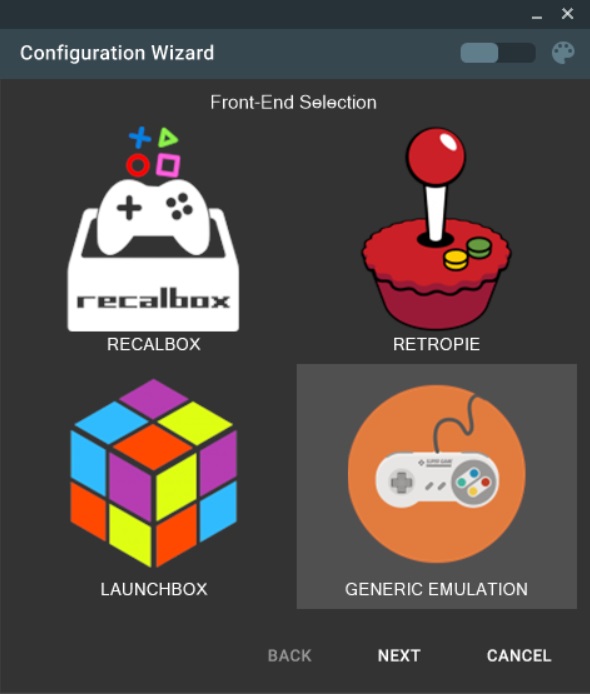
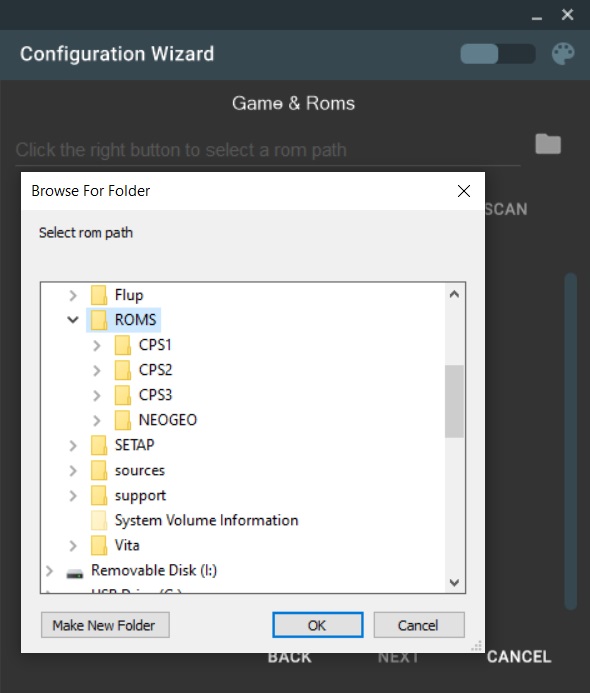
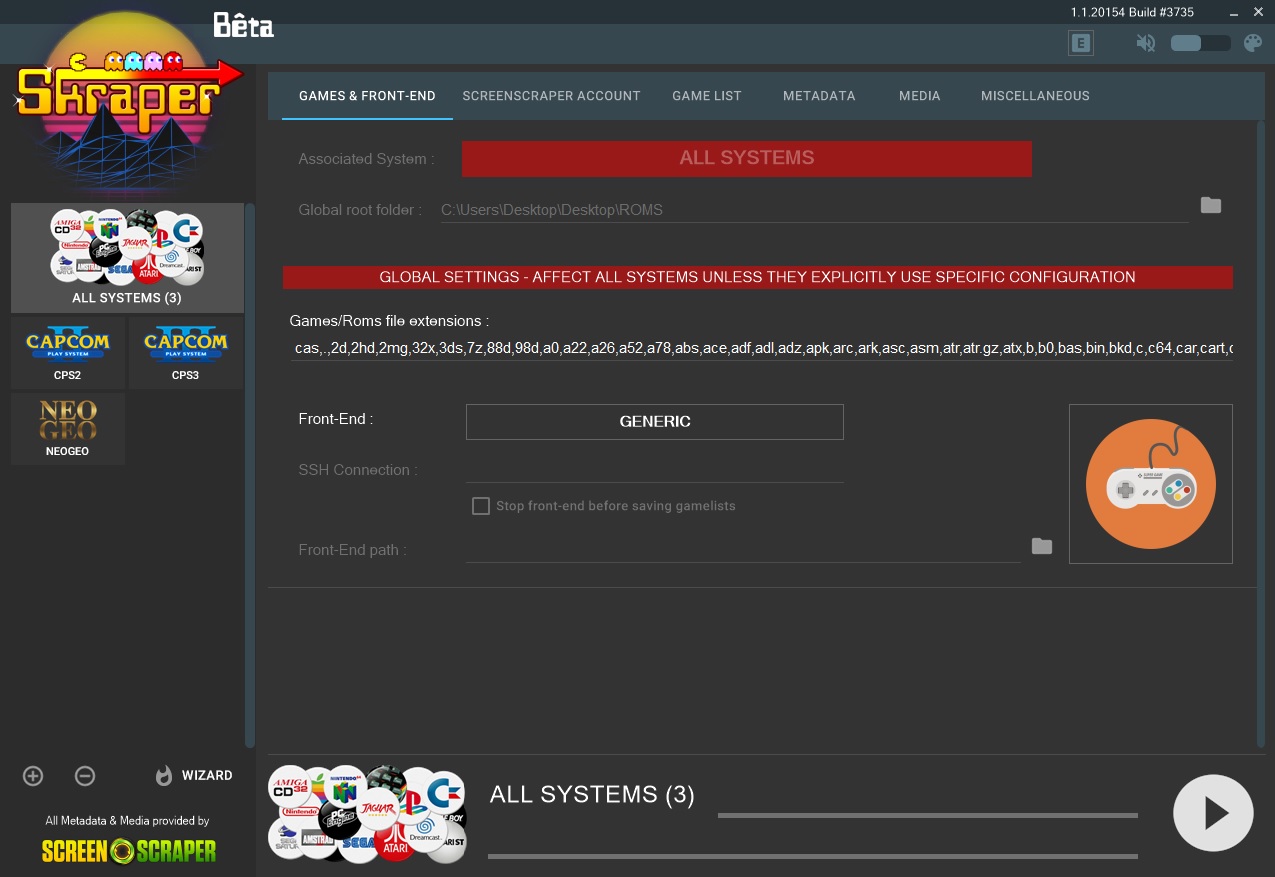
When SkraperUI finishes getting all the things it needs, choose “Generic Emulation” and the root of your ROMS folder and click Next.
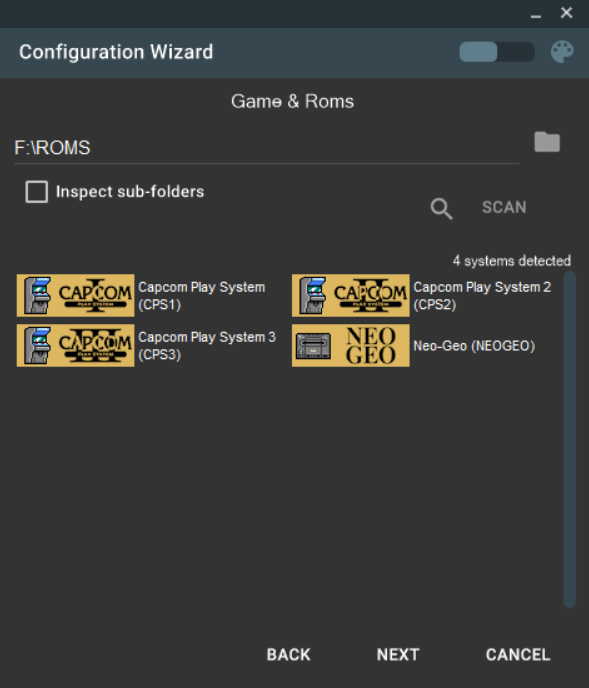
As you can see, all the detected systems are shown below. If they are not showing up, you did something wrong, retrace from Step 3.
Step 5
It’s time to set SkraperUI settings right. I know it looks extremely complicated, but stick to the steps shown on my screenshots and you’ll be fine.
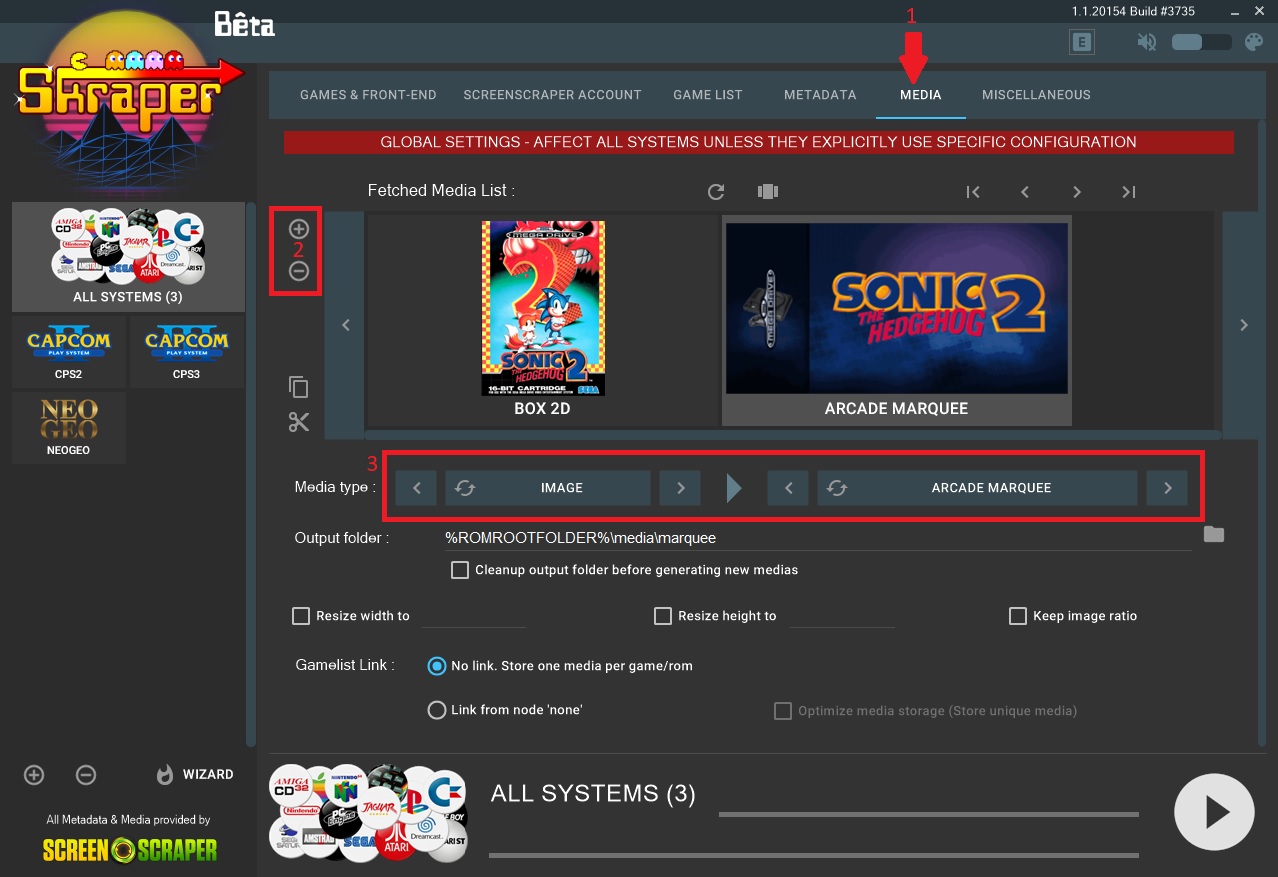
First click on “Media”, then remove all the existing items by clicking on the “-” sign, then add only one item on the “+” sign and under “Media type” select “Image” on the left and “Box 2D” on the right. Click the “+” sign and this time select “Image” in the first box, and “Arcade Marquee” in the second.
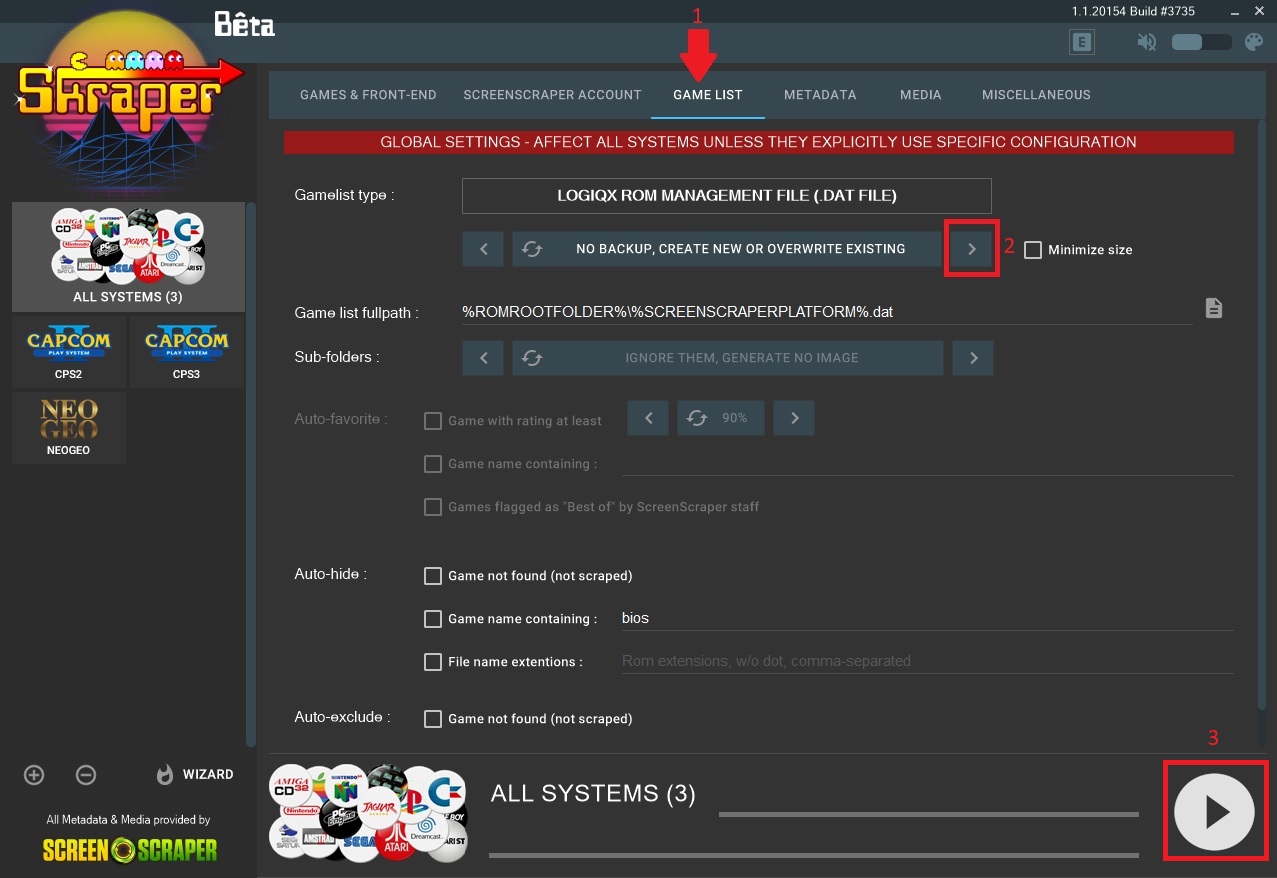
Now click on the “Game List” tab and make sure it says “No Backup, Create New or Overwrite Existing” in the first box. Make sure everything else is as shown on the screenshot below.
Finally click the big “Play” button and scraping will start. Sit back and relax, this will take some time depending of the amount of ROMs you have in your folders.
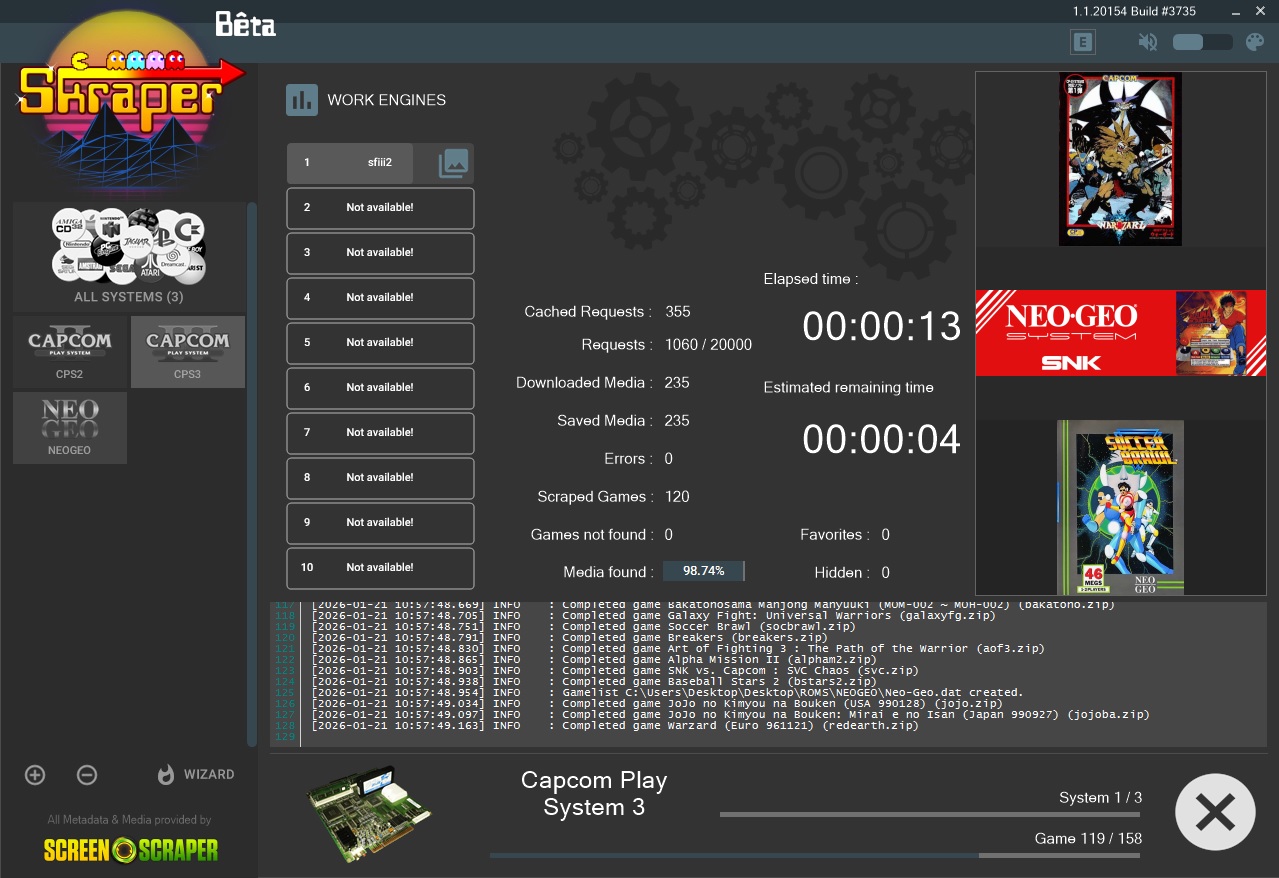
When done, you will notice one new folder and one new “.dat” file per ROM directory. This dat file will fix the game names.
Step 6
Copy everything back from your desktop to your Android device, including the newly created folders and files.
Step 7
Let’s tell Daijisho how to utilize all the extra file you just generated. Select one of the platforms, and tap the edit button.
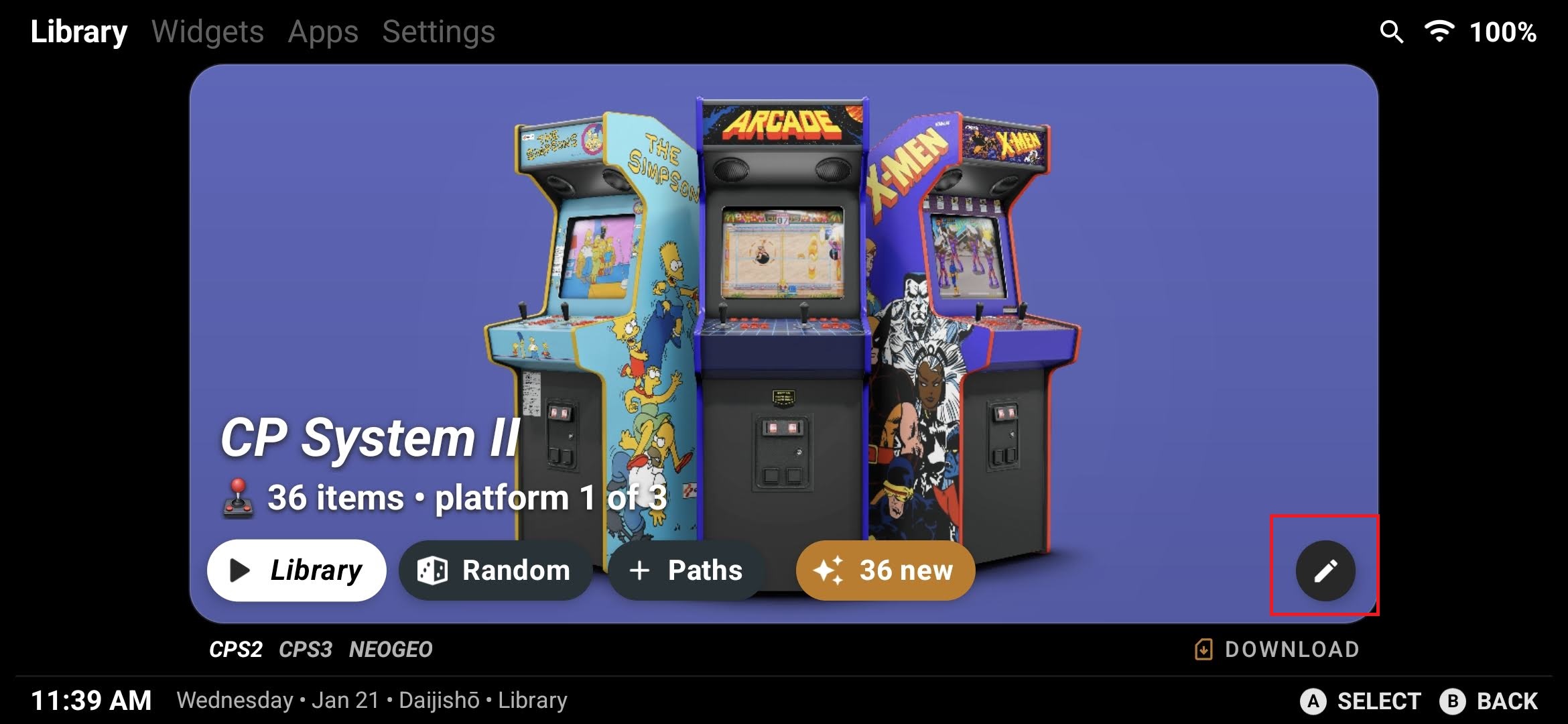
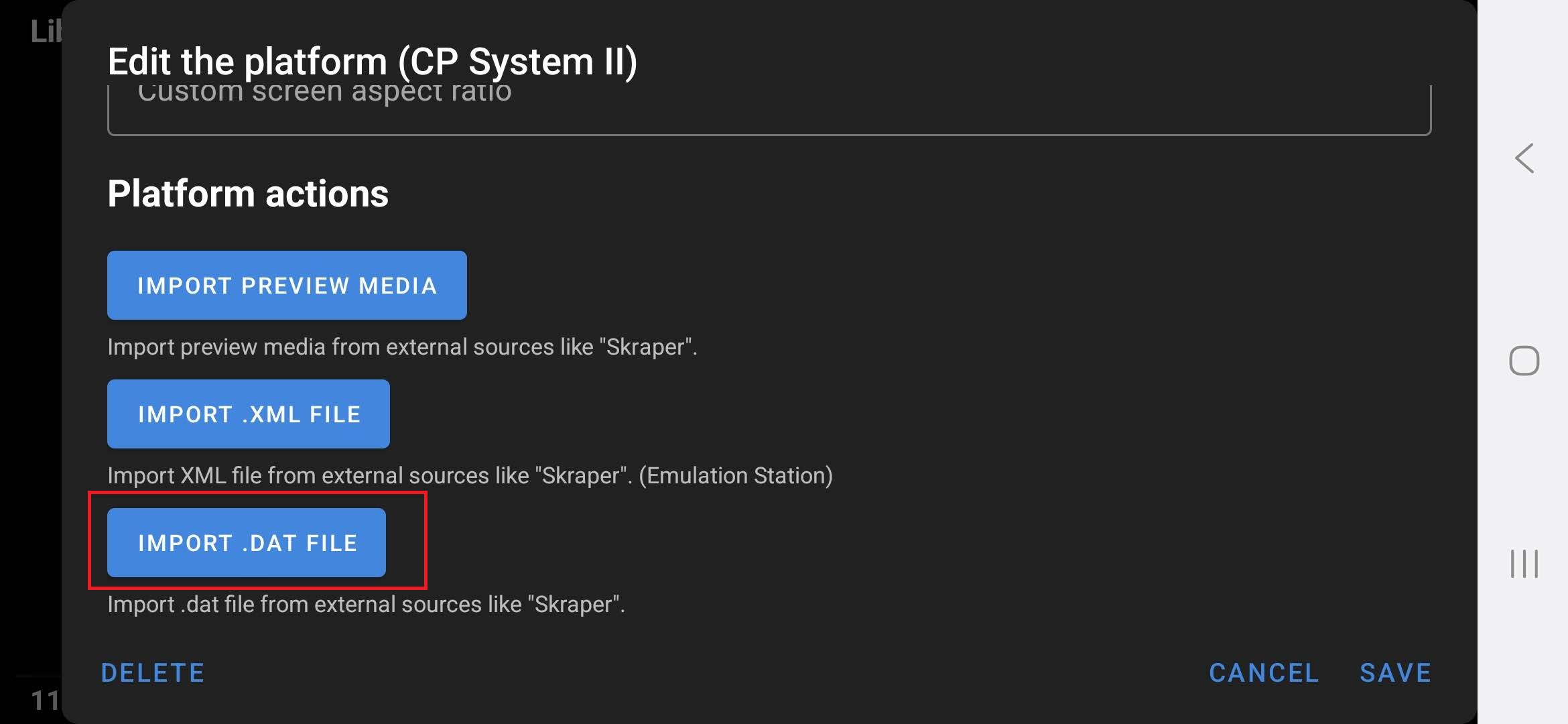
Scroll to the bottom, tap “import .DAT file” and browse for the DAT file for that system, in this example CPSII. Tap “Use this folder”.
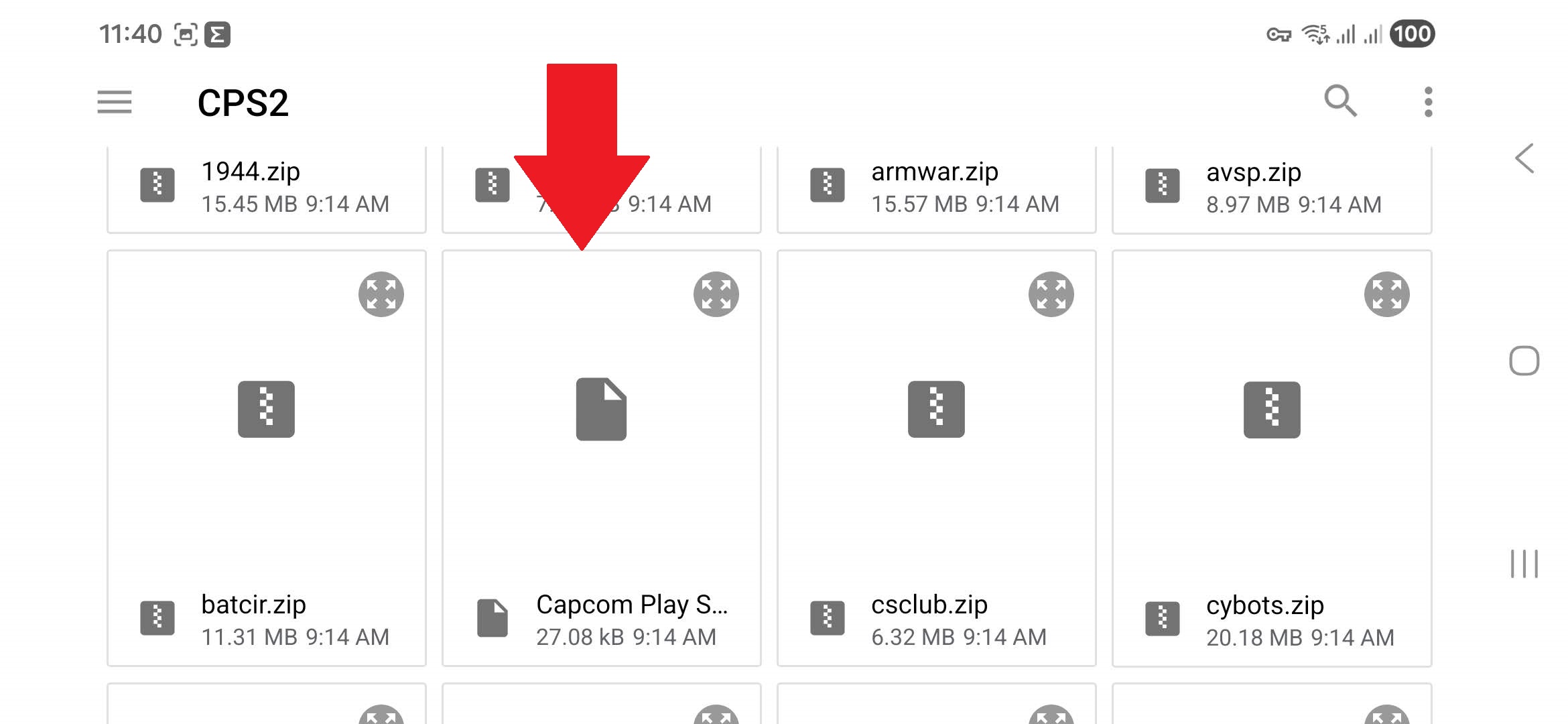
Tap on “Import Preview Media”, browse for the correct folder under that system and the “box2dfront” subfolder.
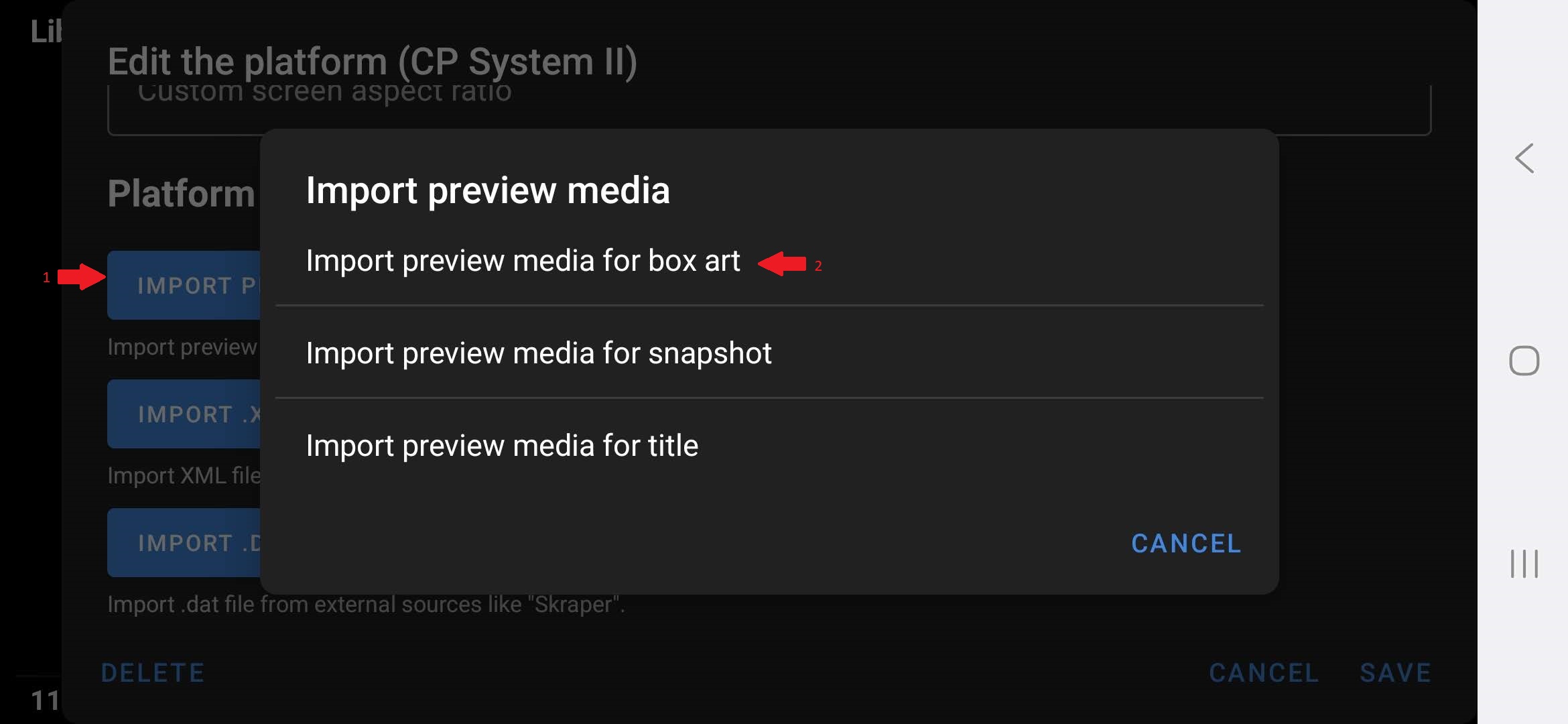
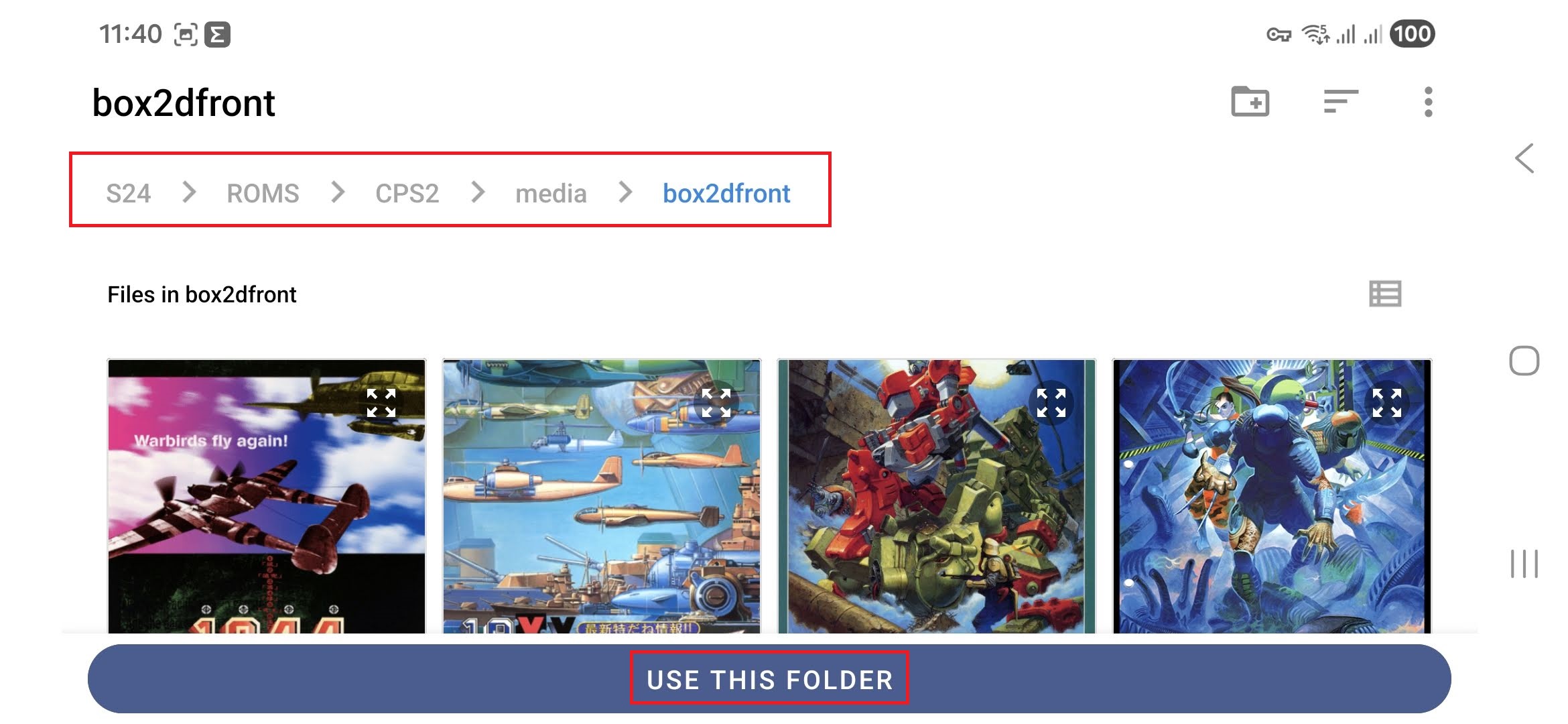
Do the same for the background (media snapshot).
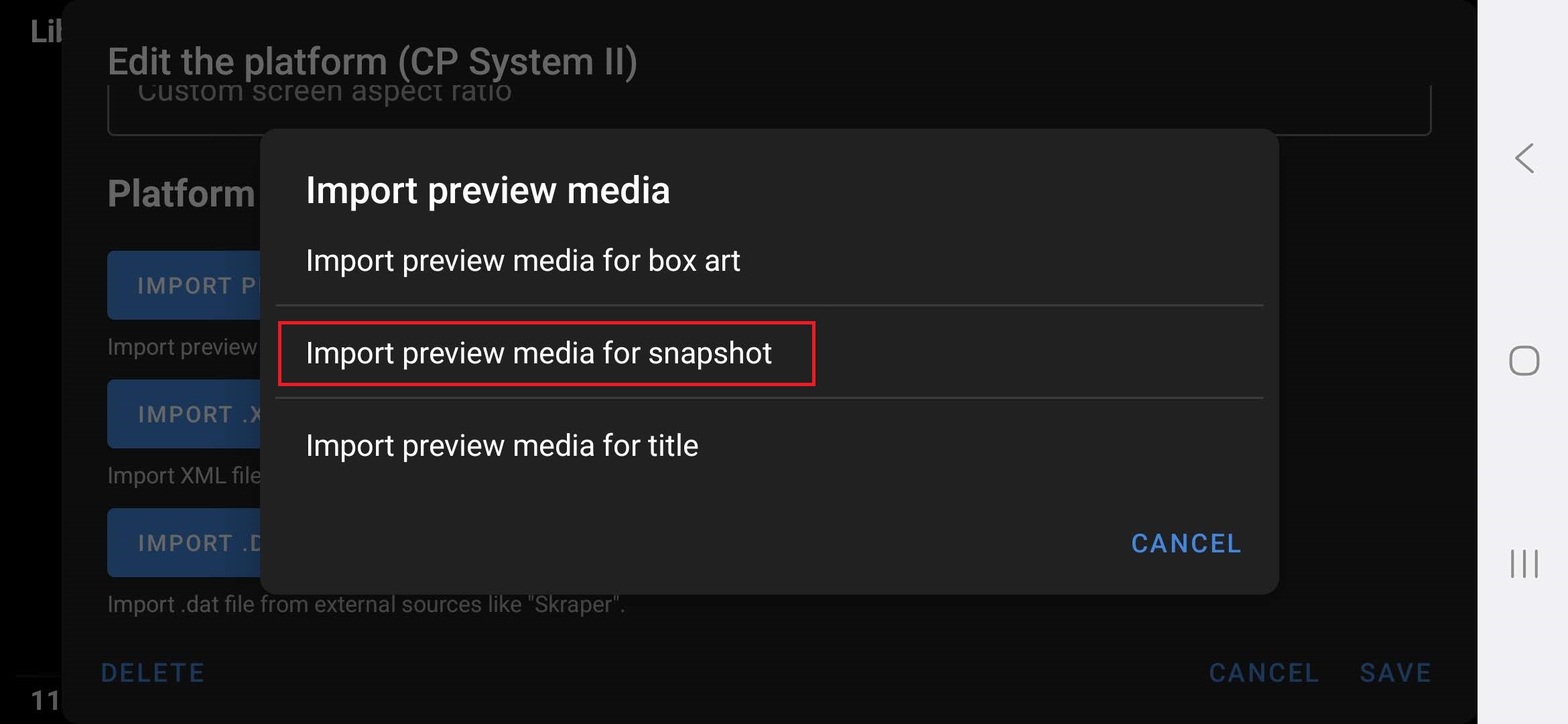
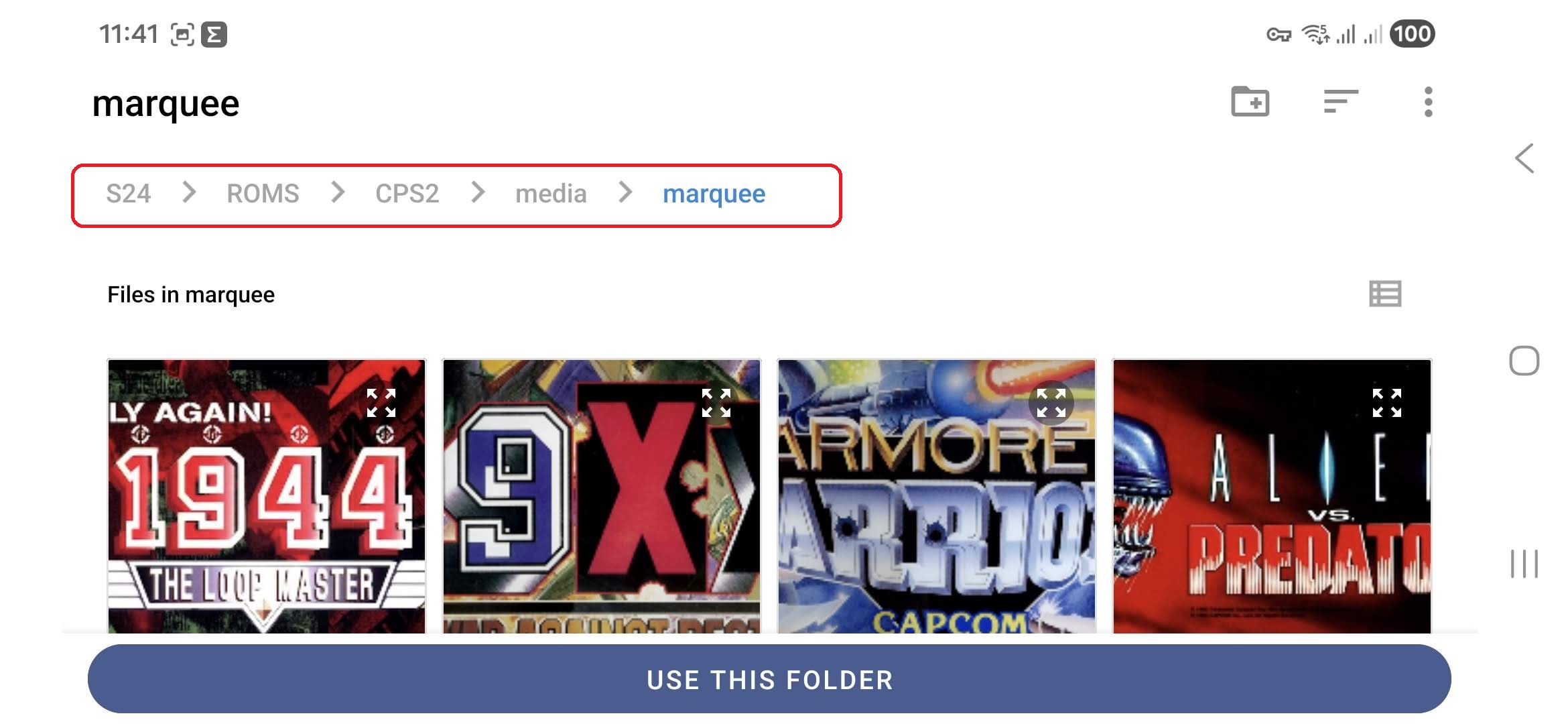
Finally tap save and check if the game names and their artwork are correct.
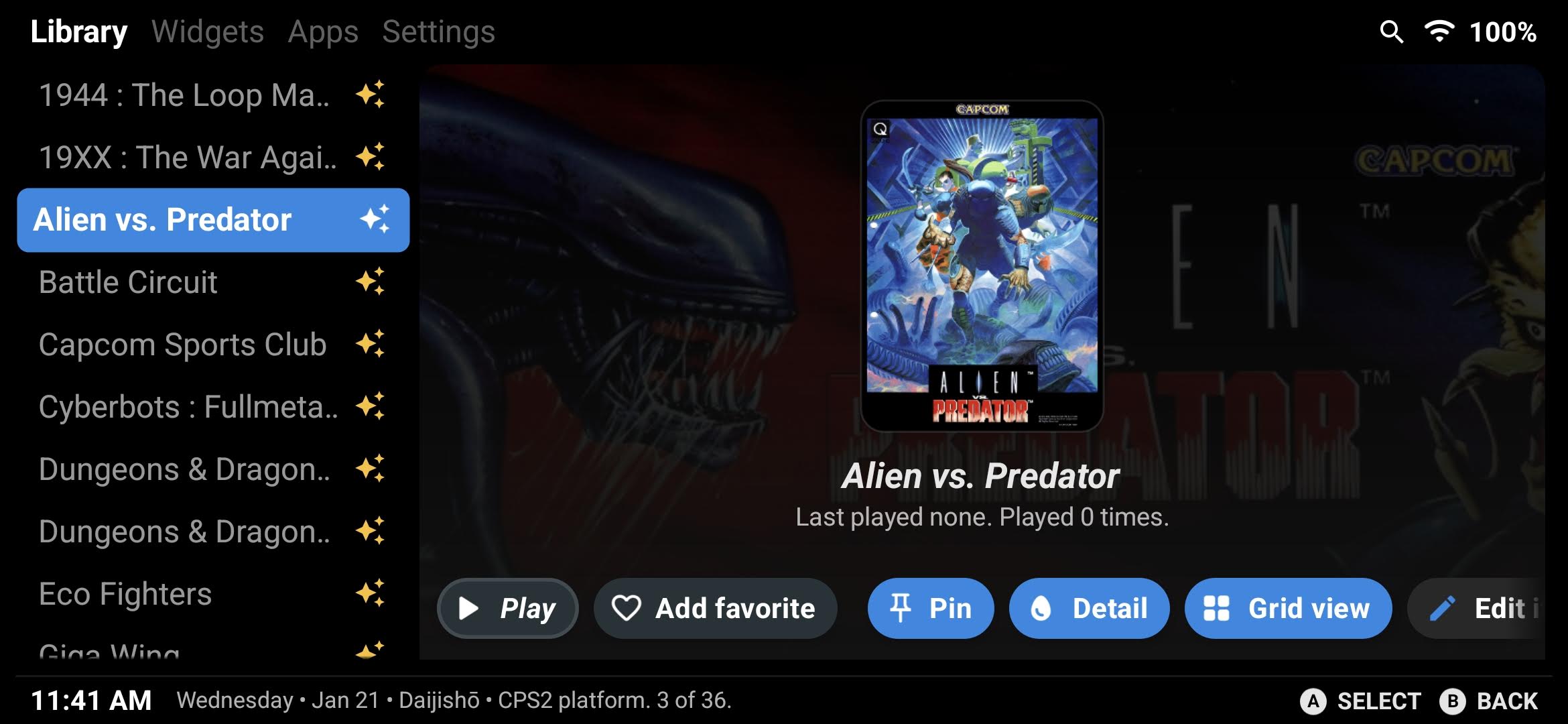
While not perfect, Daijishō comes pretty damn close to being all you need, especially when it comes to Android handheld consoles. If you like experimenting, you can also check out Emulation Station, LaunchBox, Beacon Launcher or Pegasus as alternatives to Daijishō, but none of them include a tab that shows your Android apps and games. At least, not by default.
That is pretty much it. If you want more instructions or tips related to Daijishō, leave a comment below.
Dejan B.
Discover more from AndroGaming.com
Subscribe to get the latest posts sent to your email.
Pingback: C64 Emulator on Android Setup Guide - AndroGaming.com