
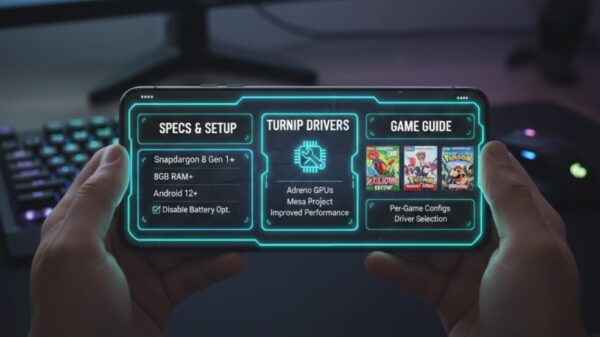
Eden for Android: Specs, Setup Turnip Drivers and Game Guide
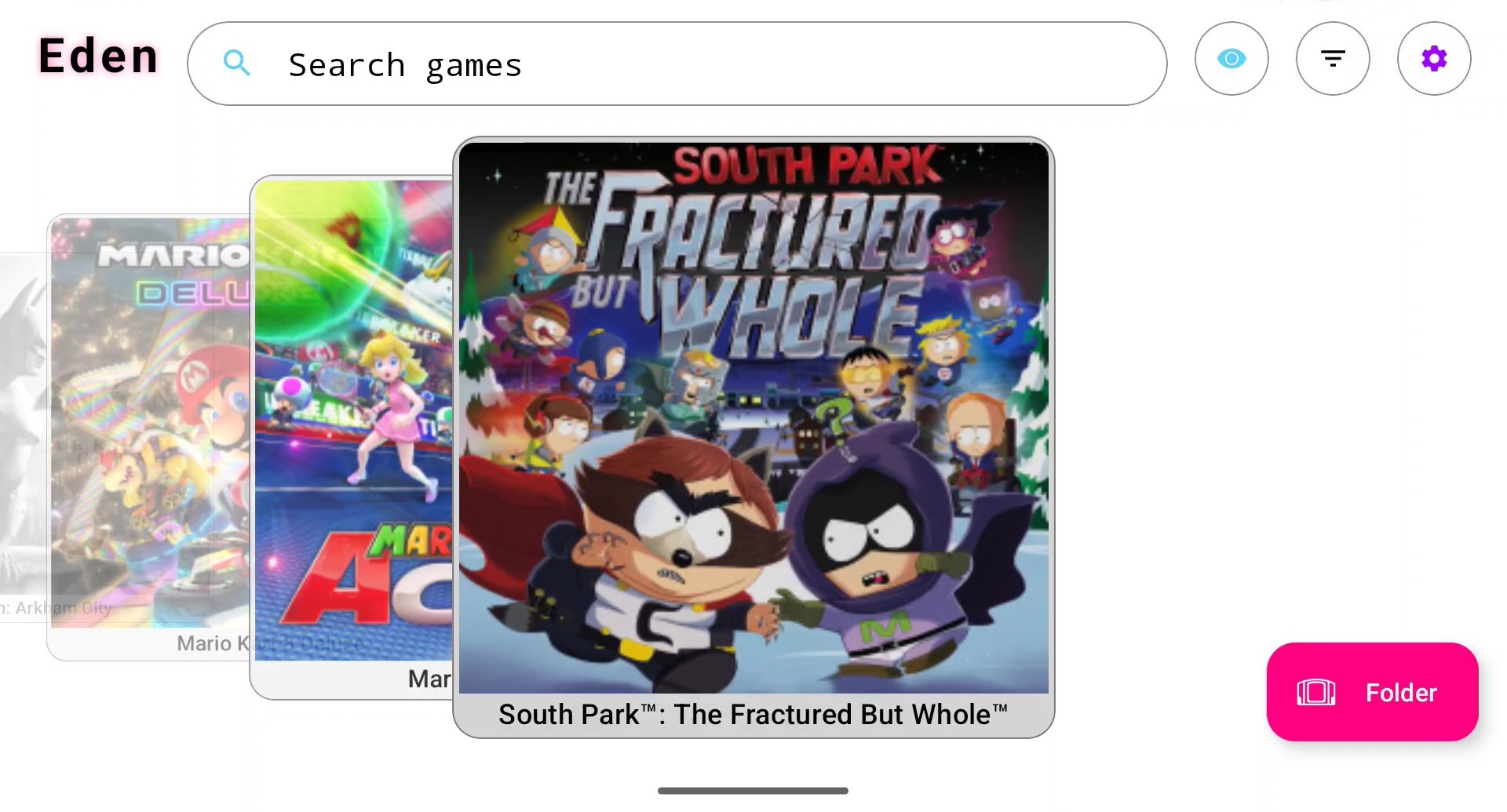
Eden on Android is a Nintendo Switch emulator for people who look at a settings menu and think nice….
This is not an install – tap – play kind of app. Eden assumes you know how to at least set your GPU drivers and you are at least mildly interested in squeezing every last frame out of your Android device before it starts heating up like a pocket toaster.
If you ever thought “my phone is powerful enough why is this game running like a slideshow?”, Eden will happily answer that question for you. Sometimes the answer is drivers. Sometimes it is thermals. Sometimes it is simply that the Switch is a weird little console…. Eden does not hide any of that. It puts all the knobs in front of you and lets you break things until they work.
Under the hood Eden translates Nintendo Switch code to ARM using Vulkan. That means your GPU matters as much as your CPU and your driver stack matters more than you probably want it to. On the right device with the right setup, Eden can run surprisingly well.
Device requirements and Turnip driver basics
A Snapdragon 8 Gen 1 is the practical minimum. Snapdragon 8 Gen 2 or Gen 3 devices are strongly recommended for stable performance. Dimensity 9000 series chips can work but Vulkan behavior is inconsistent. Exynos devices generally struggle and are not recommended.
The GPU must support Vulkan 1.3. Adreno GPUs perform best because they support custom Vulkan drivers known as Turnip drivers. These drivers replace the stock Qualcomm Vulkan driver and often provide better compatibility and performance for emulation.
RAM should be at least 8 GB. 12 GB or more is preferred. Android 12 or newer is required. Disable battery optimization for Eden and enable system performance mode if available.
Turnip drivers only work on Adreno GPUs. If your device uses Mali Turnip drivers are not supported (yet?) and you must rely on stock drivers.
What are Turnip drivers exactly?
Turnip drivers are open source Vulkan drivers developed under the Mesa project. On Android they can be injected into apps like Eden (or Winlator, Gamehub) to override the default GPU driver.
In Eden Turnip drivers often improve shader compilation speed reduce graphical glitches and fix crashes that happen with stock drivers. Many games that fail to boot on stock drivers work correctly with Turnip.
However! Not every Turnip version works the same. Some games prefer older builds while others require newer revisions. This is why Eden allows per game driver selection.
How to install and run Eden on Android
Step 1: Install Eden
Download the latest Eden Android APK from this source and install it manually. Allow unknown sources if prompted.
Step 2: Prepare system files
Eden requires Nintendo Switch keys and firmware (prod.keys and Firmware.xx.x.x.zip). Place keys in the keys folder and firmware in the firmware directory inside Eden storage.
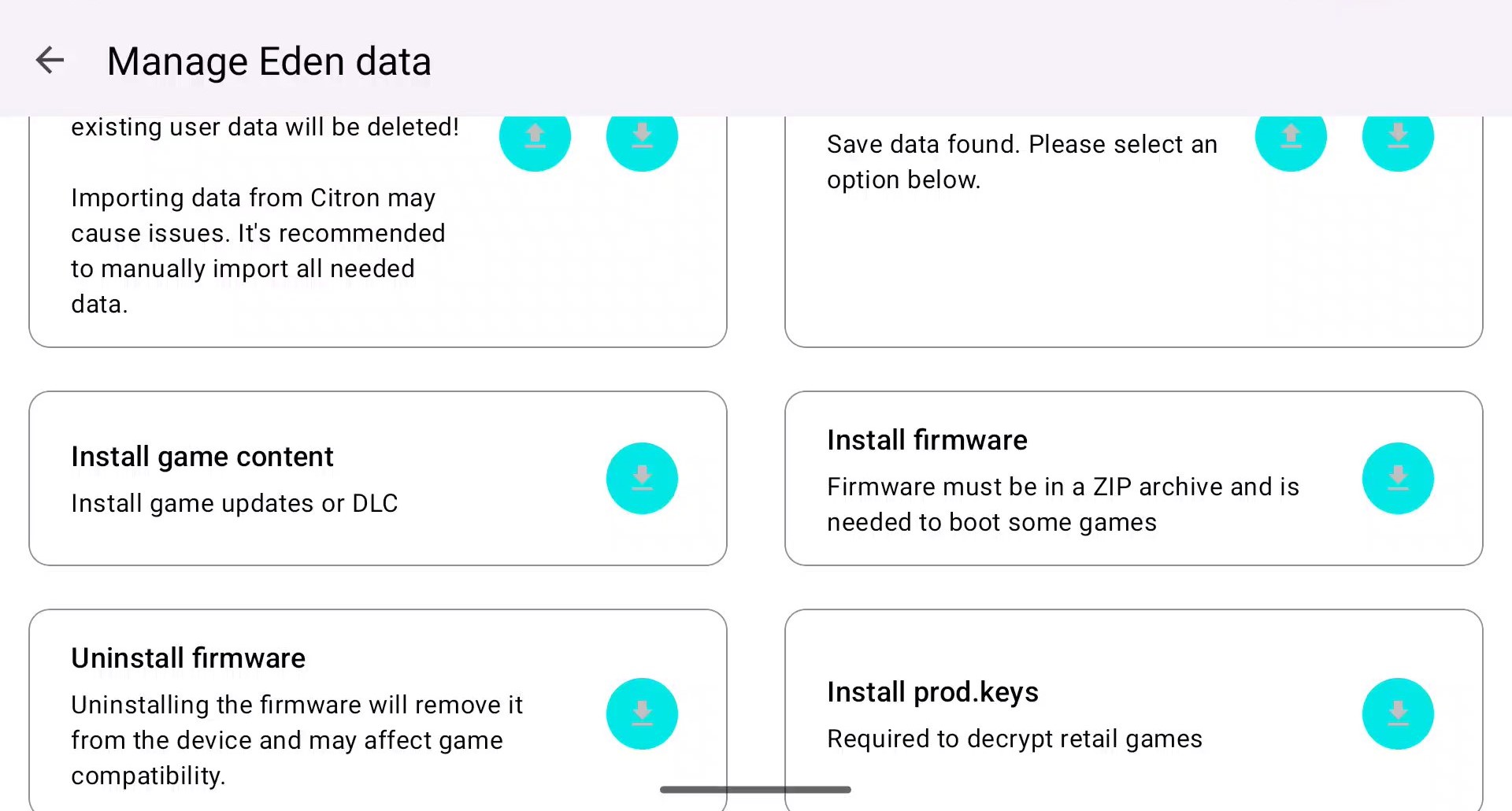
Step 3: Add games
Copy NSP or XCI files to internal storage. In Eden set the game directory to that folder and rescan.
Step 4: Initial settings
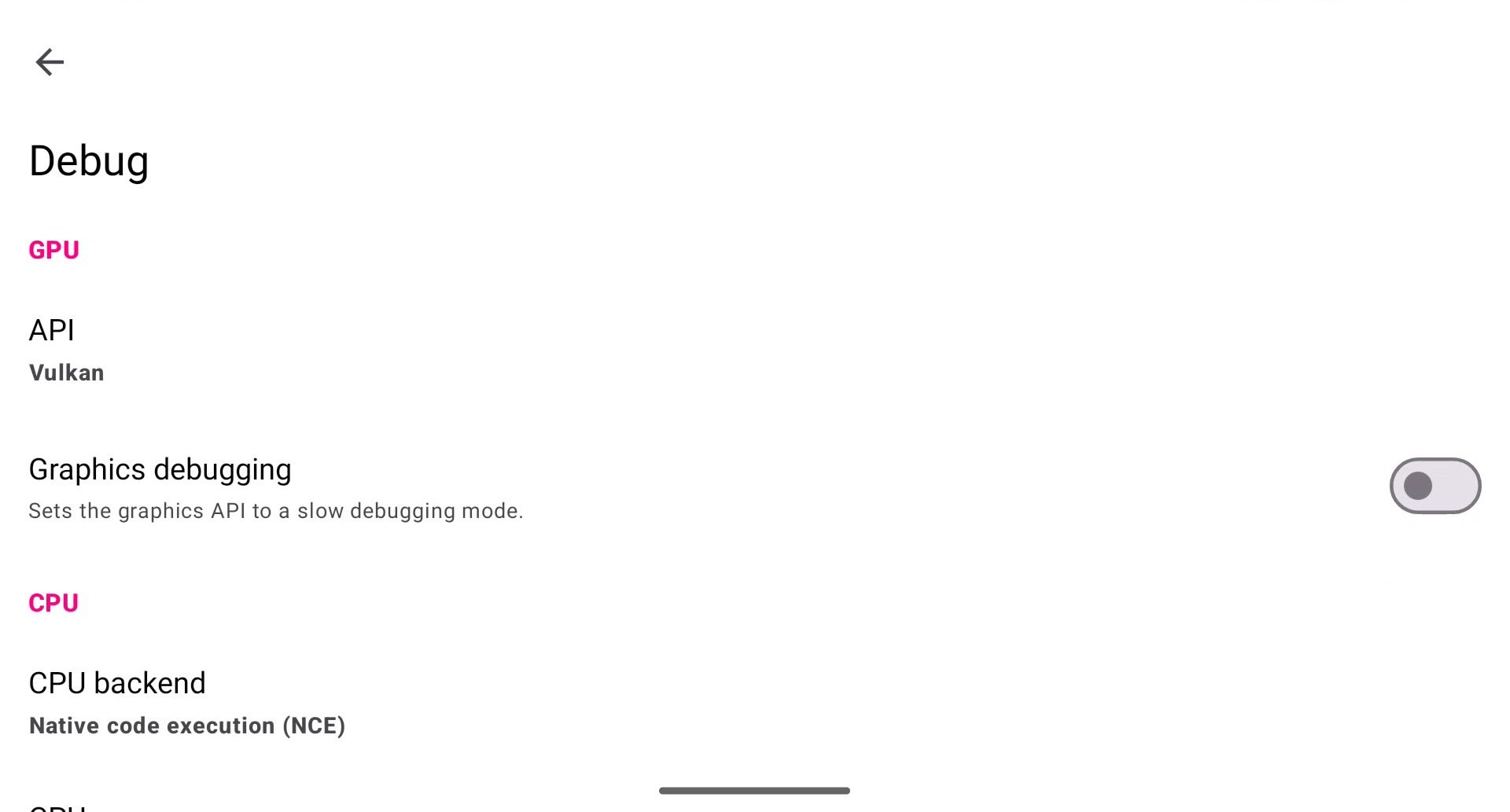
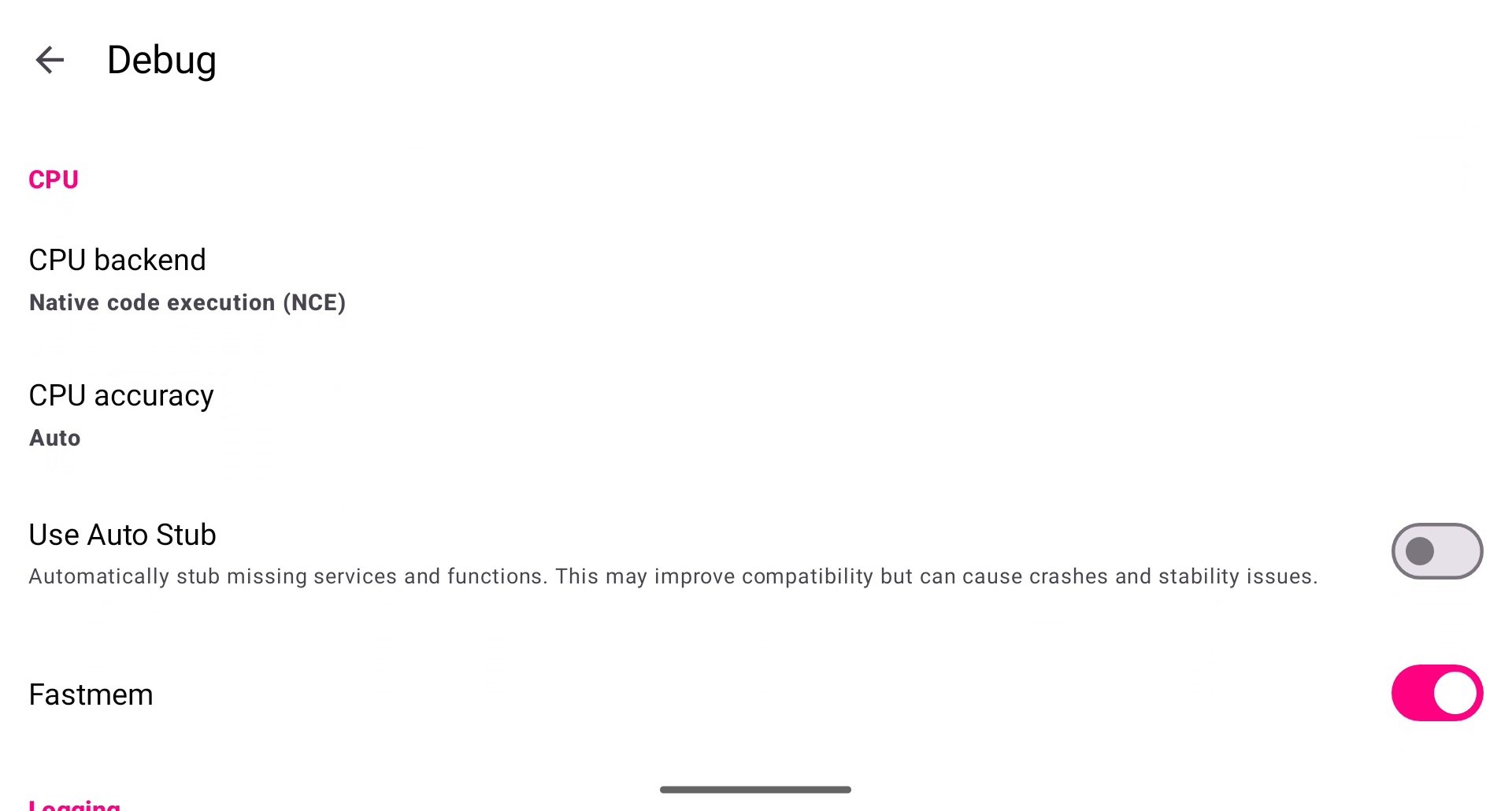
Set renderer to Vulkan. Enable asynchronous shader compilation. Set CPU accuracy to unsafe. Leave GPU accuracy on normal unless a game shows rendering issues. Fastmem should be enabled as well.
Step 5: Controller setup
Touch controls work but a Bluetooth controller is recommended. Configure input mapping and save the profile.
How to install Turnip drivers in Eden
Step 1: Download Turnip drivers (Links for K11MCH1 and v3kt0r-87, the two most popular GitHub repos)
Get the latest Turnip Vulkan driver package compatible with your Android version and Adreno GPU. These come as ZIP or driver packages.
Step 2: Add drivers to Eden
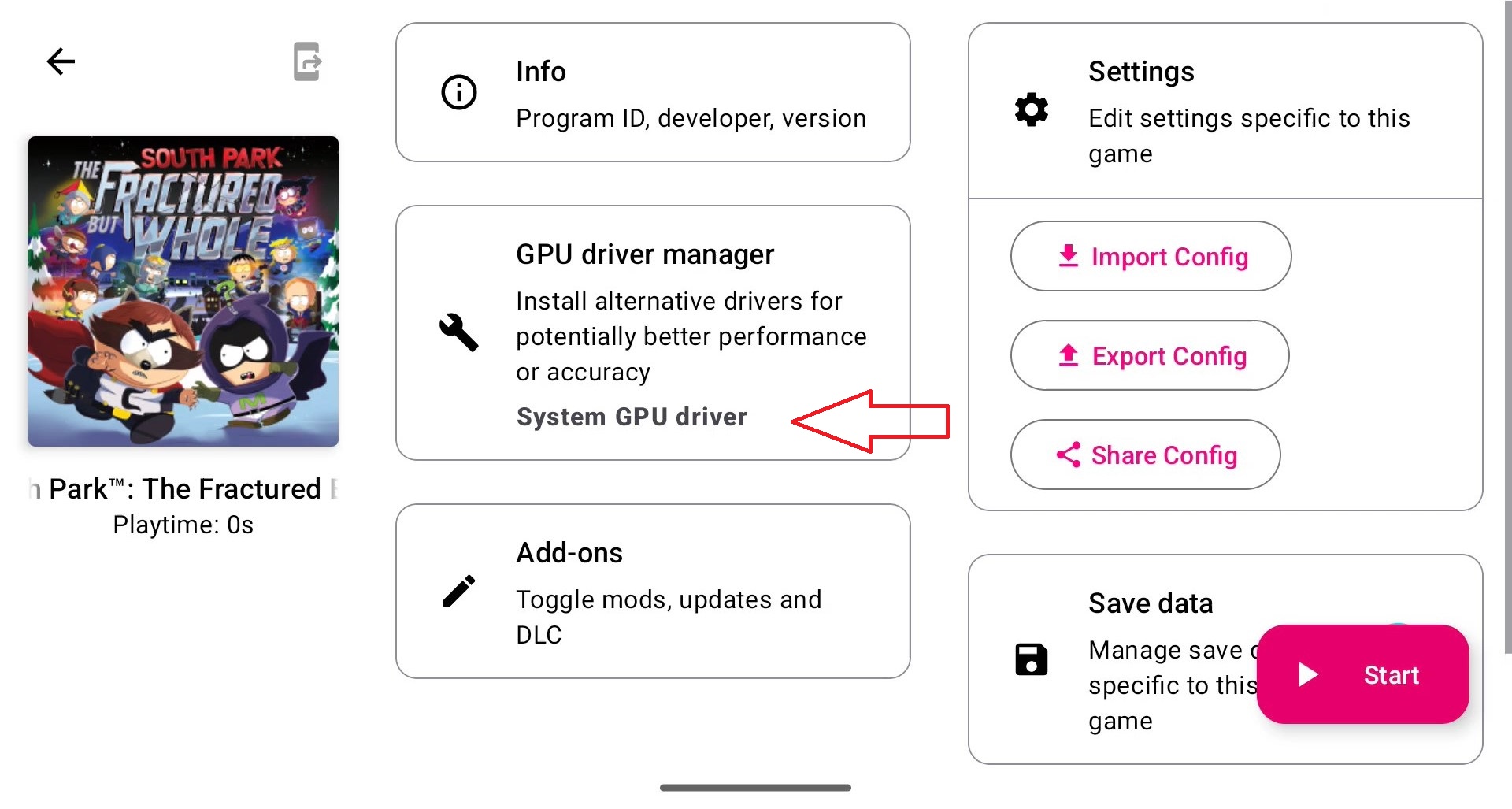
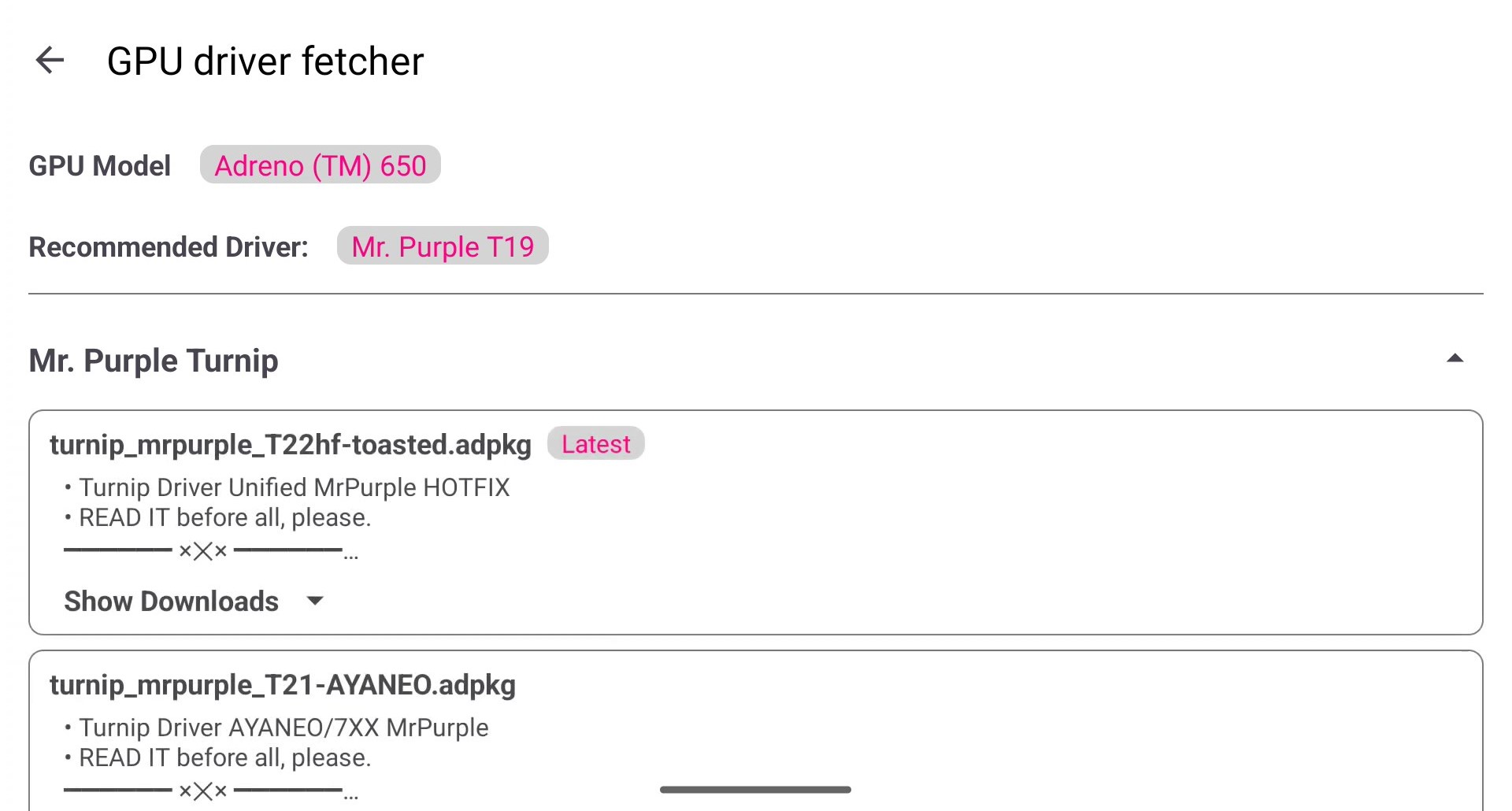
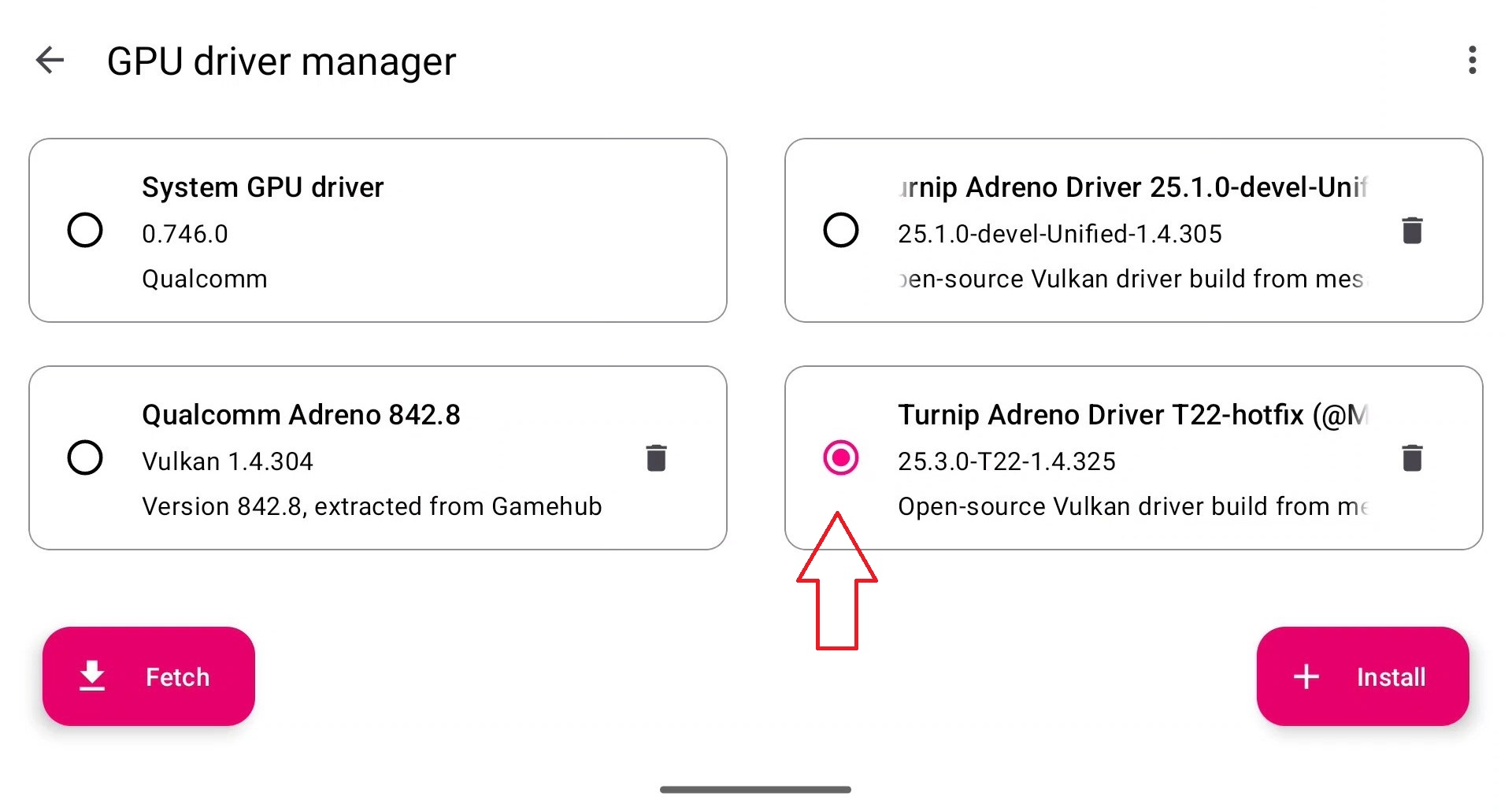
Open Eden go to settings then GPU drivers. Import the Turnip driver package. Eden will extract and register it automatically. The emulator allows you to download Turnip drivers directly from the menu, but the selection is limited to usually two or three sources.
Step 3: Set global or per game drivers
You can set Turnip as the global driver but per game configuration is safer. Long press a game open settings and select the Turnip driver only for that title.
Step 4: Verify driver usage
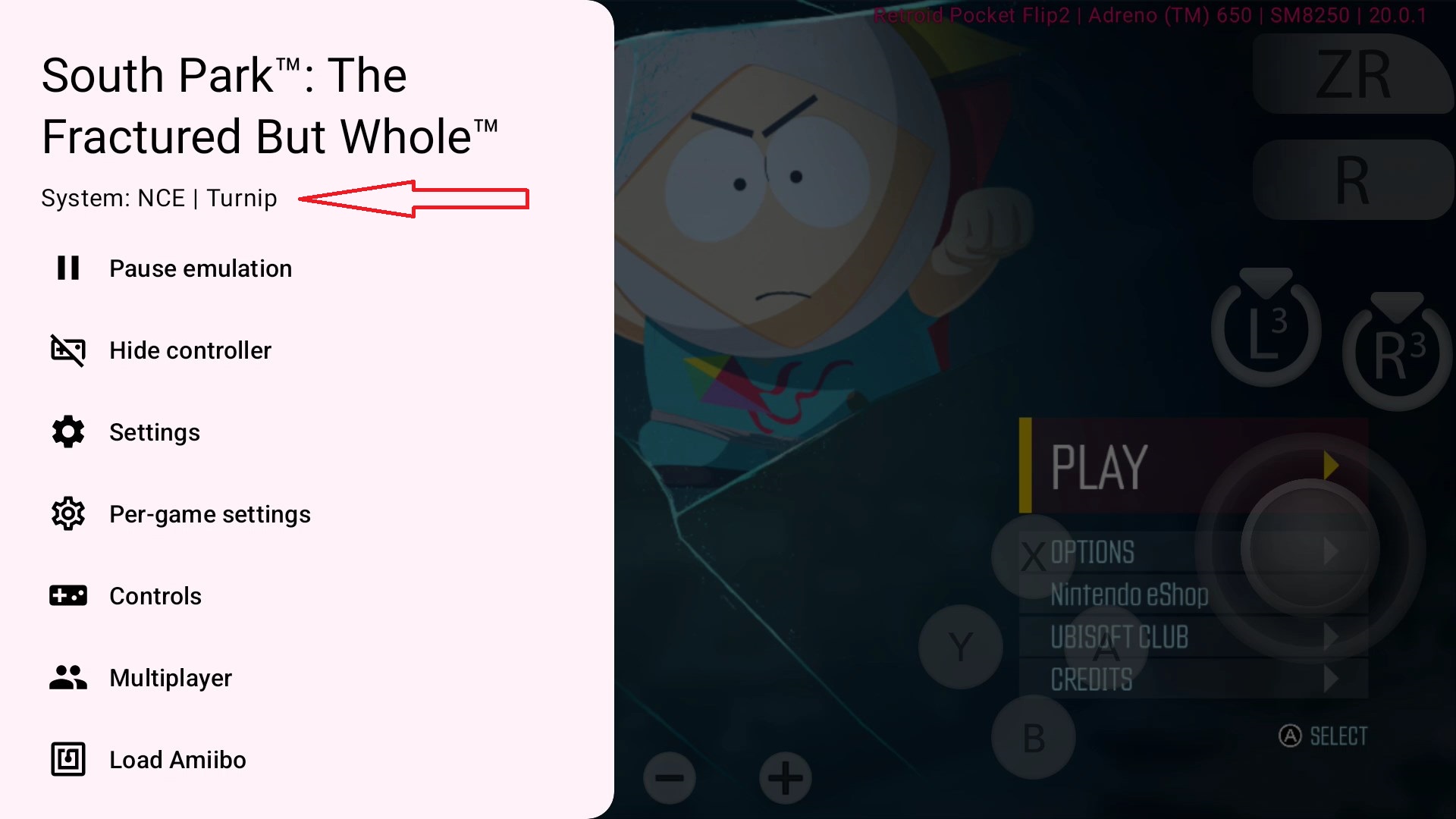
Launch a game and check the GPU info overlay if enabled. It should show Turnip instead of the stock Qualcomm driver.
Per game configuration and Turnip recommendations
Pokémon Scarlet and Violet
Use Turnip drivers v3kt0r-87 Mesa 24.3.3. Set resolution to 0.75x disable anti aliasing and keep CPU accuracy on unsafe. Expect shader stutter during the first session.
The Legend of Zelda Breath of the Wild
Turnip drivers are strongly recommended (Try Mesa Turnip driver v24.3.0 – Revision 6
). Set resolution to 1x disable dynamic resolution and enable async shaders. Mali devices will struggle regardless of settings.
Super Mario Odyssey
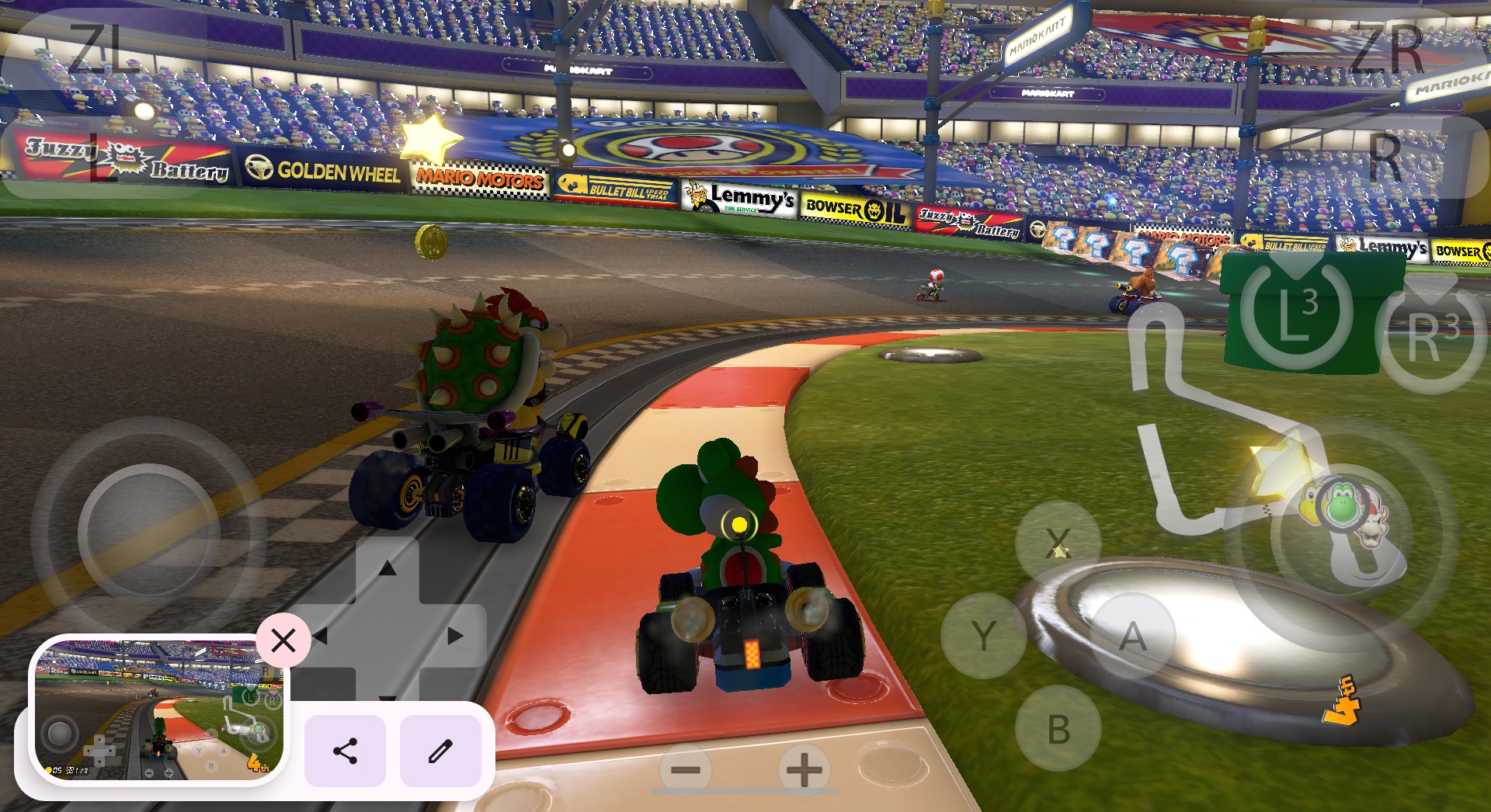
Most Snapdragon 8 Gen 2 devices run well at 1x resolution with Turnip (try different versions). If stutter appears try an older Turnip build and keep GPU accuracy on normal.
2D and lighter games
Games like Celeste Hades and Hollow Knight work well even on stock drivers but Turnip allows higher resolutions up to 2x with stable performance.
Common issues and fixes
If a game crashes on boot verify firmware version compatibility. Missing or outdated firmware causes silent failures.
If graphics are broken switch GPU accuracy to high for that game only.
If performance drops after several minutes your device is thermal throttling. Lower resolution or take a break.
Eden benefits heavily from Turnip drivers on supported hardware. Proper driver selection often makes the difference between a game failing to boot and running smoothly. If you enjoy tweaking settings and understanding why things work or don’t. Eden is one of the more flexible Switch emulation options on Android.
Dejan B.
Discover more from AndroGaming.com
Subscribe to get the latest posts sent to your email.