
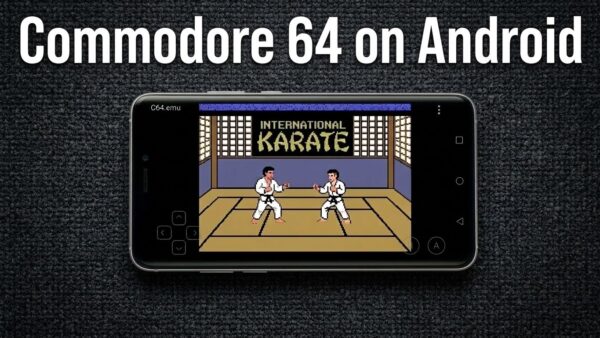
Commodore 64 on Android: Complete Setup Guide for C64 Games
The C64 was released in 1982 by Commodore International (Commodore Amiga came later) and became the best selling single computer model in history. It was an 8-bit home computer built around the MOS Technology 6510 CPU and the famous MOS Technology 6581 SID sound chip.
Commodore 64 was a legend. It was a simpler time when games loaded from cassette tapes, the screen flashed psychedelic colors for five minutes and the reward was blasting aliens in chunky pixels.
Fast forward a few decades and now we carry personal devices that are thousands of times more powerful. So naturally the question becomes how do we emulate Commodore 64 on Android?
This guide walks through everything required to emulate the C64 on Android, from emulators and ROM formats to controllers and a few small tricks that make the experience much better.
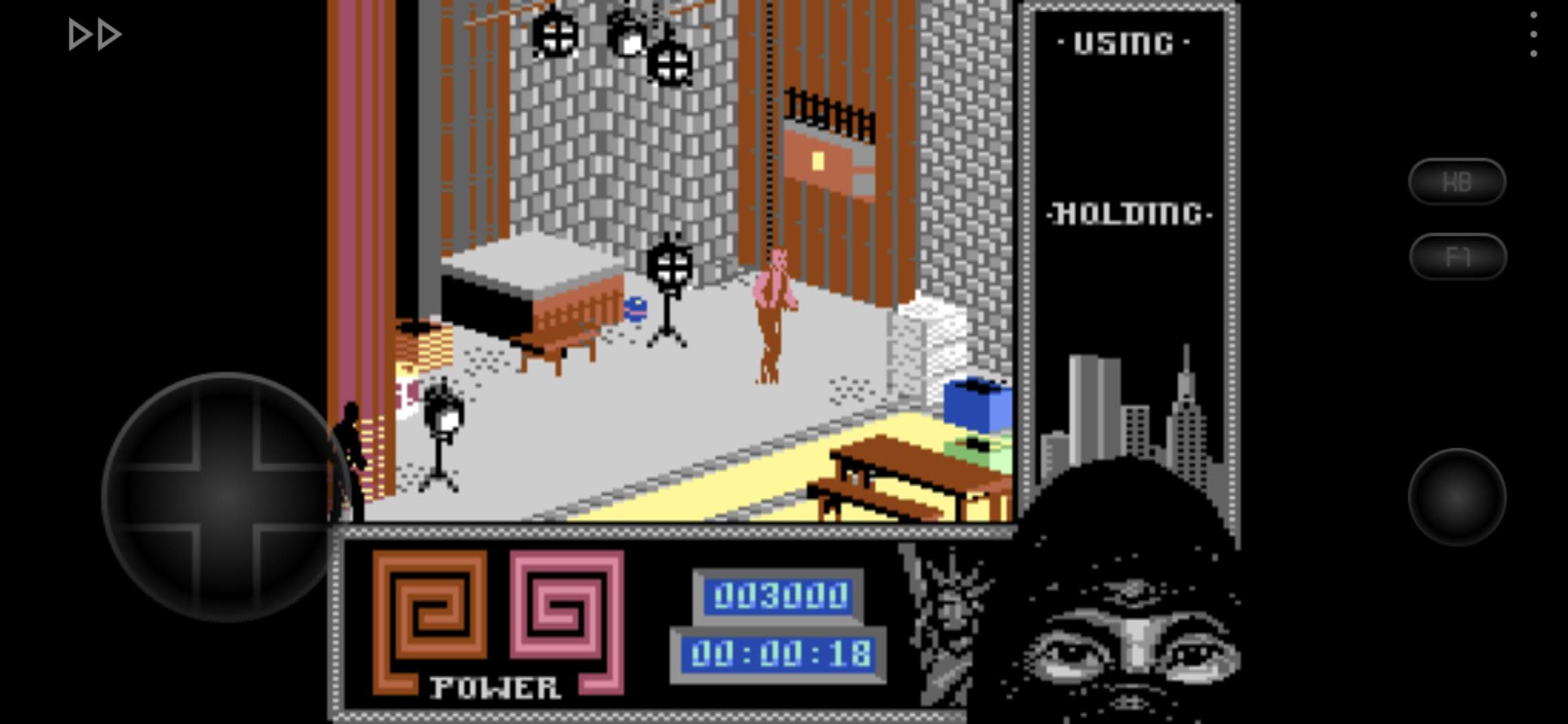
The Emulator: Your Virtual C64
The first piece of the puzzle is the emulator. This is the software that recreates the original hardware of the Commodore 64 on your Android device. The most popular option is C64.emu. It’s a paid app but well worth the small price if you want a polished experience. The emulator is based on VICE Emulator, which is widely considered the gold standard in this niche.
What makes C64.emu great is how simple it is. Install it, set up 1 additional thing, load a game file and you’re basically done. It also includes features like:
- Save states
- Controller support
- Keyboard overlay
- Disk swapping
- Fast loading
All things that were… let’s say not common in the original experience.
If you want a free alternative, you can try Frodo C64 Emulator. It works, but it hasn’t seen the same level of updates and polish.
And of course, the third option and perhaps most popular one, RetroArch using the VICE core. It’s free and works reasonably well, but this article is intended to explain how a dedicated (standalone) emulator works, so for most people, C64.emu is the way to go.
Getting the Games
Once you have the emulator installed, the next thing you need is the software itself.
C64 games typically come in a few different formats.
- D64
- T64
- PRG
- CRT
Each format represents a different way games were distributed back in the day.
D64 files are disk images. A full floppy disk captured into a file. Many multi-part games use this format.
T64 files are tape images. These simulate the old cassette tapes used to load games on early systems.
PRG files are simple program files that load directly into memory. They’re the fastest and easiest way to launch a game.
CRT files simulate cartridge releases.
All of these formats work perfectly with C64.emu.
Now comes the obvious question: where do you get the games?
There are several preservation projects online dedicated to the Commodore 64 scene. One of the most famous is GameBase64, which catalogs thousands of titles released during the system’s lifetime. Among other popular destinations Lemon64.com is the place to be to find public domain and freeware roms. And of course, Itch.io where you can find modern commercial releases. That’s right, the C64 still has developers releasing new titles.
Many classic games are also available through collections released by Commodore International back in the day or through preservation archives (on archive.org).
Once downloaded, just copy the files to your Android device, but unzip them first. Extensions should be .D64, T64, .PRG or .CRT
Organizing Your Game Library
This part is optional but highly recommended. Instead of dumping every file into one giant folder, create a simple structure like this:
C64
-Games
-Demos
-Homebrew
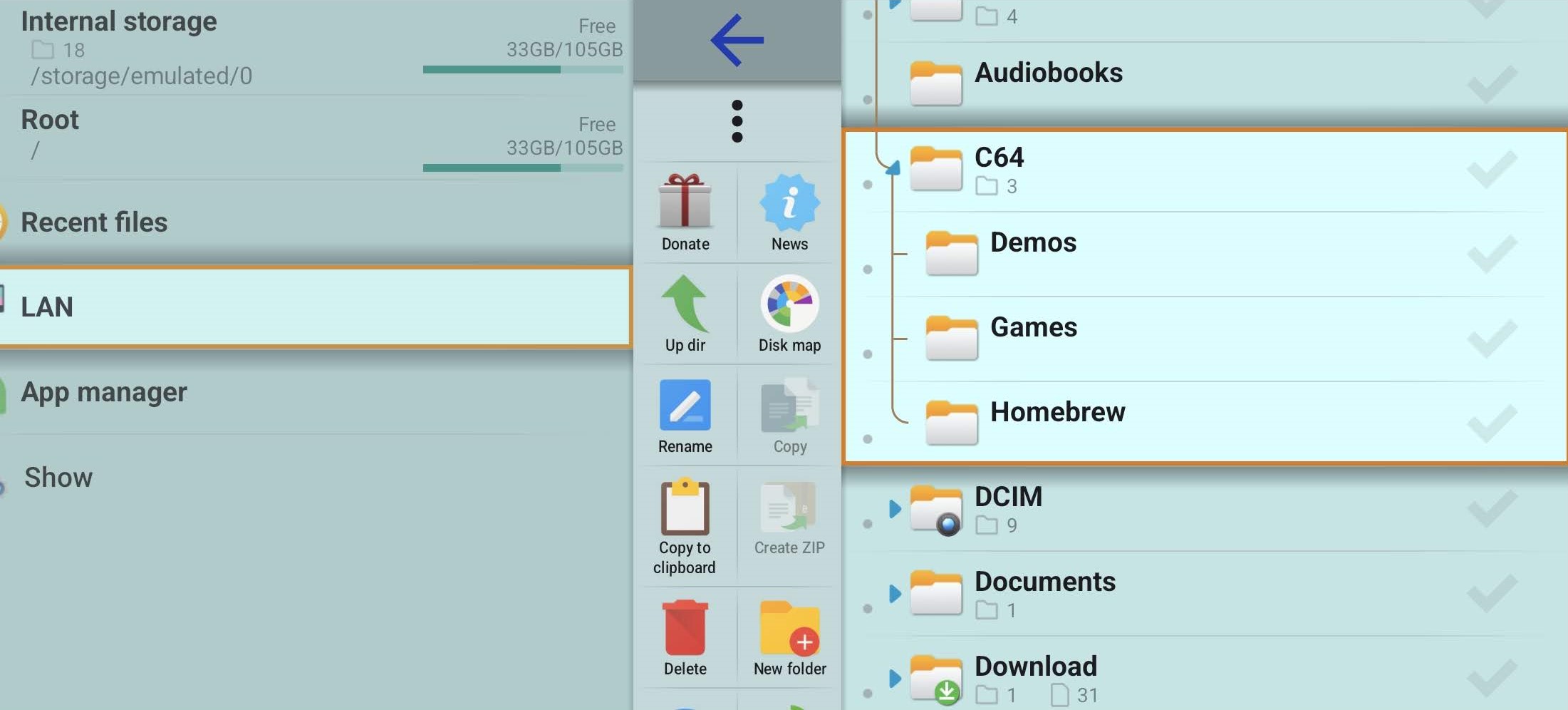
Inside the emulator you can then browse folders quickly and keep things organized. If you’re using a frontend launcher like Daijishō, things get even nicer. The launcher can scrape artwork and categorize all the games.
Controls: Touchscreen vs Real Controllers
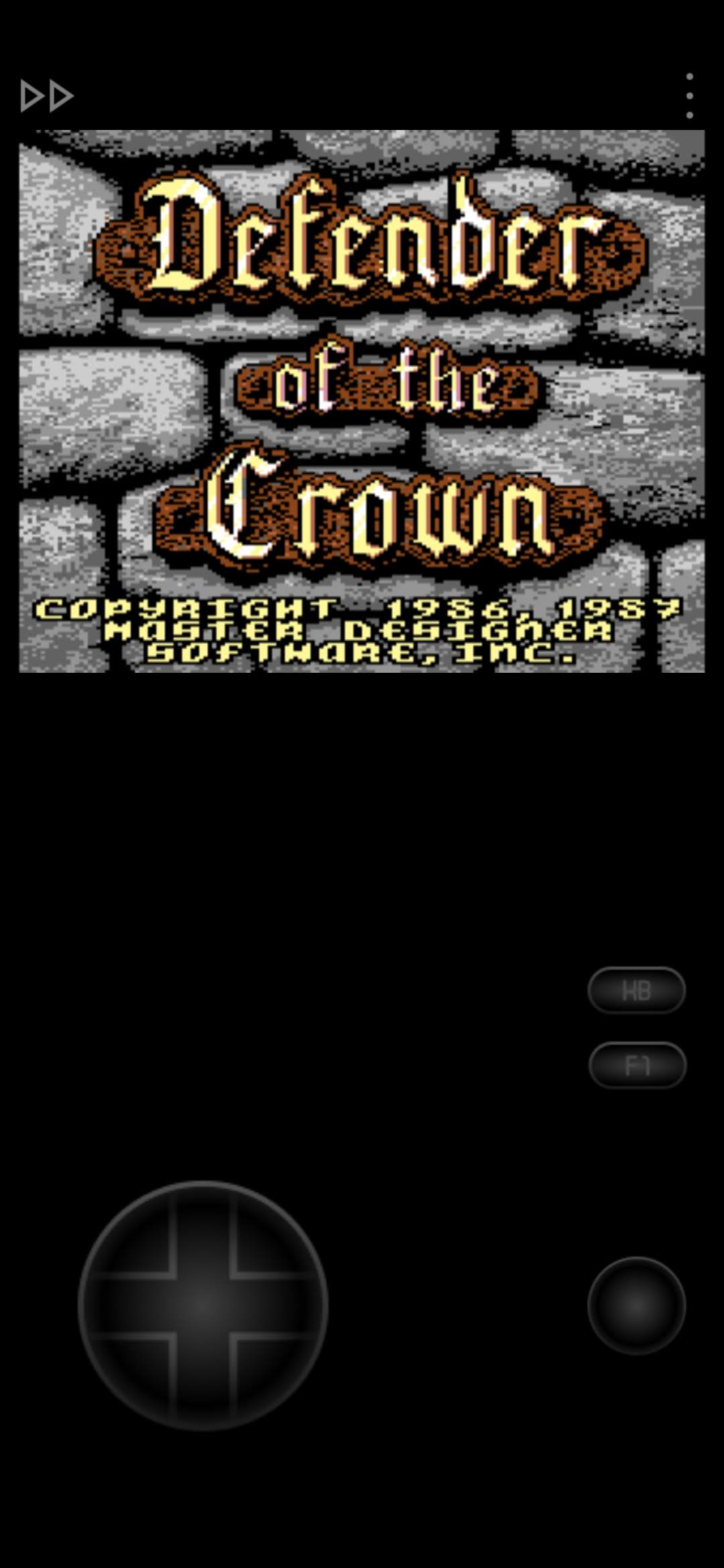
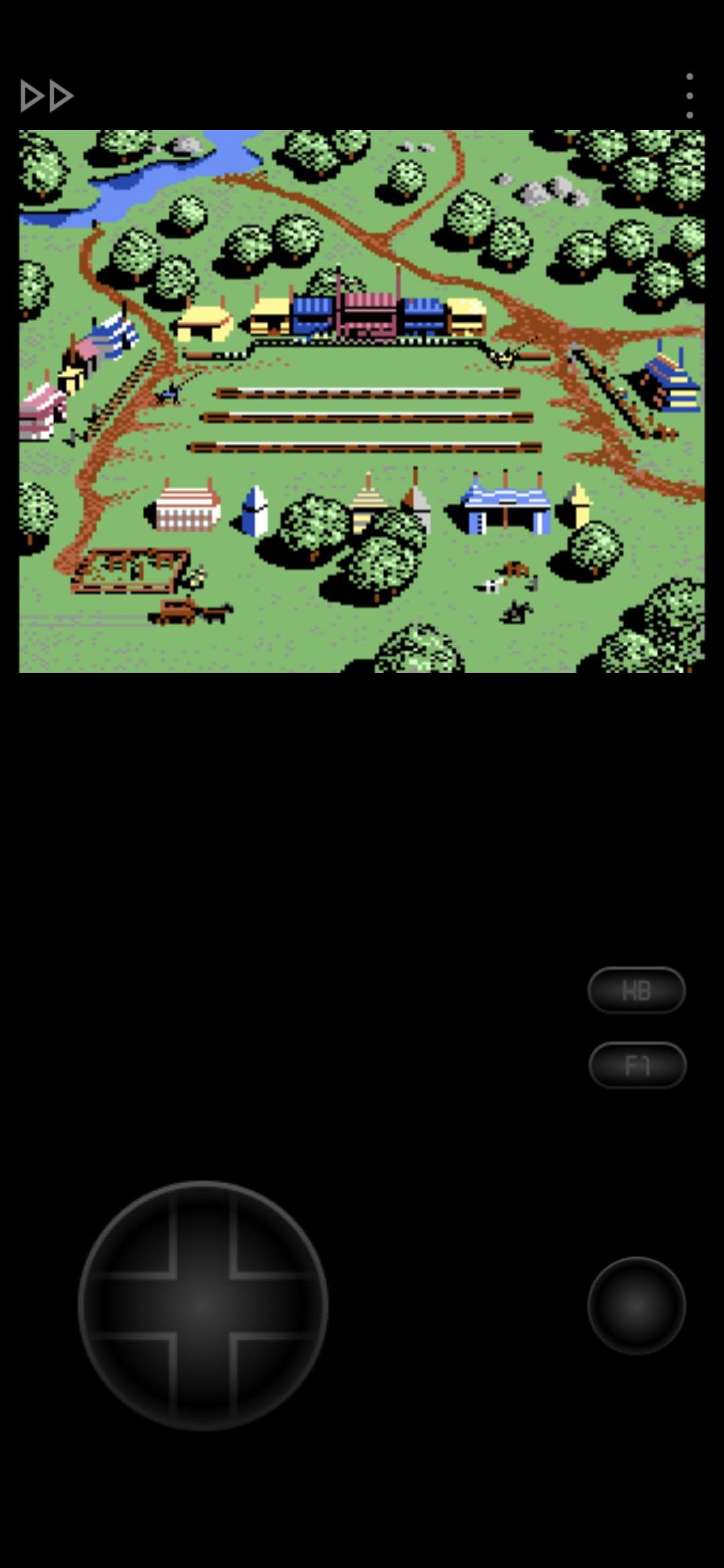
Here’s the thing about the Commodore 64, it wasn’t designed for touchscreens (those came over a decade later). Most games used a joystick plugged into port 2 and sometimes required keyboard keys as well. Trying to replicate that on a phone screen can be tricky.
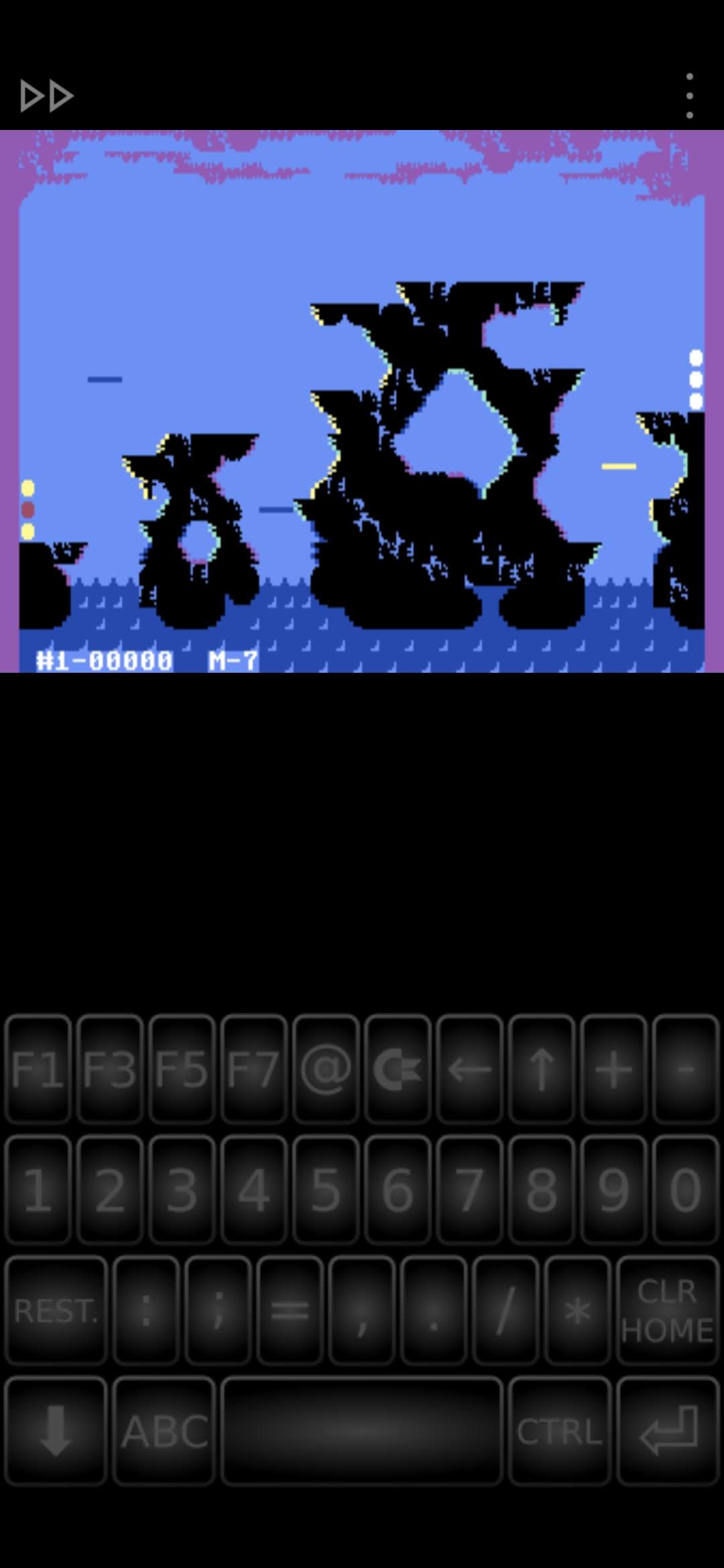
Luckily C64.emu includes an on-screen joystick and keyboard overlay that works reasonably well. But if you want the best experience, use a Bluetooth controller. Something like the 8BitDo Pro 2 or Xbox Wireless Controller works perfectly. Pair it with Android and map the buttons inside the emulator settings.
If you’re using a handheld Android device like the Retroid Pocket 5 or AYN Odin 2, you already have built-in controls ready to go.
And now the caveat. The keyboard on the original Commodore 64 is very different from what we’re used to today. Because of that, C64.emu uses its own emulated keyboard layout. It works, but honestly it’s probably the weakest part of the app. Some symbols simply aren’t shown on the virtual keyboard when you switch to character input, which can be confusing the first time you try to type commands.
Take the classic LOAD"*",8,1 command for example. The quotation marks are not visible on the keyboard at all. To type them, you need to press SHIFT, switch to character input, and then press 2.
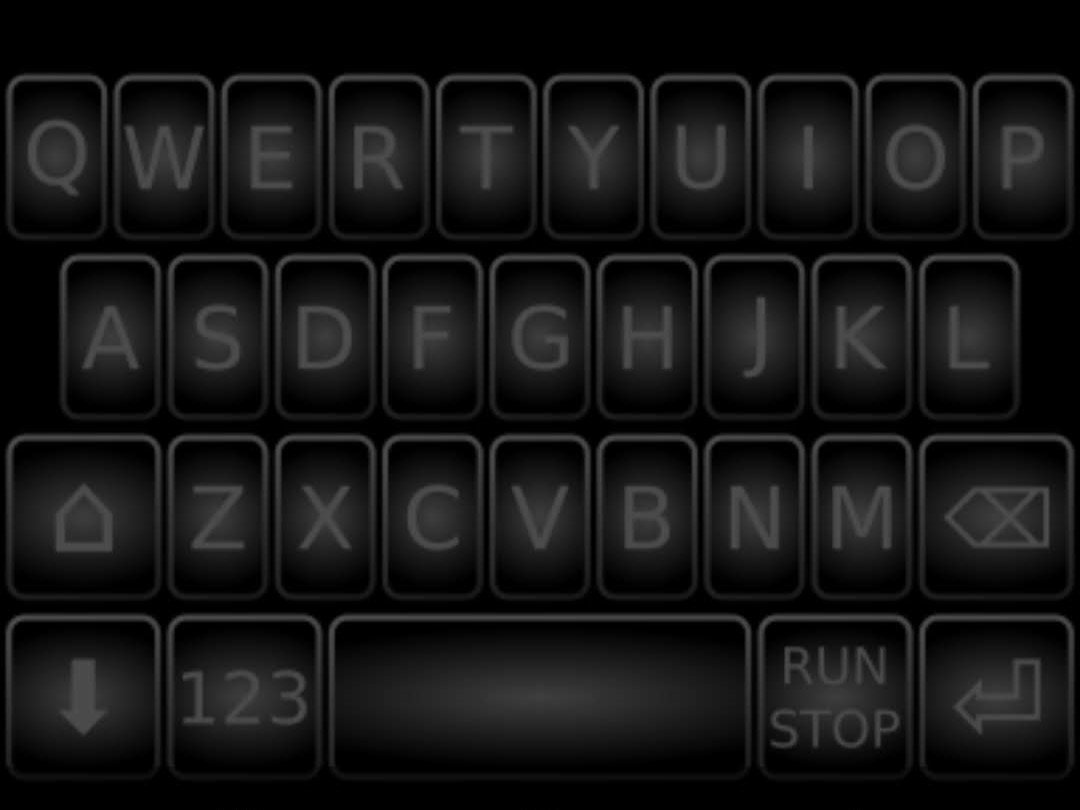

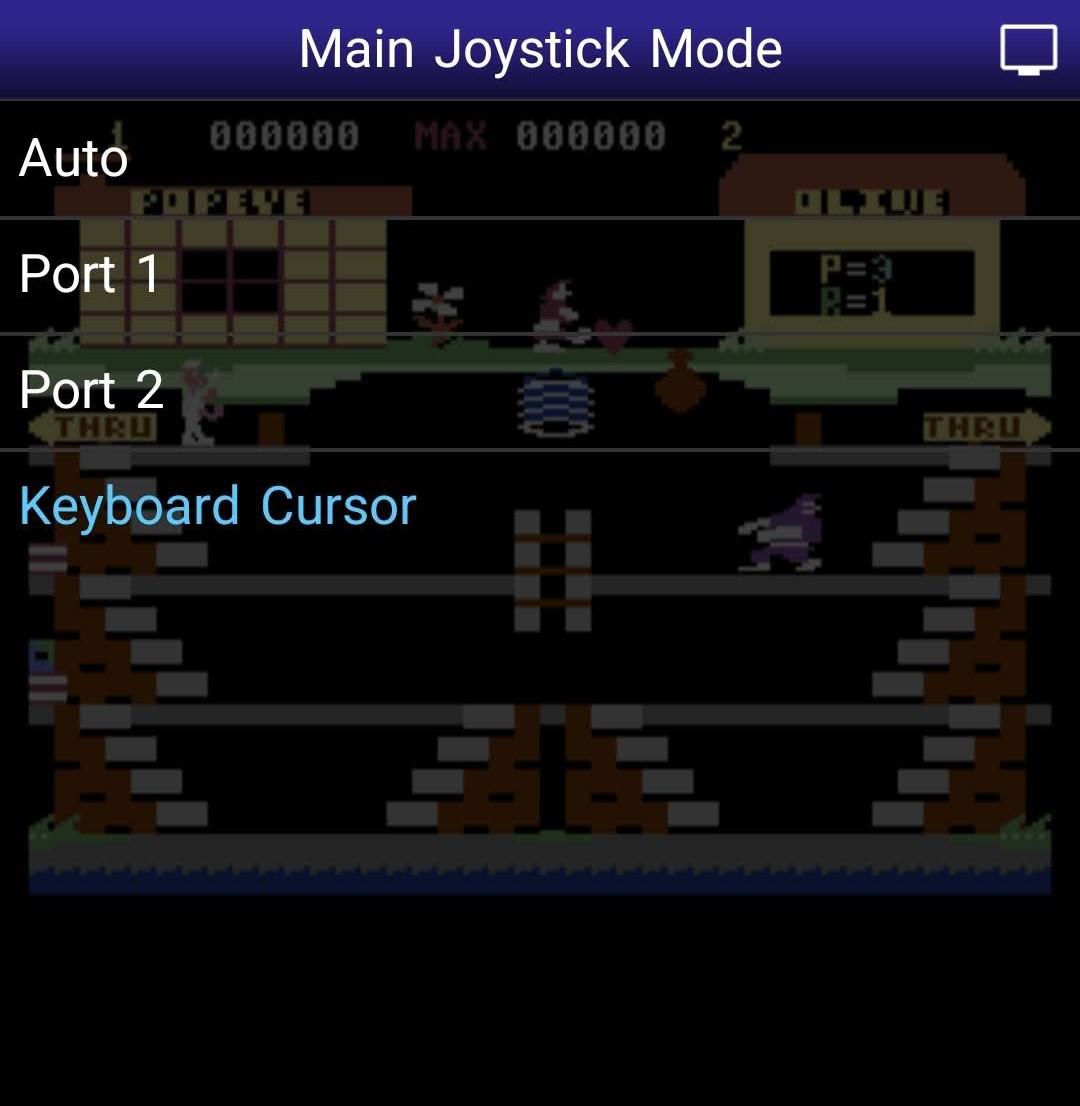
Cursor keys are another small quirk. The character keyboard inside the emulator is missing the DOWN and RIGHT arrows. If you run into a game or program that needs them, the easiest workaround is to set your joystick to CURSOR mode inside the emulator settings.
Setting Things Up
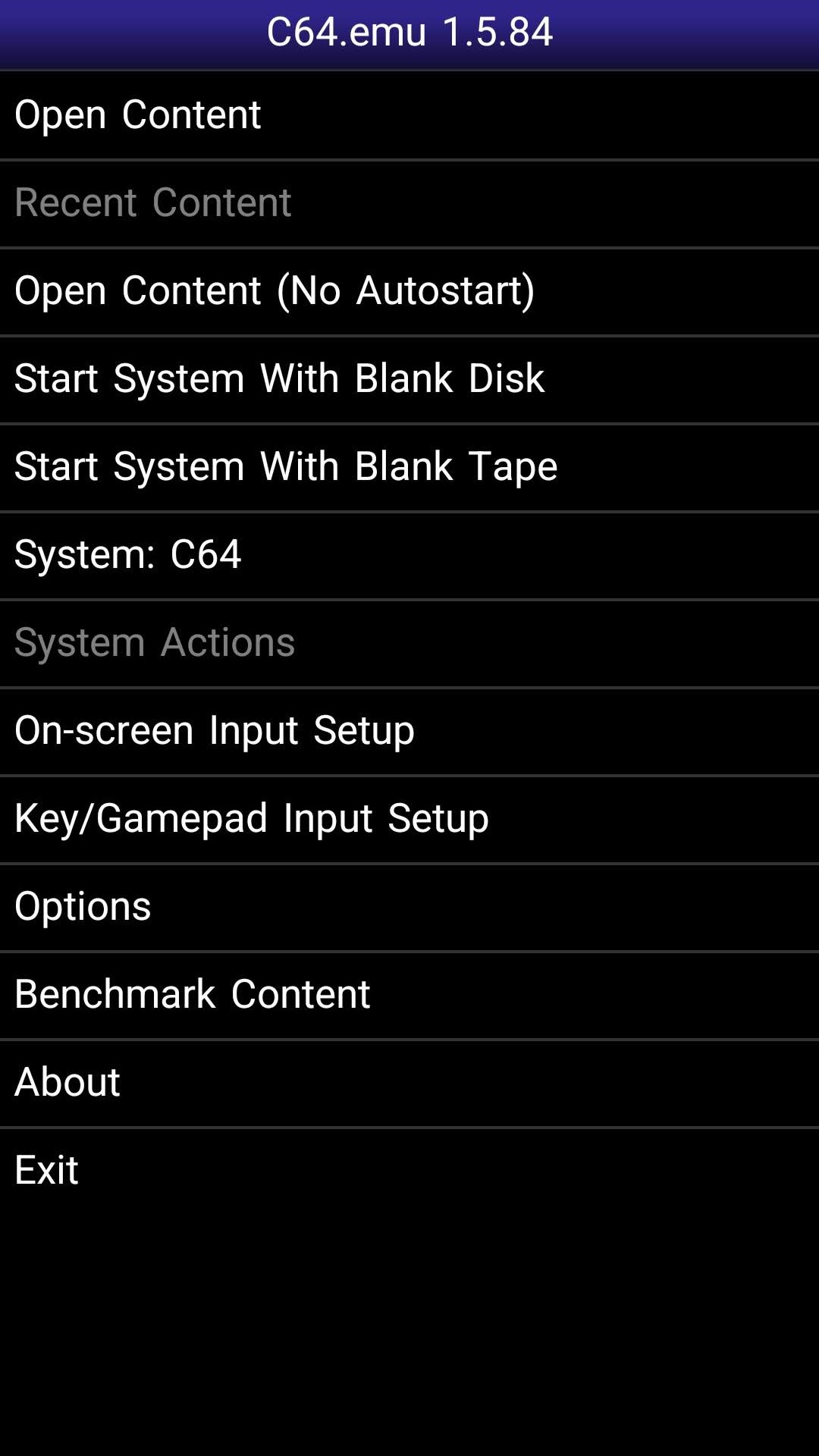
Before you do anything else, open C64.emu and navigate to:
Options > File Paths > VICE System Files > Download VICE System FilesThis will open a browser window that will lead you to a page where you can download C64.emu-VICE-3.9.zip, a specific plugin file required for the C64.emu Android application to utilize the enhanced VICE 3.9 emulation core. Mirror here.
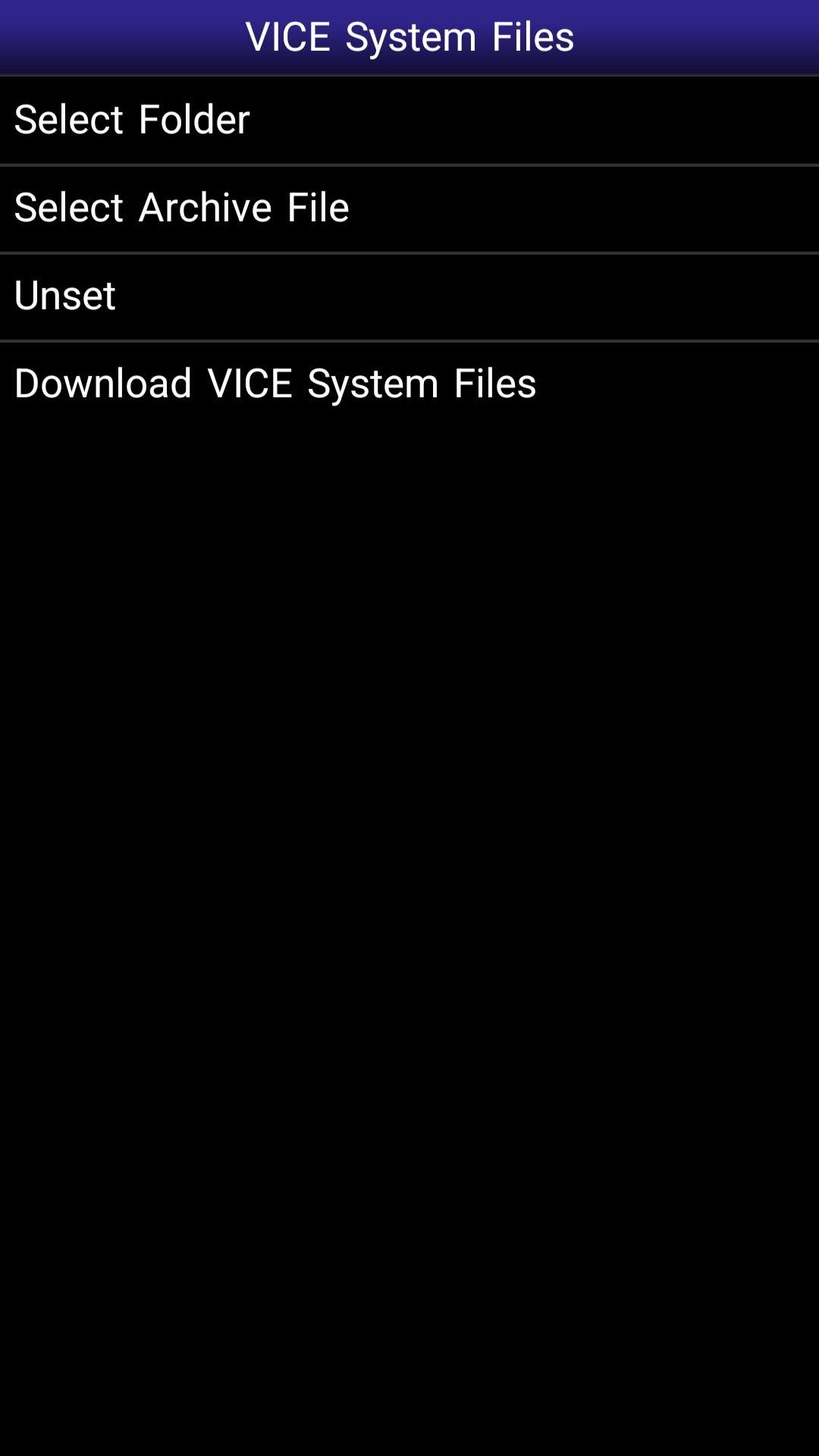
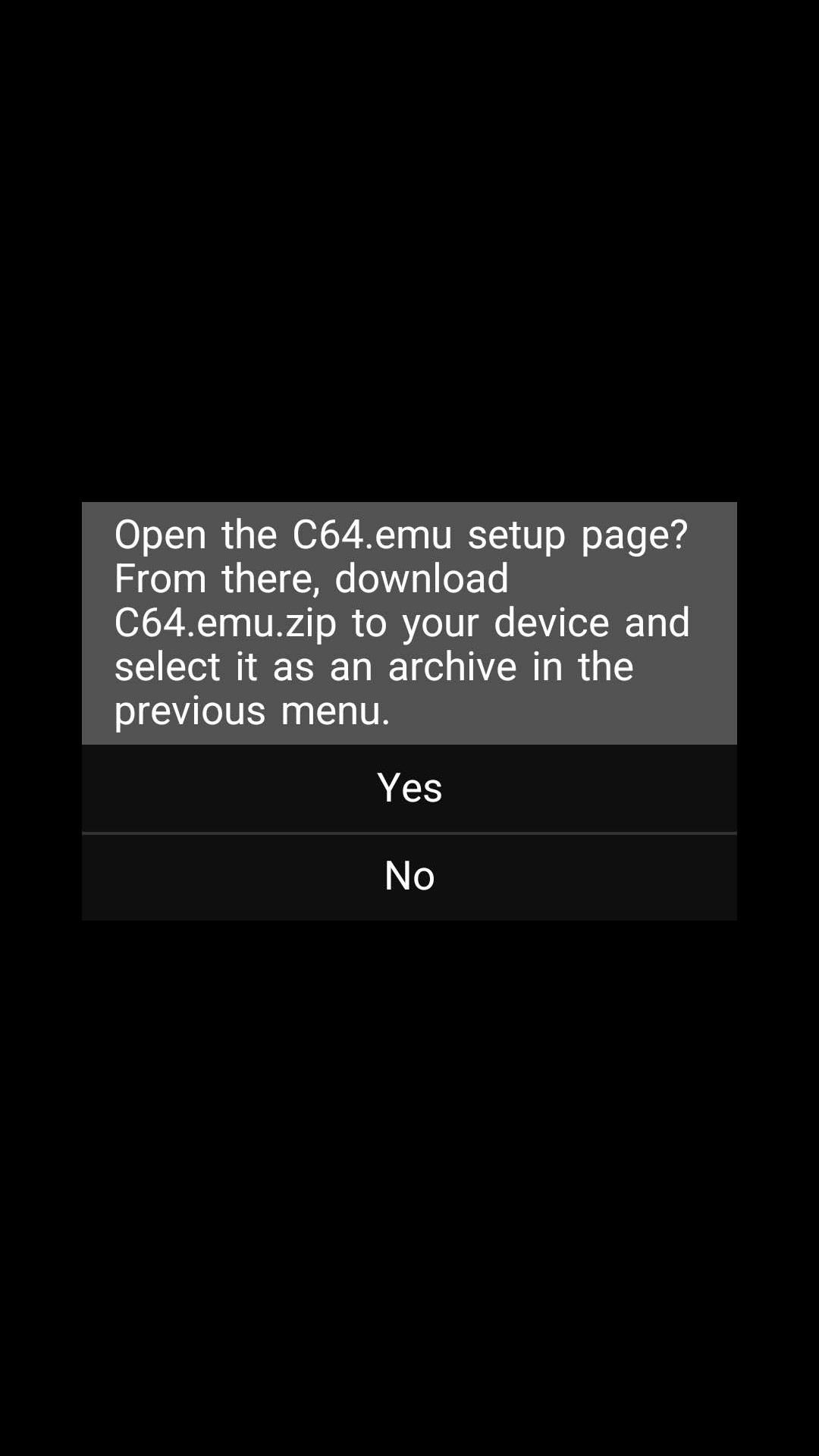
After you have it downloaded, just tap on “Select Archive File” and then simply browse for the file you previously downloaded (usually in your Downloads folder). There is no need to unzip it first.
Loading the games
Loading games is incredibly simple. Open C64.emu, then choose Load Content. Navigate to your game folder and select the file you want to play. Or just select the folder you previously created containing your games.
For PRG files the game usually launches immediately.
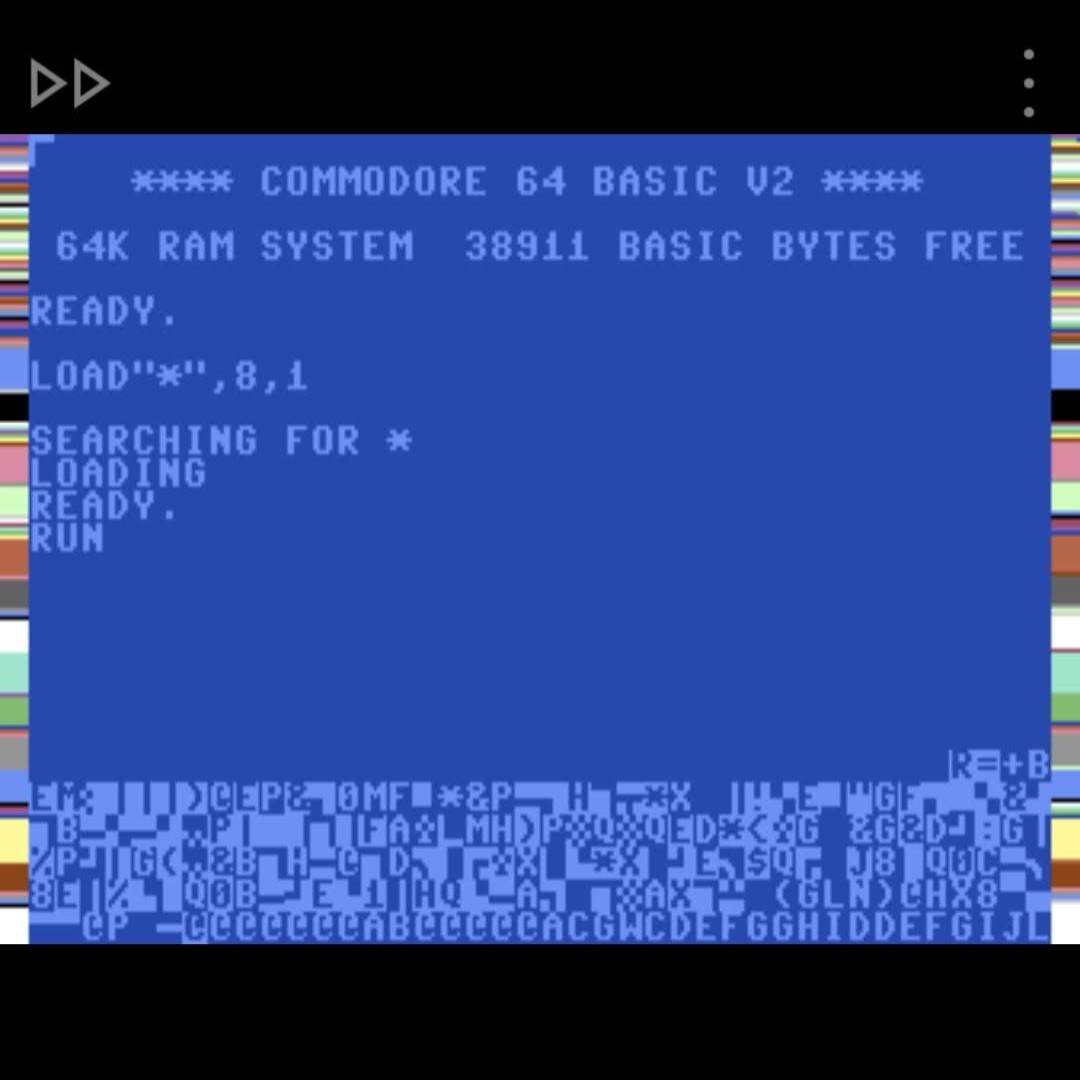
For D64 disk images you might see the familiar blue Commodore 64 BASIC screen.
If that happens, just type:
LOAD"*",8,1Then press Enter. After the prompt returns READY. just type:
RUN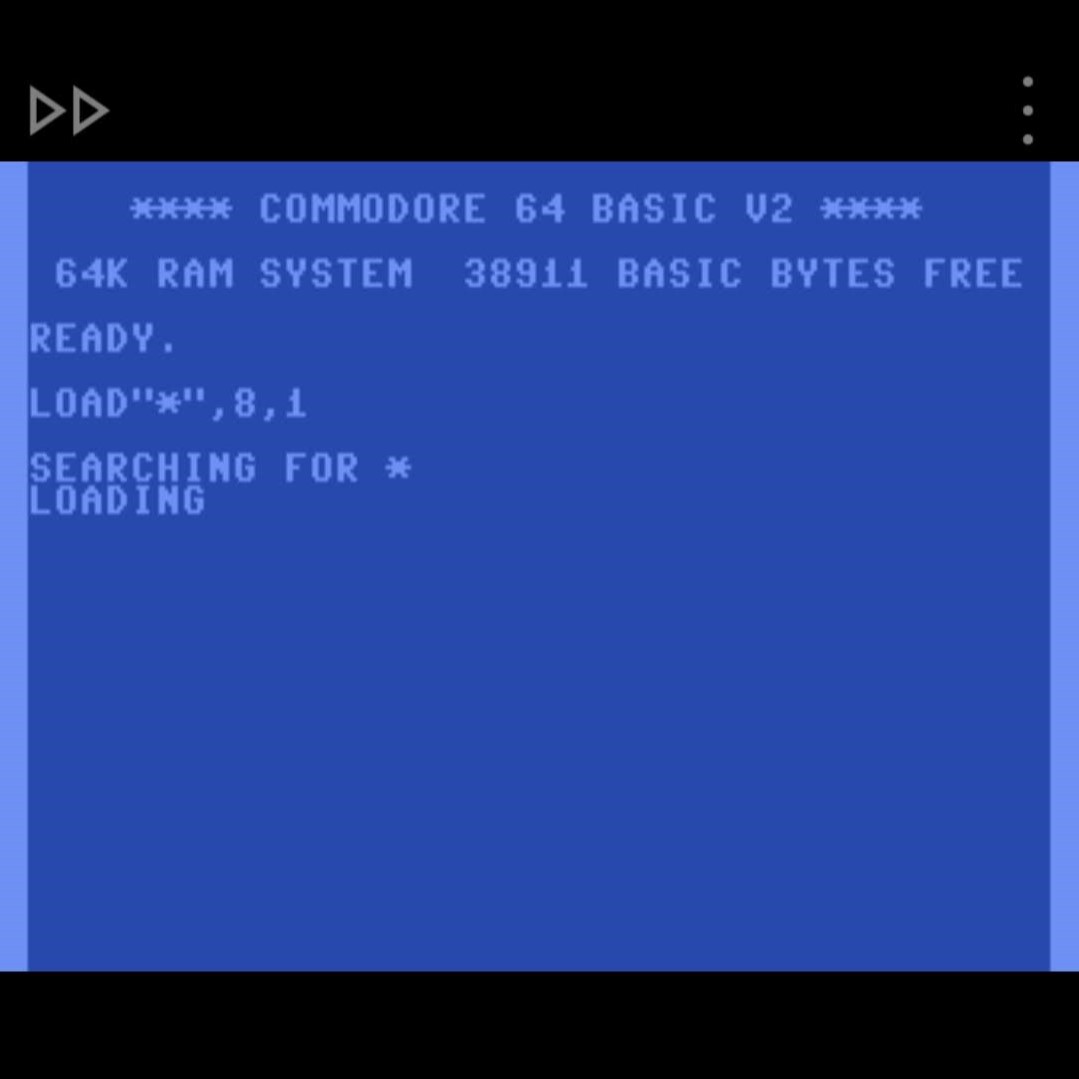
Save States: The Feature We Always Wanted
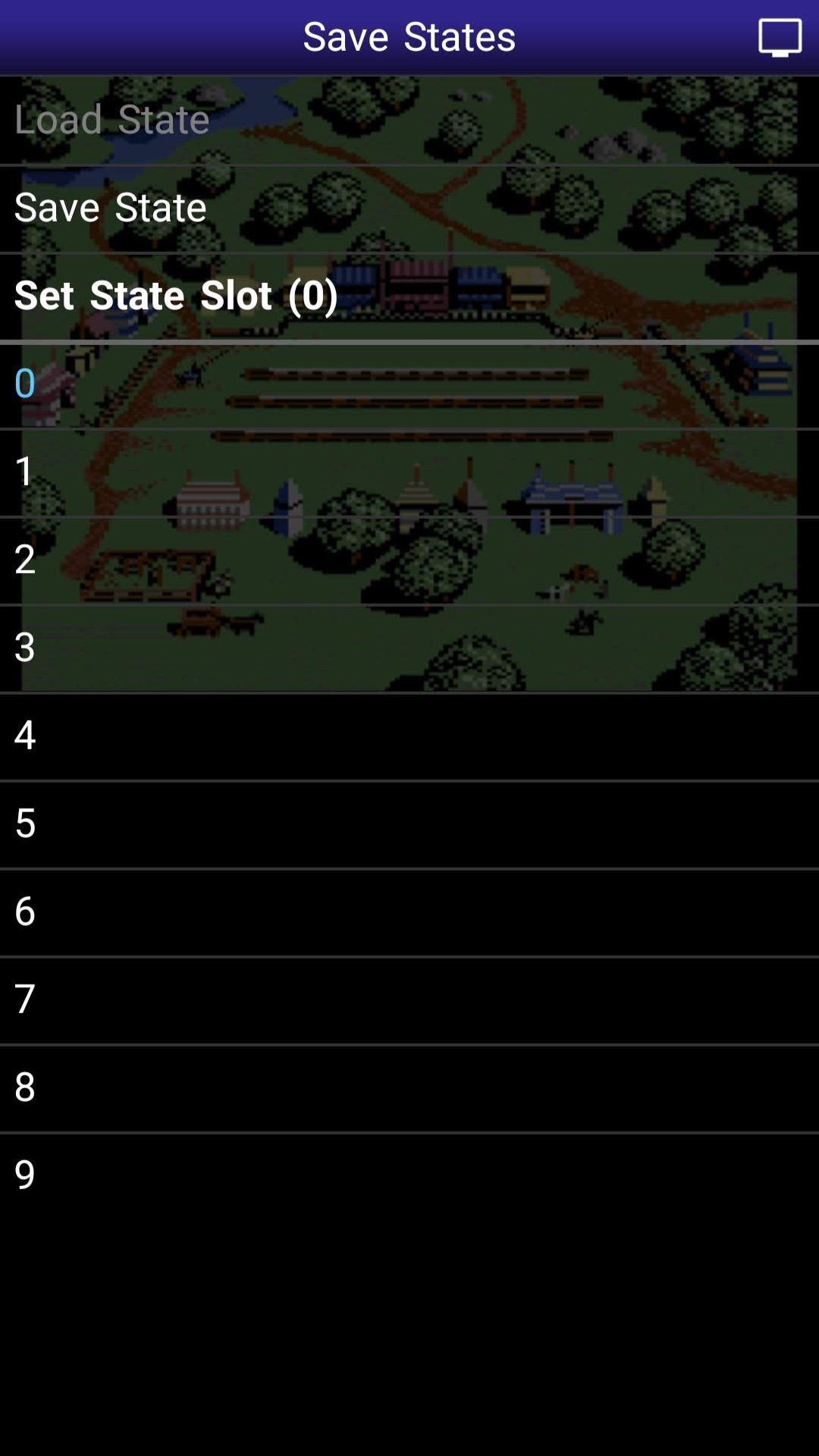
Back in the original Commodore 64 era, if you died in a game you started over. That was life. Modern emulators bring something magical: save states and with C64.emu, you can save your progress instantly and reload it later. No passwords, no long reload times, no frustration.
It almost feels like cheating but honestly it makes many classic games far more enjoyable today.
Optional: Disk Swapping
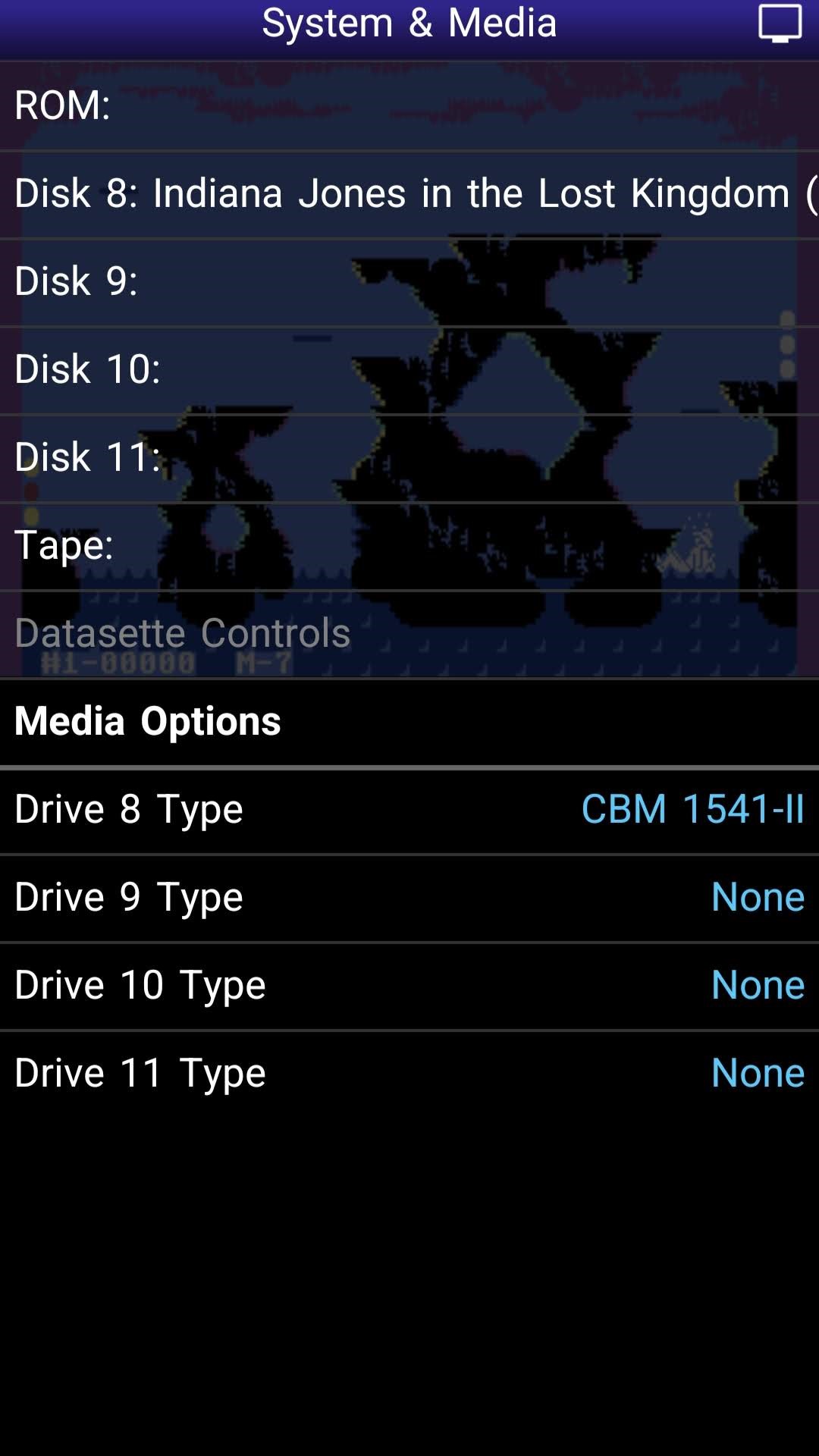
Multi disk games were fairly common on the Commodore 64, especially for adventure games and larger titles. However, unlike some later systems, these games usually used multiple sides of the same disk rather than completely separate disks. In C64.emu, disk images often contain both sides inside a single D64 file. When a game asks you to flip the disk, open the emulator menu, go to the Drive 8 options and switch to the other disk side. It may sound confusing at first, but once you know where the option is, swapping disk sides takes only a few seconds.
Media Control > Disk 8: > Eject > Insert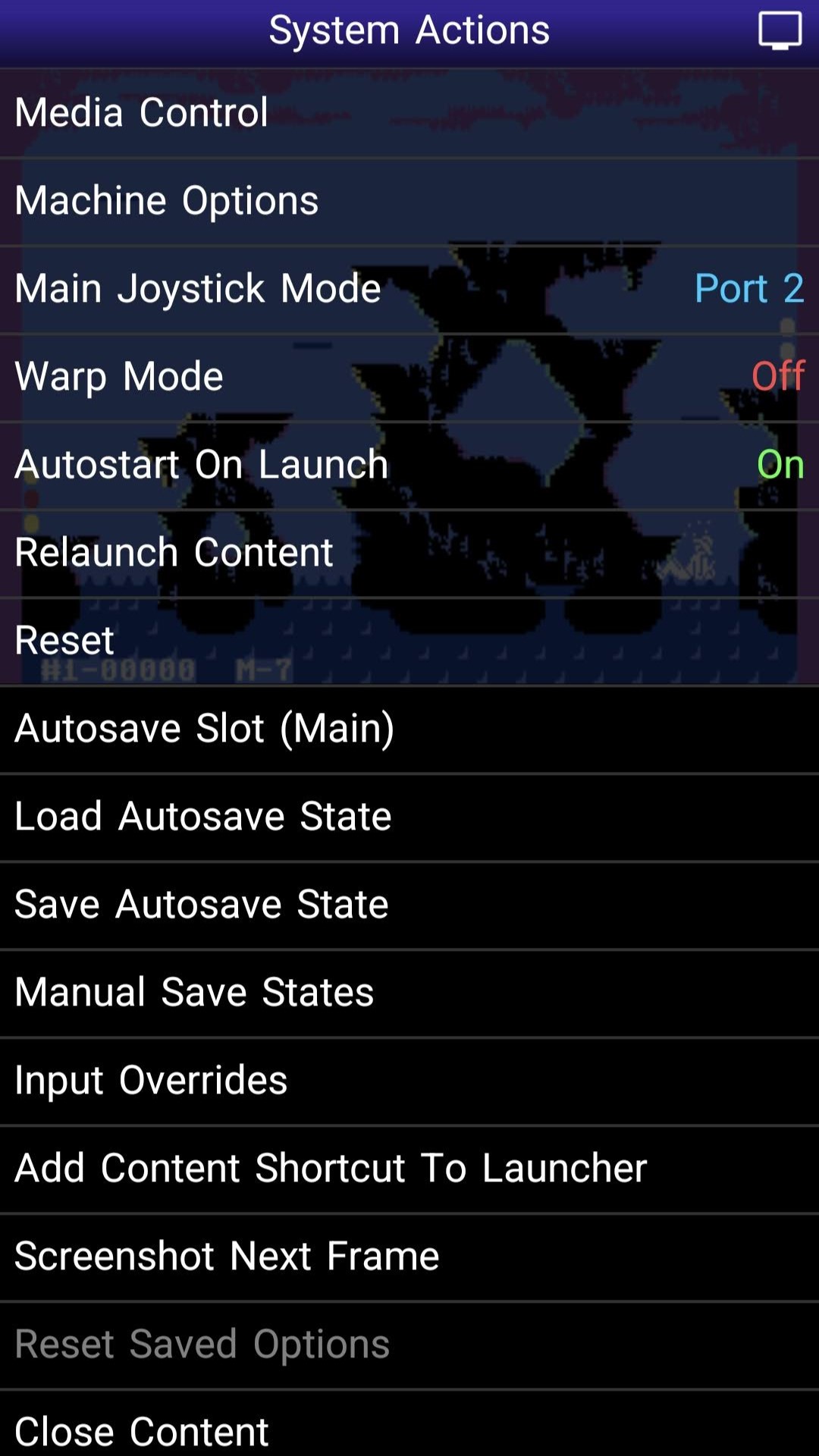
The Sound: SID Music
One thing that made the Commodore 64 legendary was its sound chip. The MOS Technology 6581 SID produced music that still sounds incredible today. Many composers pushed that chip far beyond what anyone expected in the early 80s.
Modern emulators replicate this hardware extremely well. With headphones on, the music from classics like The Last Ninja or International Karate still sounds fantastic. In fact there are entire communities dedicated to SID music preservation and remixing.
Performance on Android
Even budget Android phones today are massively more powerful than the C64. Emulation runs at full speed on almost any device made in the last ten years. You don’t need a gaming phone. You don’t need a flagship device. If your phone can run modern apps, it can run C64 emulation without breaking a sweat.
Why go through all the trouble?
Why bother emulating the C64 in 2026? Because this machine represents one of the most important eras in gaming history. Thousands of games were released for it. Entire genres evolved on it. And many developers who later shaped the modern industry started their careers on this humble keyboard computer.
Also… the games are still fun.
In short,
Install C64.emu.
Download a few game files.
Pair a controller if you want.
Links
Dejan B.
Discover more from AndroGaming.com
Subscribe to get the latest posts sent to your email.